Free tutorial · Chapter 2 of 12
Add and adjust media
Add local media, crop and position it, then replace it.
Free Free on every plan
Before you start
- Open a story page in the page editor.
Step by step
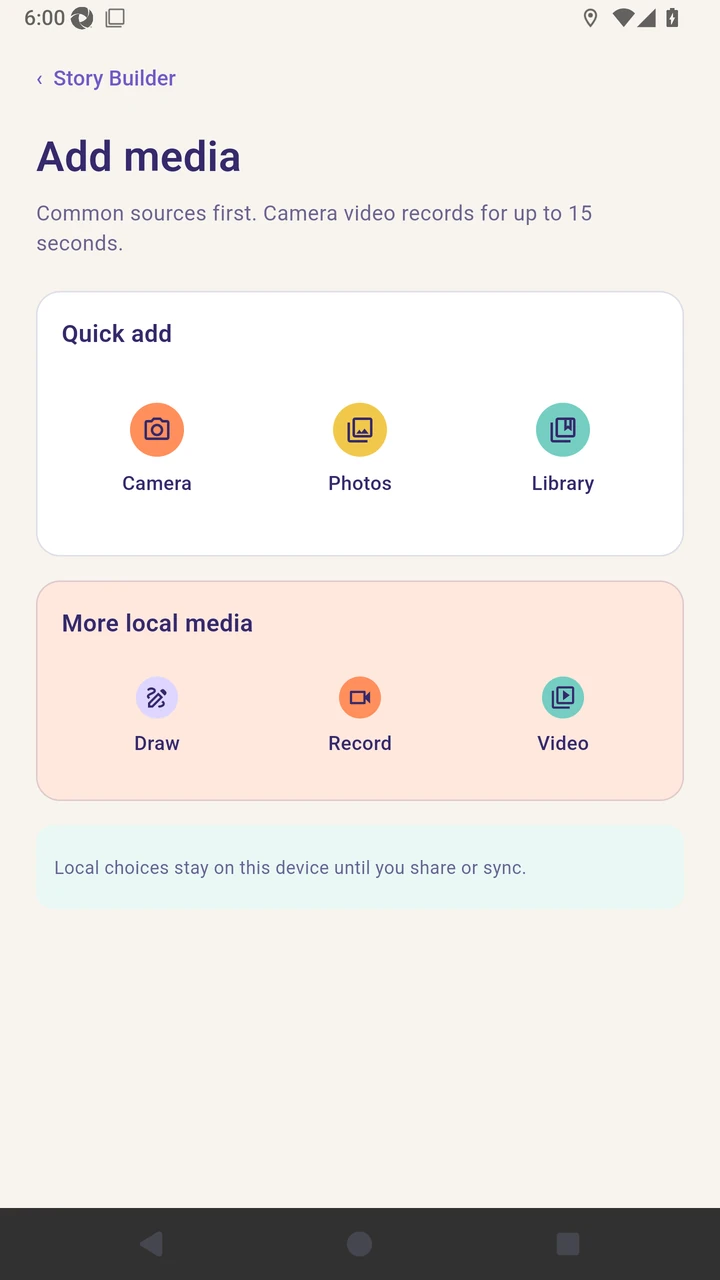
Open Media and choose Add or create media.
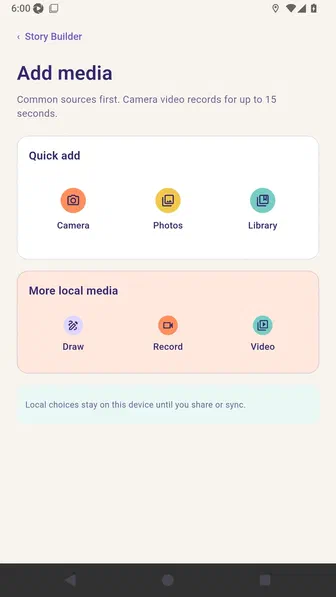
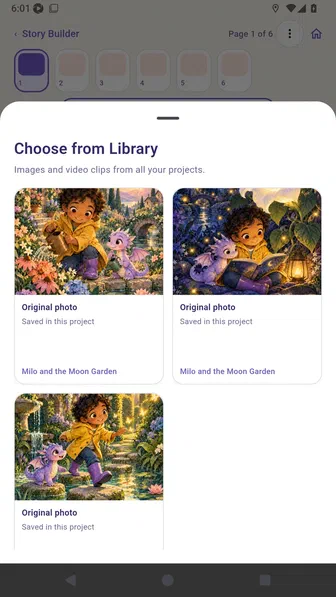
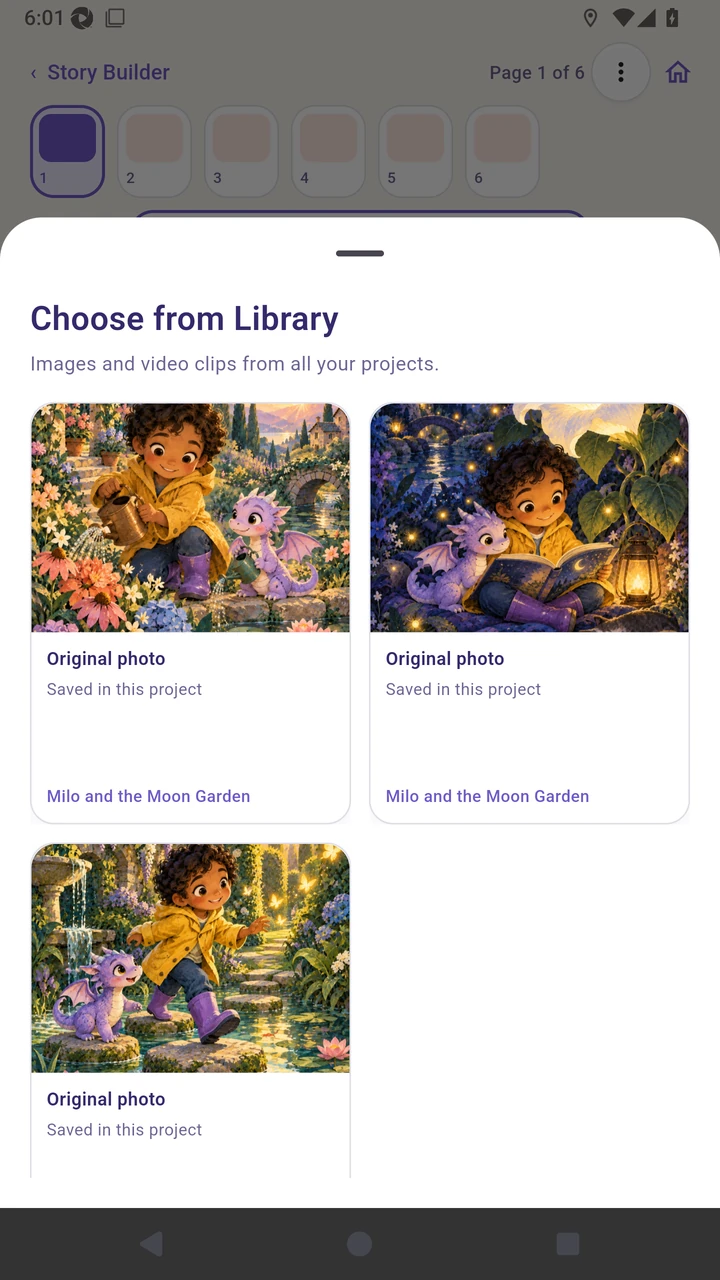
Open Library to browse reusable artwork already saved in the app.
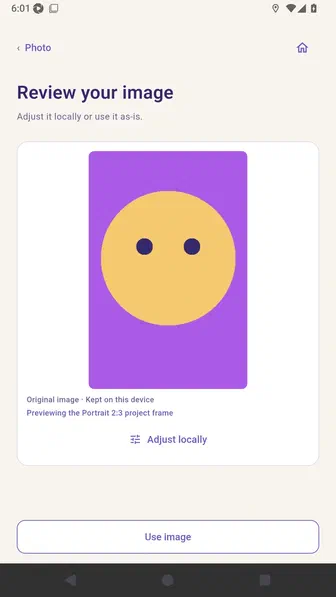
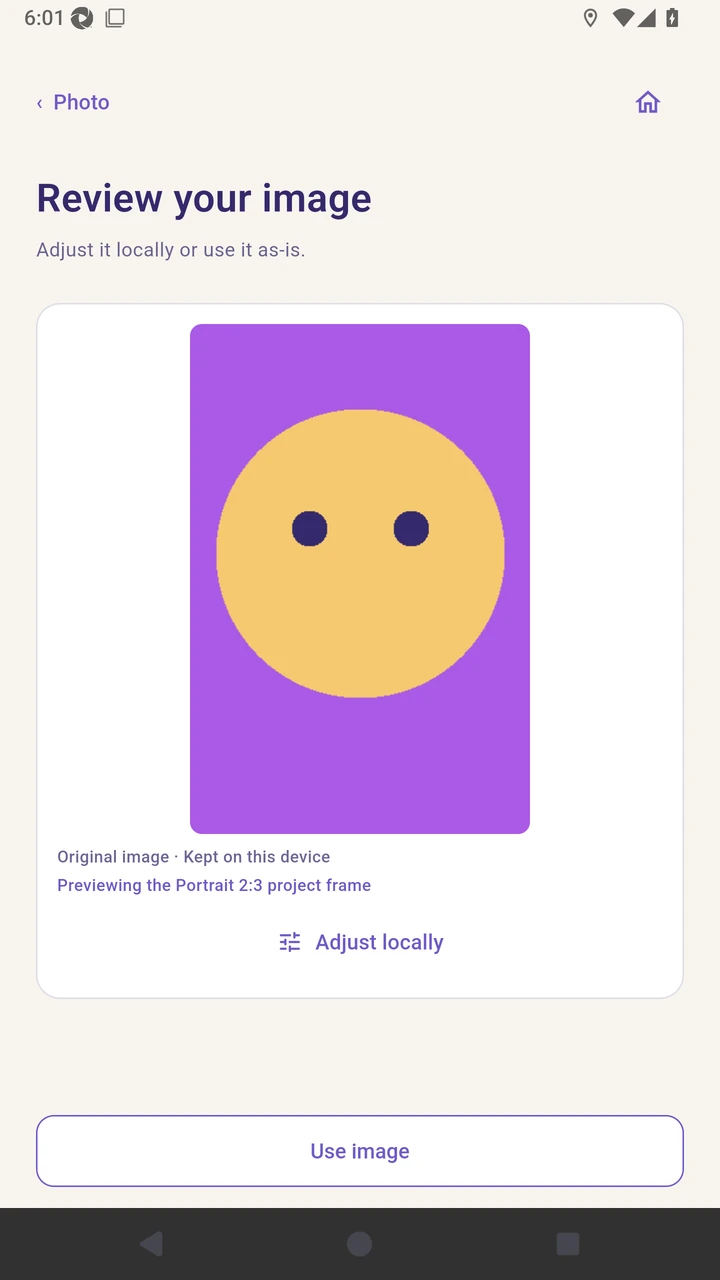
Choose Photos, select an image from the device, and review it before adding it.
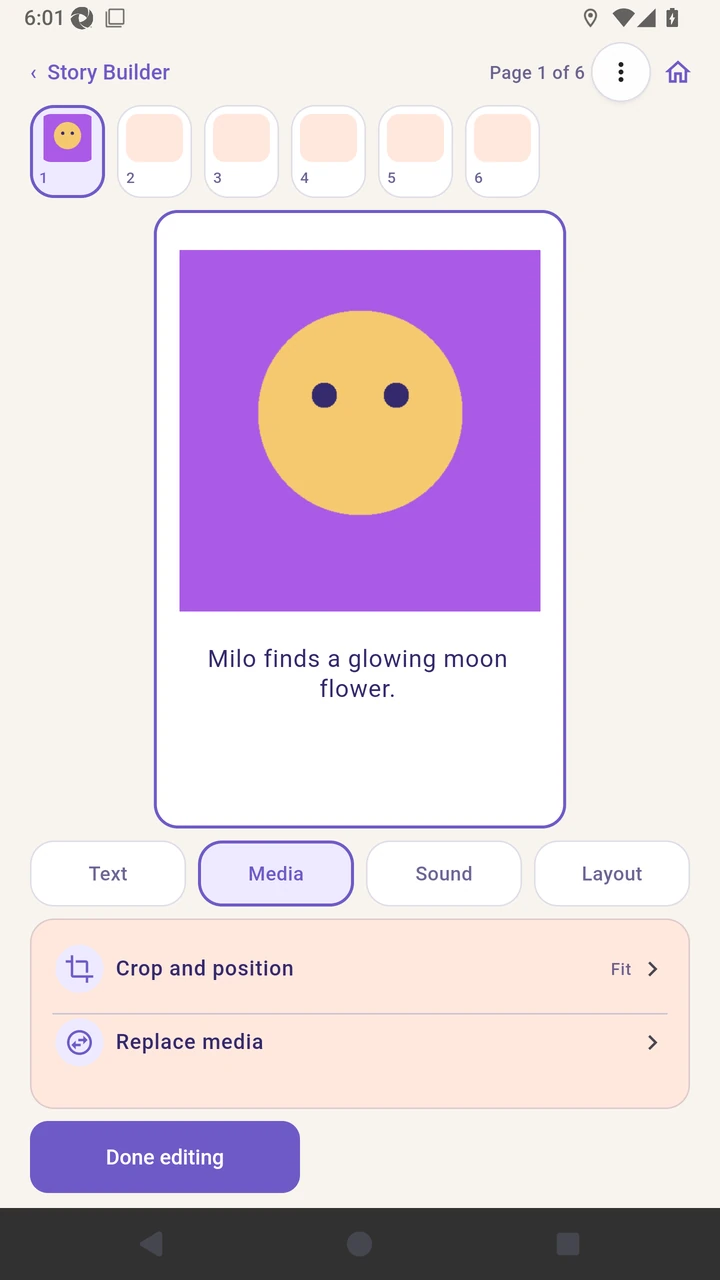
Open Media again to find Crop and position and Replace media.
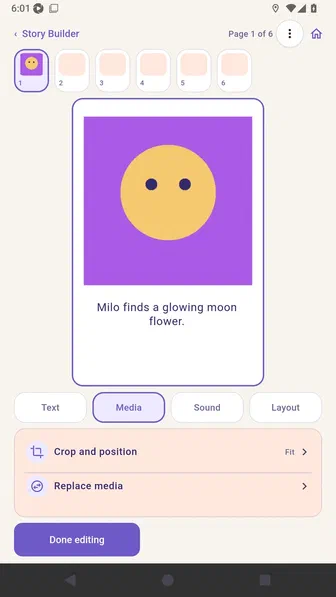
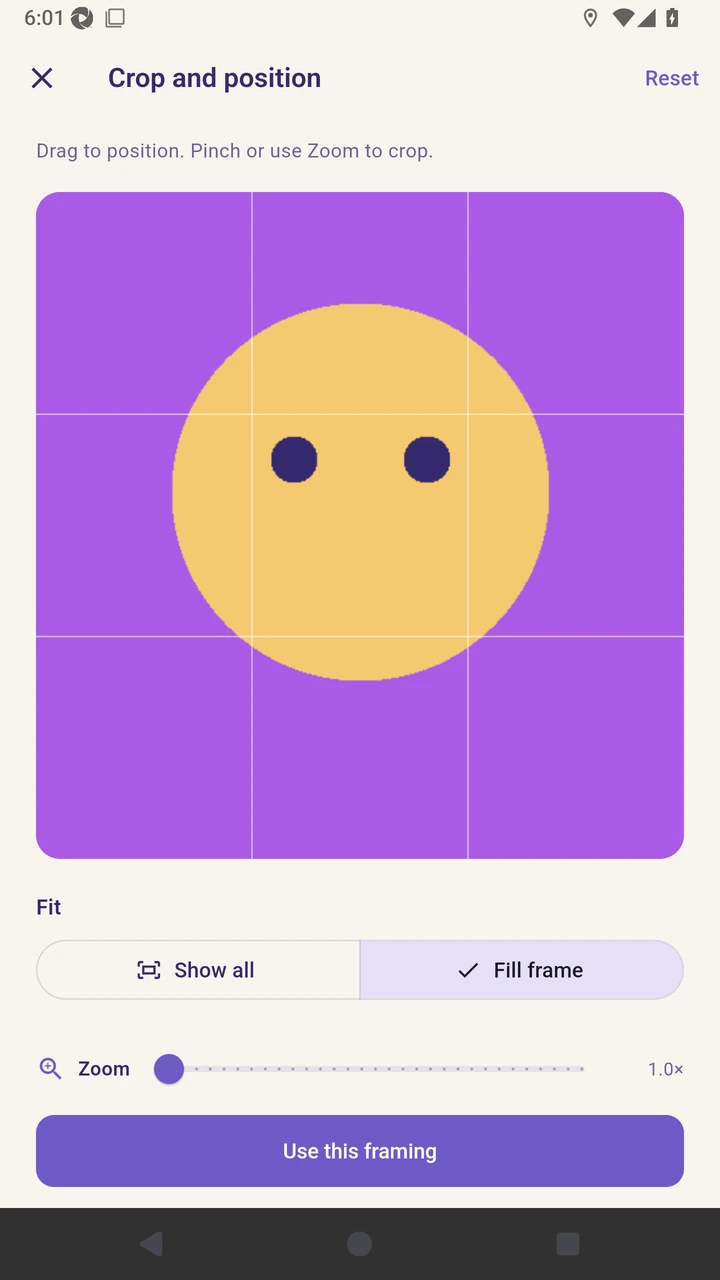
Choose Fill frame, then drag the image to set its focal point. Pinch or use Zoom when more cropping is needed.
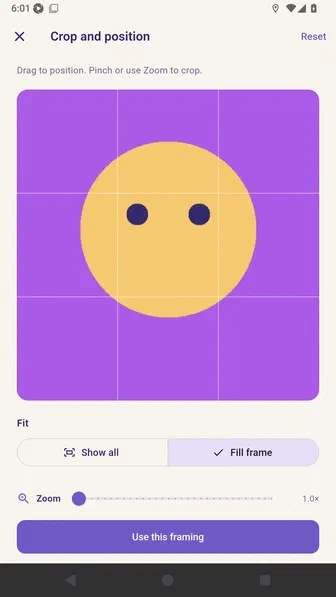
Choose Replace media when you want a different image on the same page.
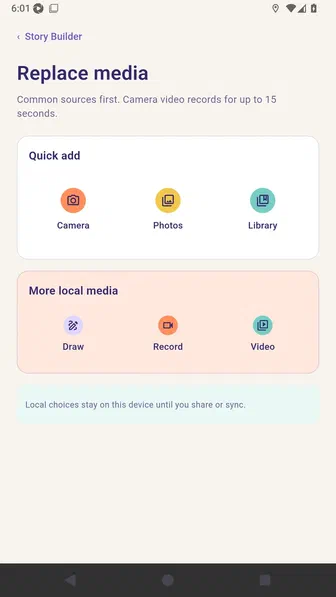
Choose the sunrise garden artwork from Library as the replacement.
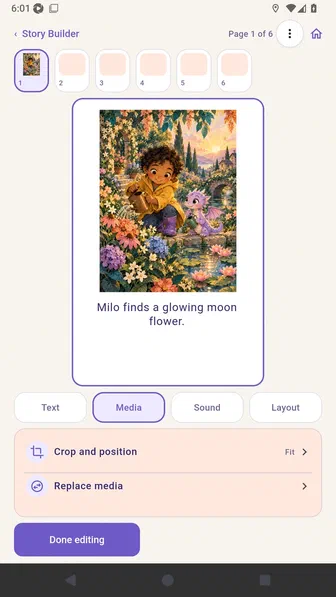
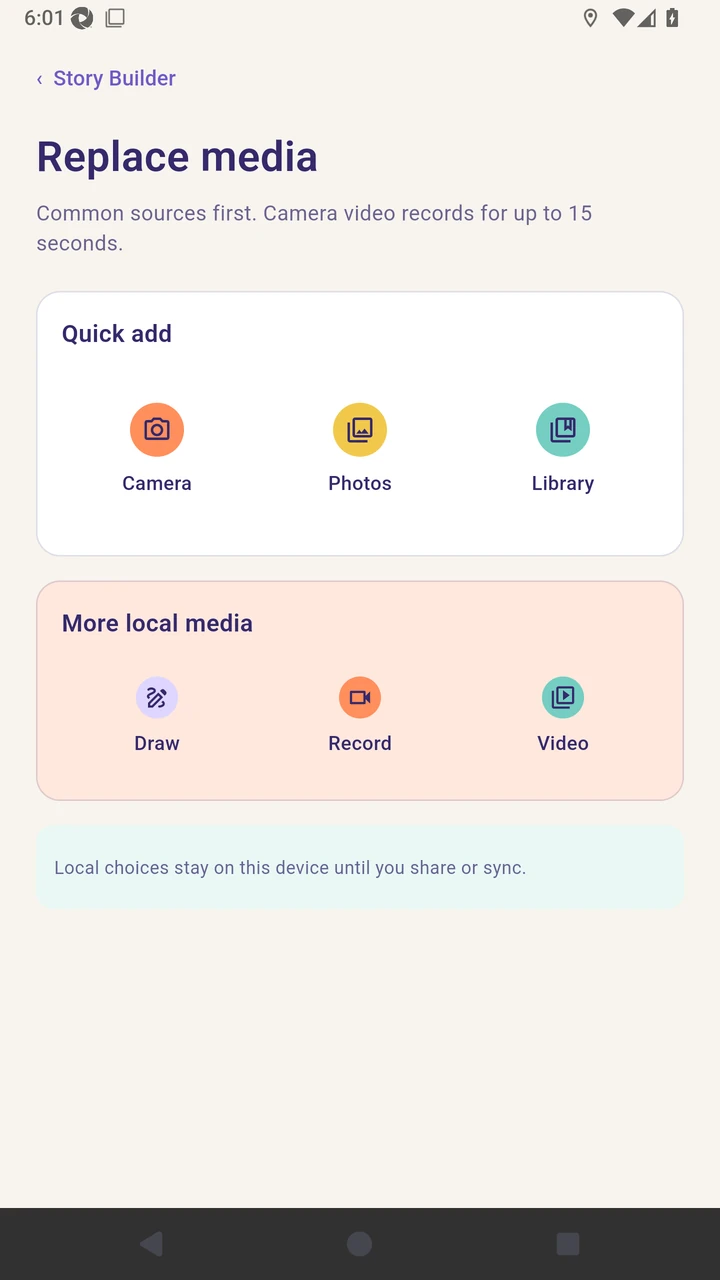
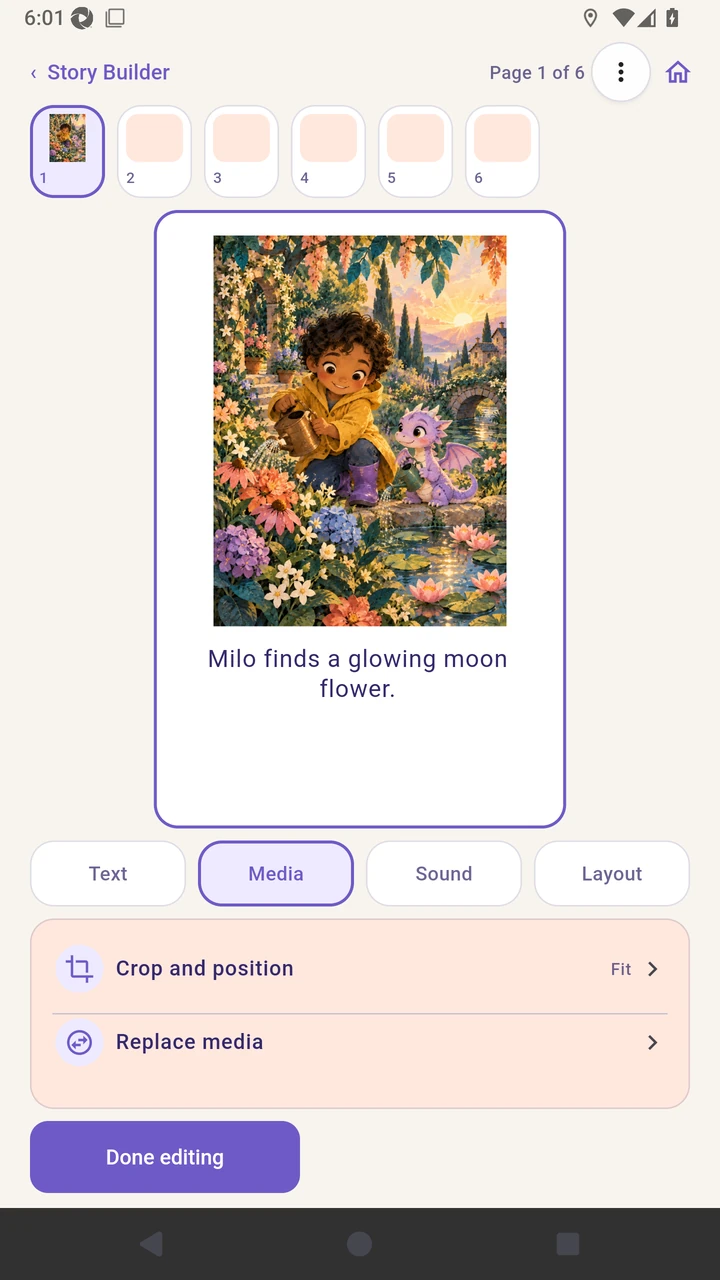
Result. The replacement image is saved on the selected page with its own framing.
Read the narration transcript
Open Media and choose Add or create media. Library contains reusable artwork for this project. Open Photos, select the moonflower, and use the original. Open Media again for crop and replacement tools. Choose Fill frame, then position the subject. Choose Replace media and open Library. Select the sunrise garden; the page text stays unchanged.