Free tutorial · Chapter 7 of 12
Add another language
Add a language and enter its cover and page text with the device keyboard.
Free Free on every plan
Before you start
- Enable the intended language in the device keyboard when needed.
Step by step
Choose Add another language in Story Builder.
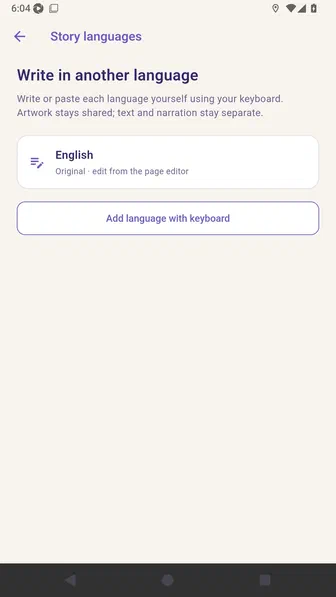
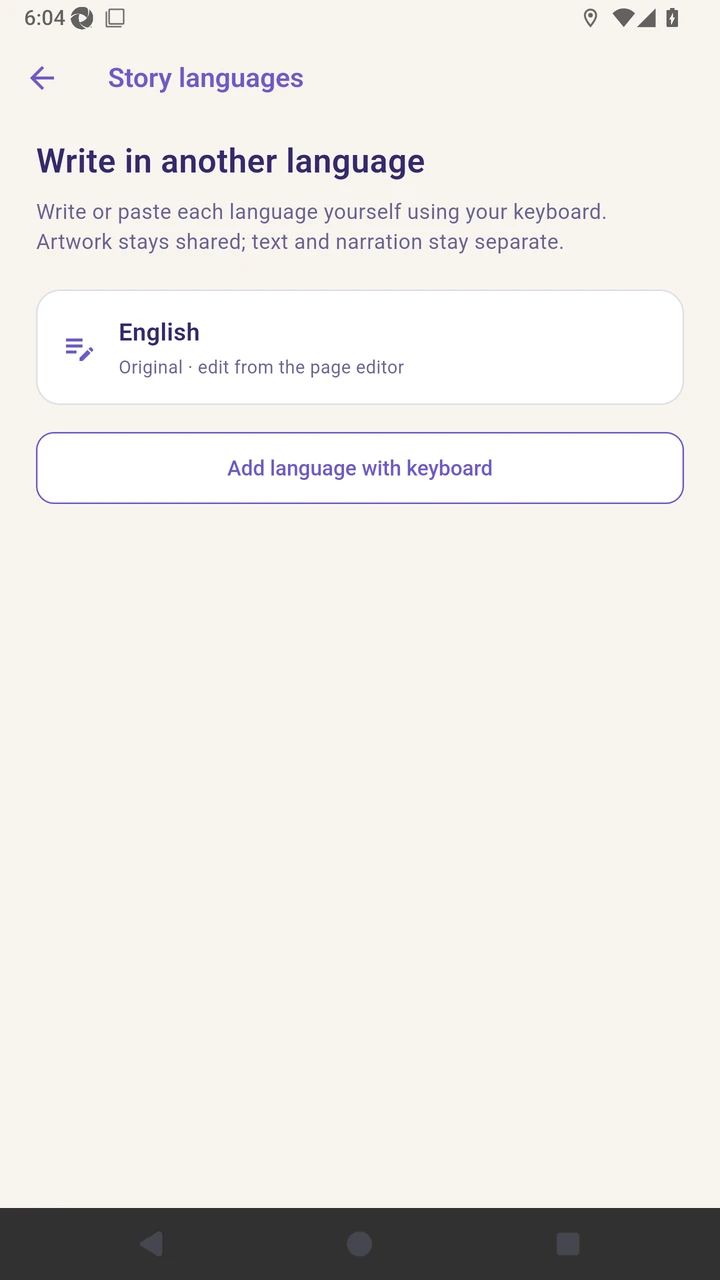
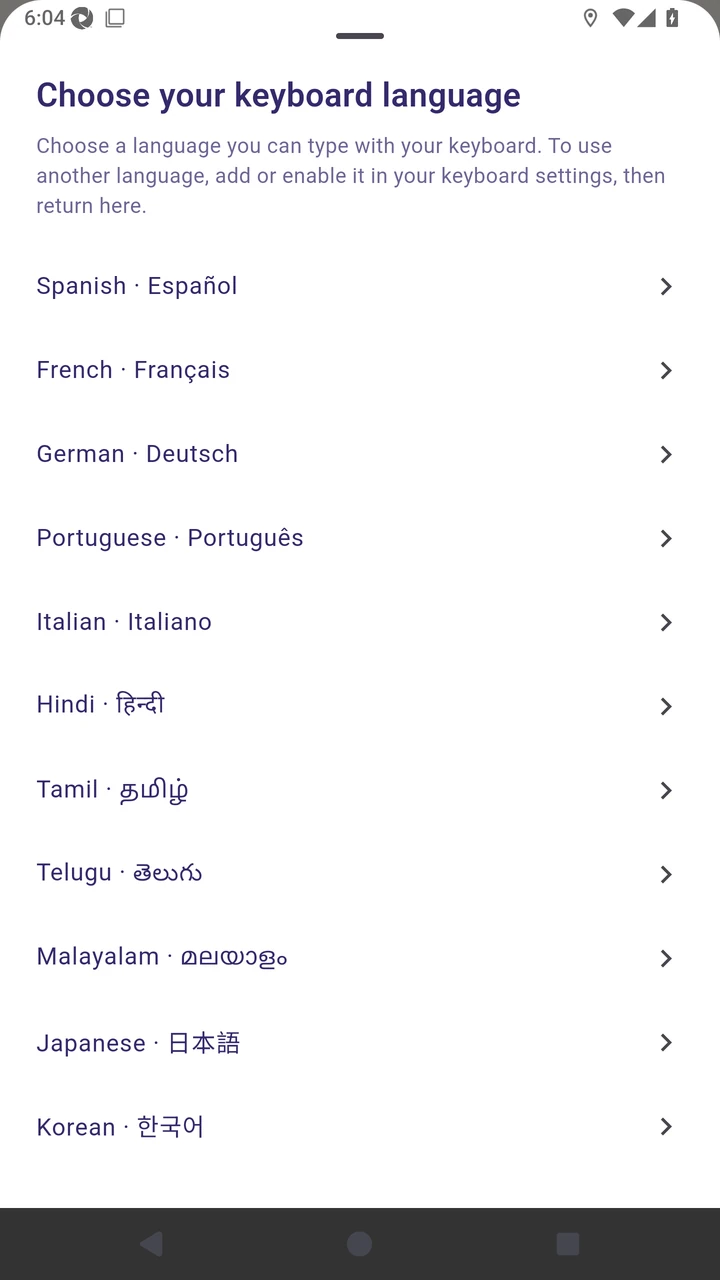
Choose Add language with keyboard, then select a language available on the device.
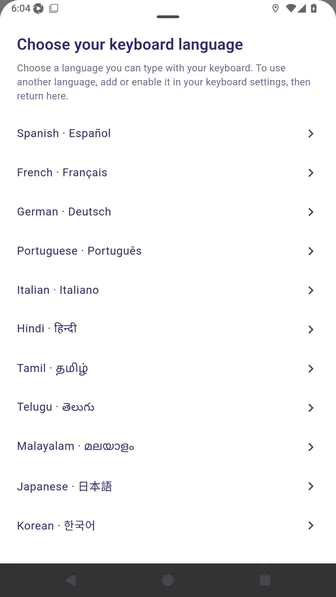
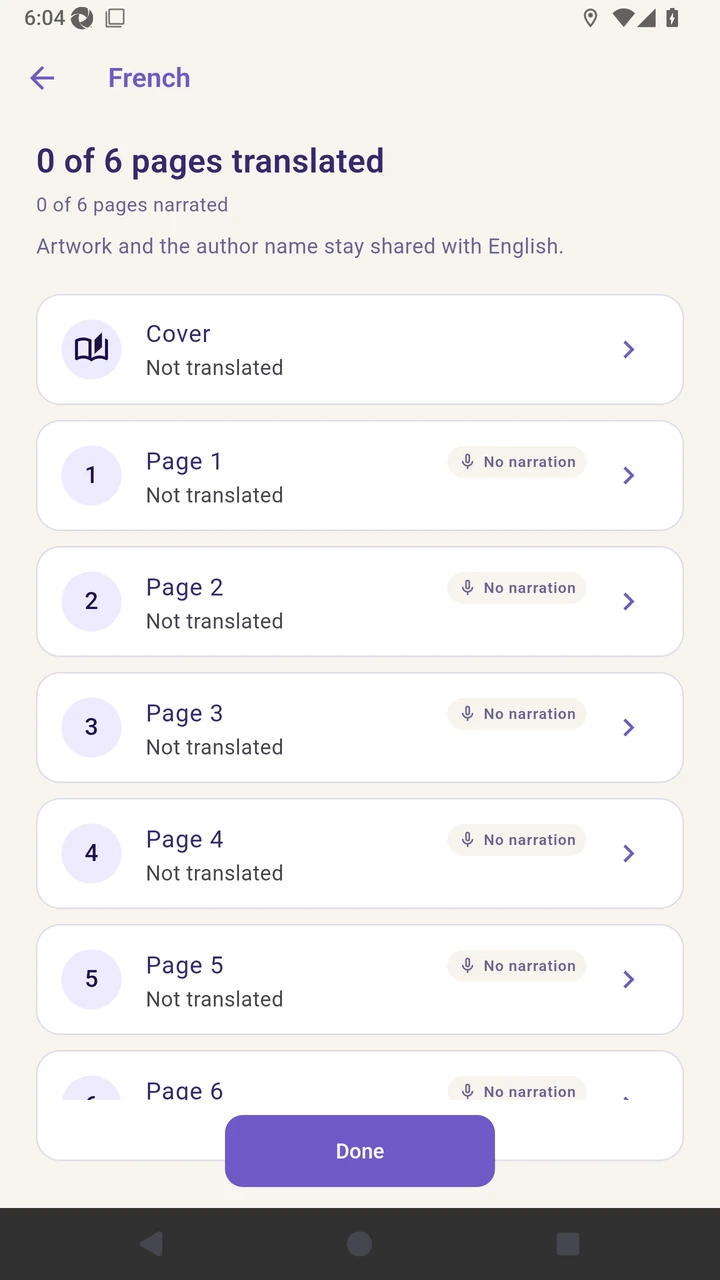
Select French to open its independent cover and page review list.
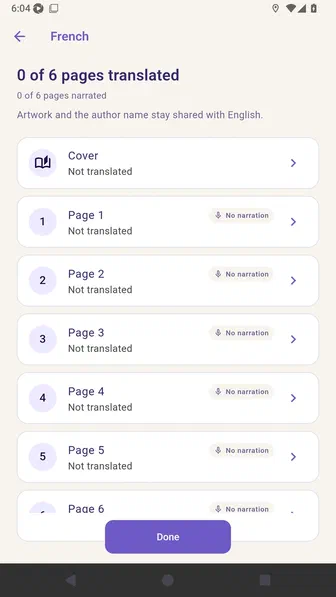
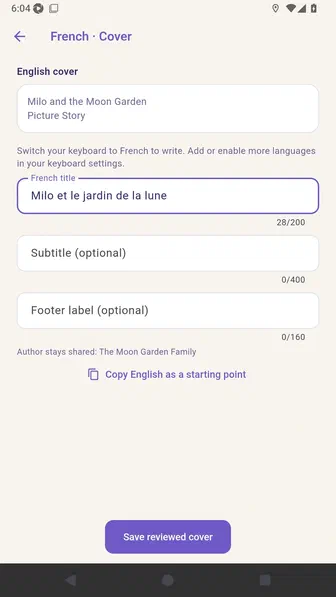
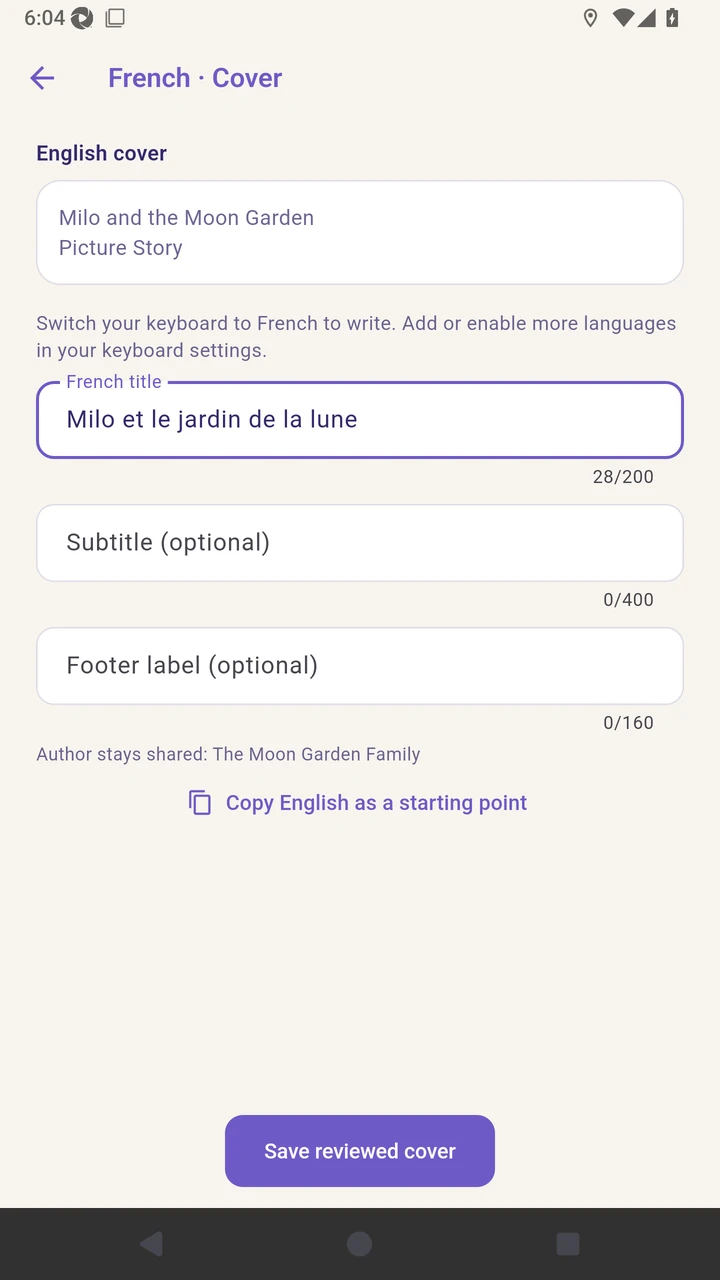
Enter and review the French cover title with the device keyboard.
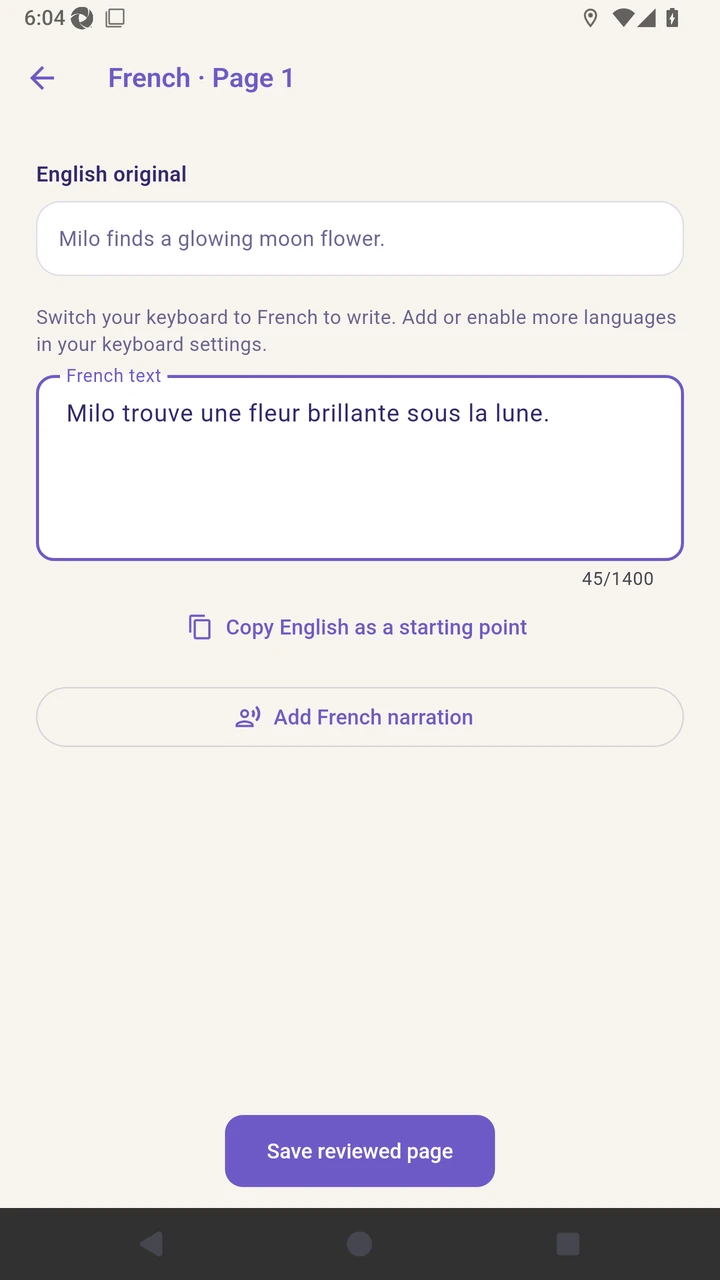
Enter and review the French text for page one.
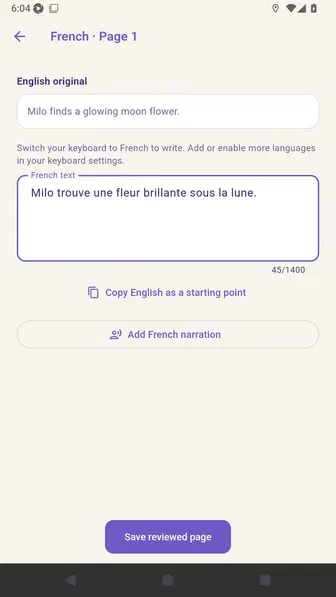
Save the page and return to Story languages to review translation progress.
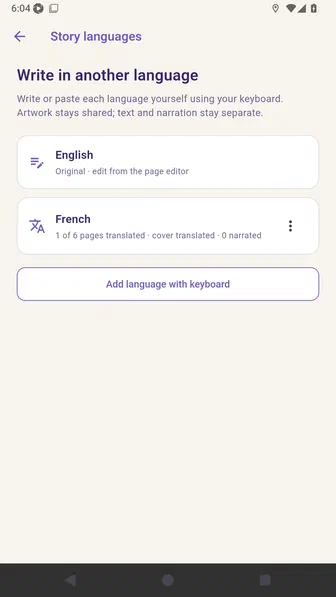
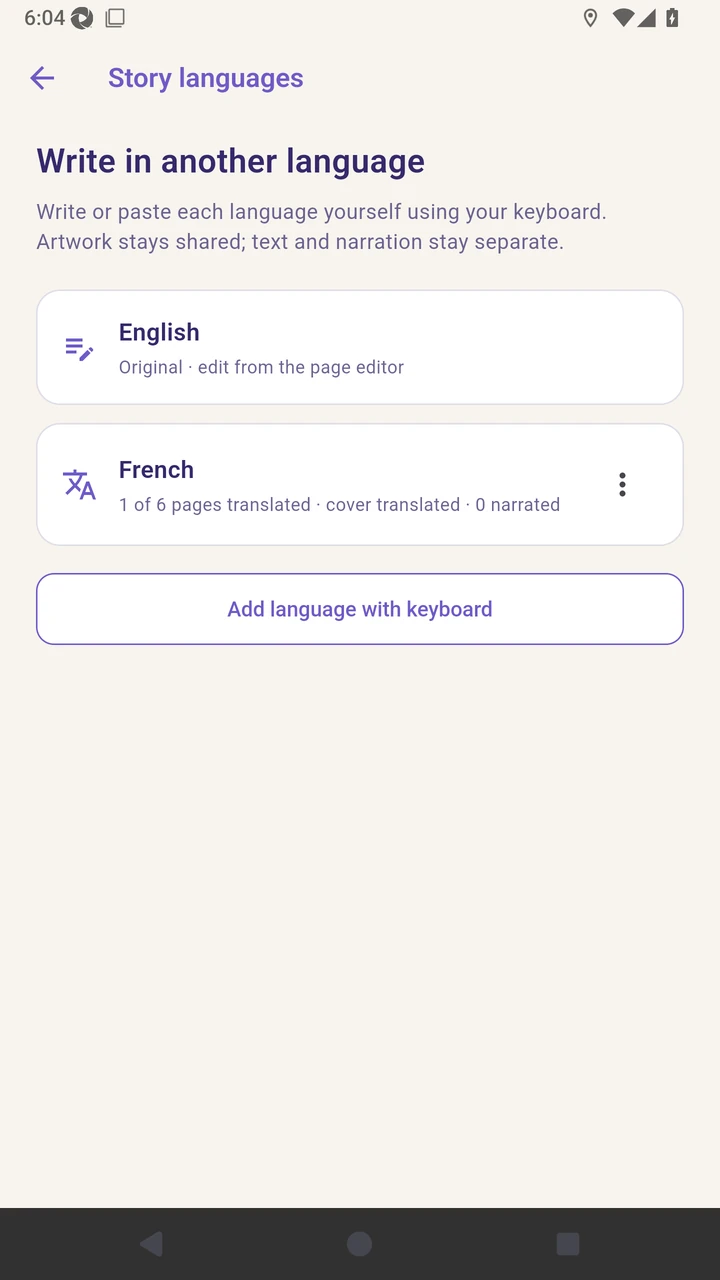
Result. Story languages shows the manually reviewed French cover and first page.
Read the narration transcript
Open Story languages and choose Add language with keyboard. Select a language available on the device. Choose French to open its separate review list. Enter and save the French cover title. Enter and save the French text for page one. Return to Story languages to review translation progress.