Free tutorial · Chapter 5 of 12
Add sound
Import and preview local narration, then add music for a story page.
Free Free on every plan
Before you start
- Open a story page in the page editor.
- Prepare a local audio file.
Step by step
Open Sound and choose Edit sound.
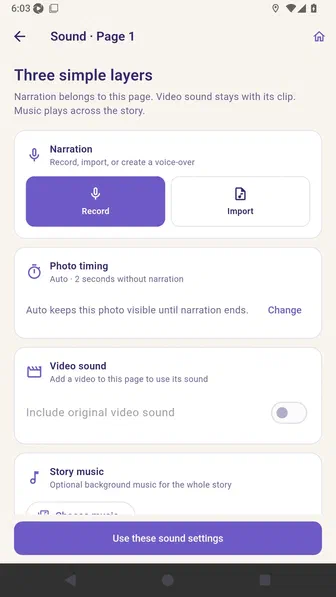
Choose Import and select a local narration file.
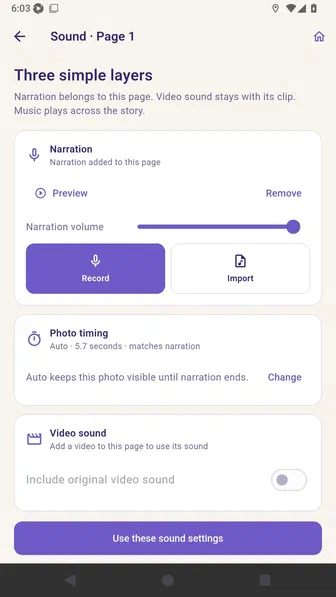
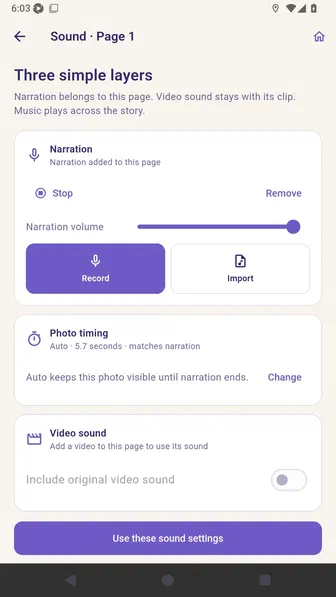
Choose Preview to listen to the imported page narration.
Import local story music and enable Lower music under narration.
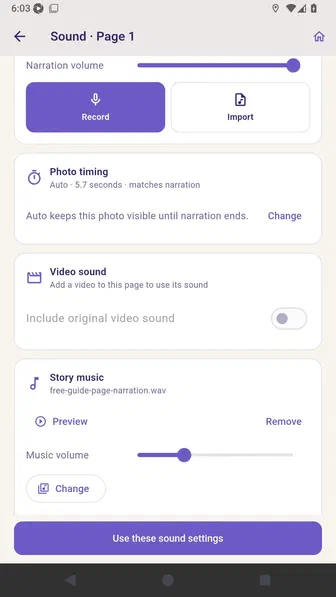
Choose Use these sound settings to return to the page.
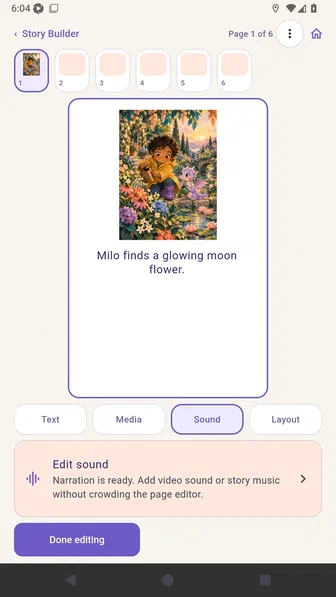
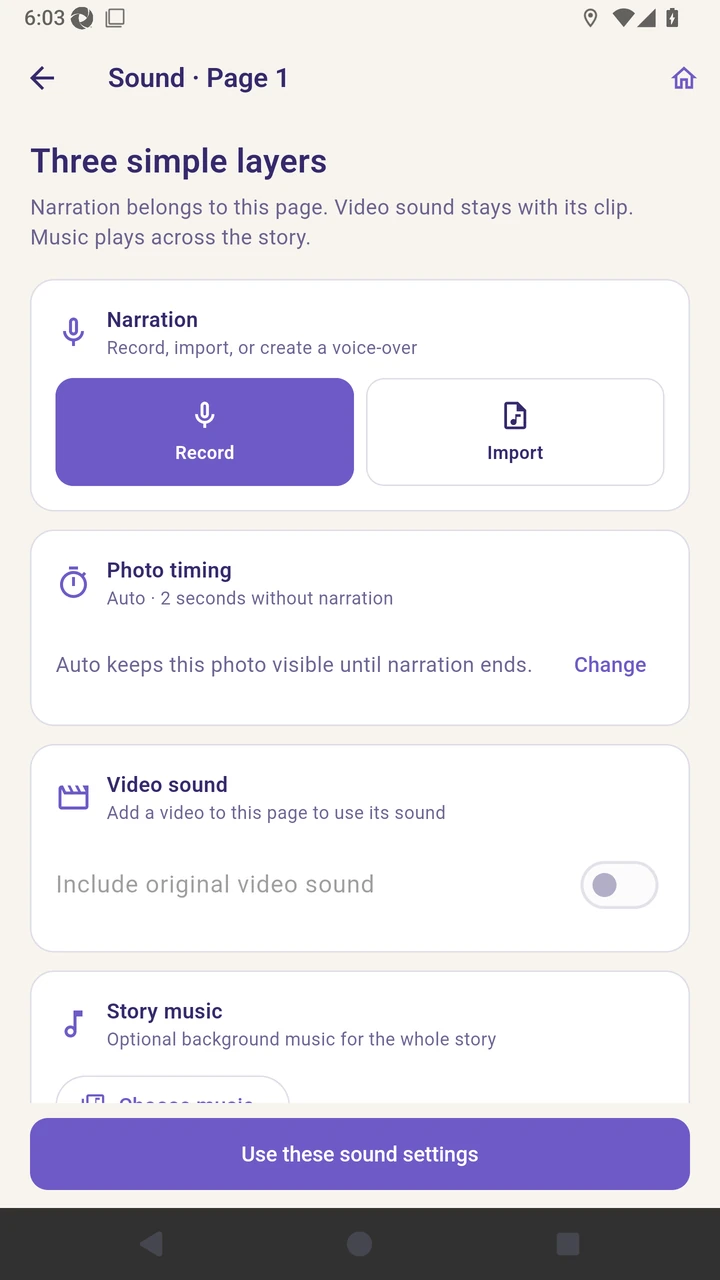
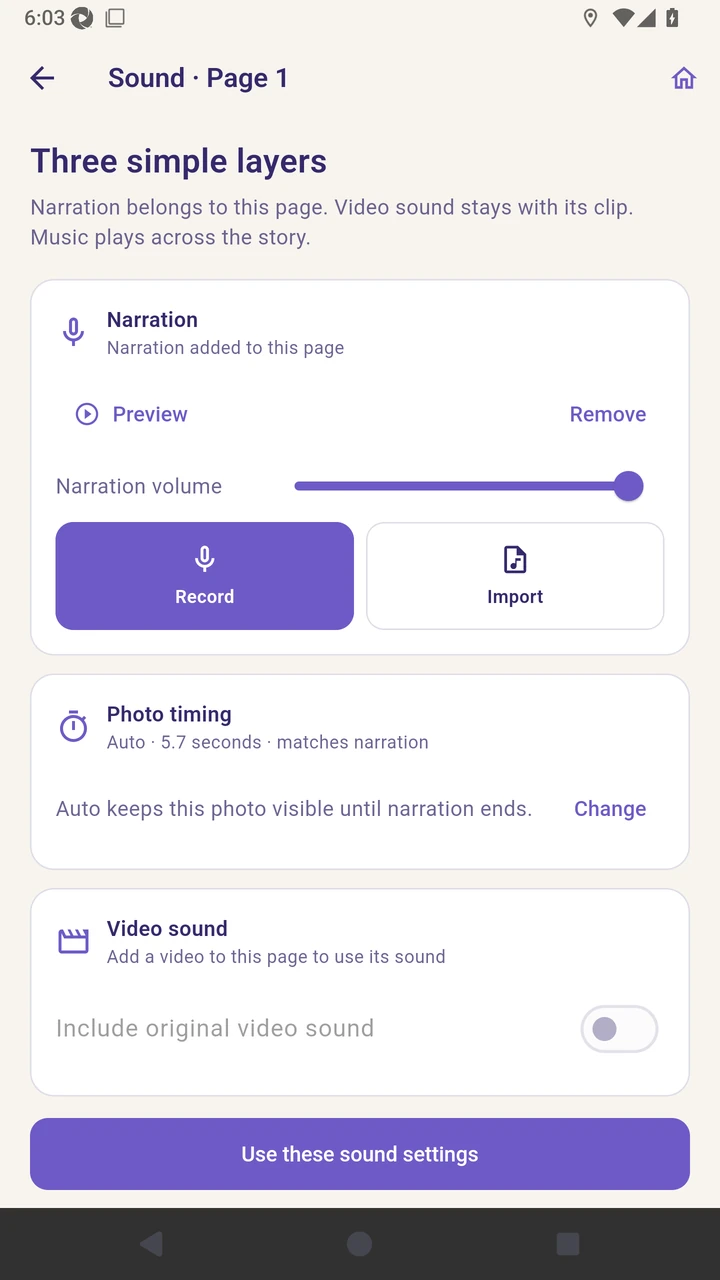
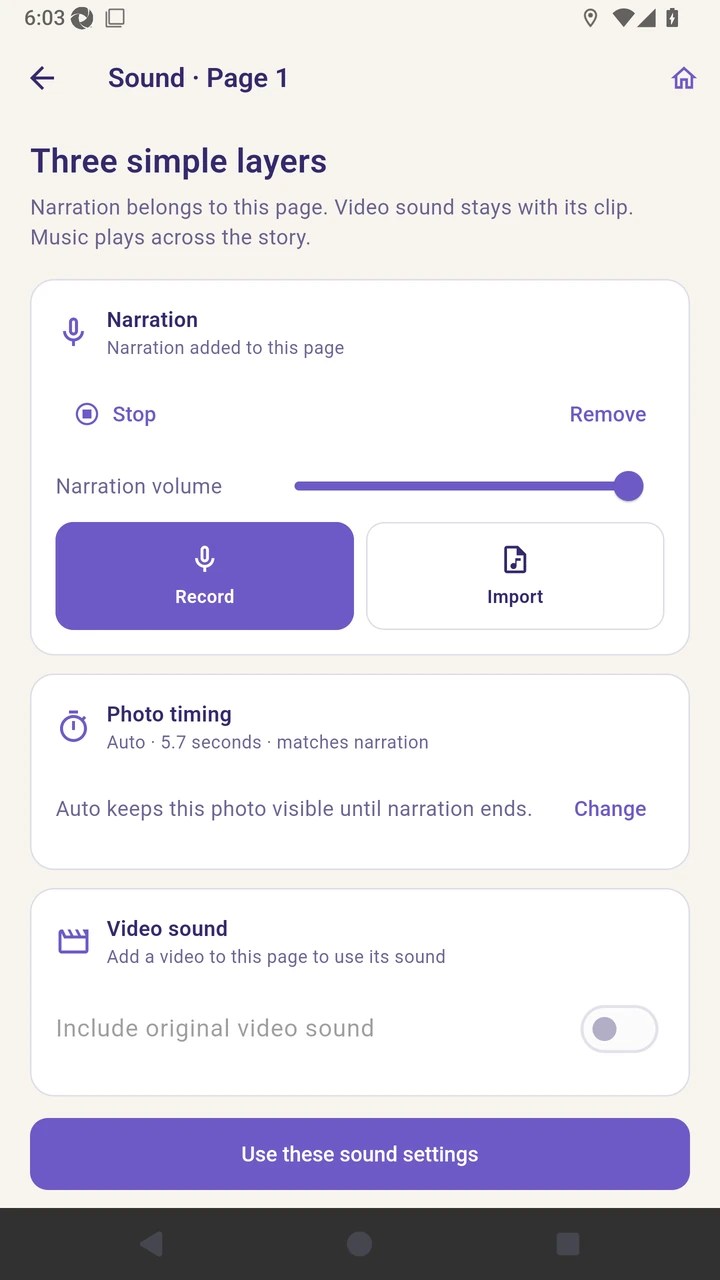
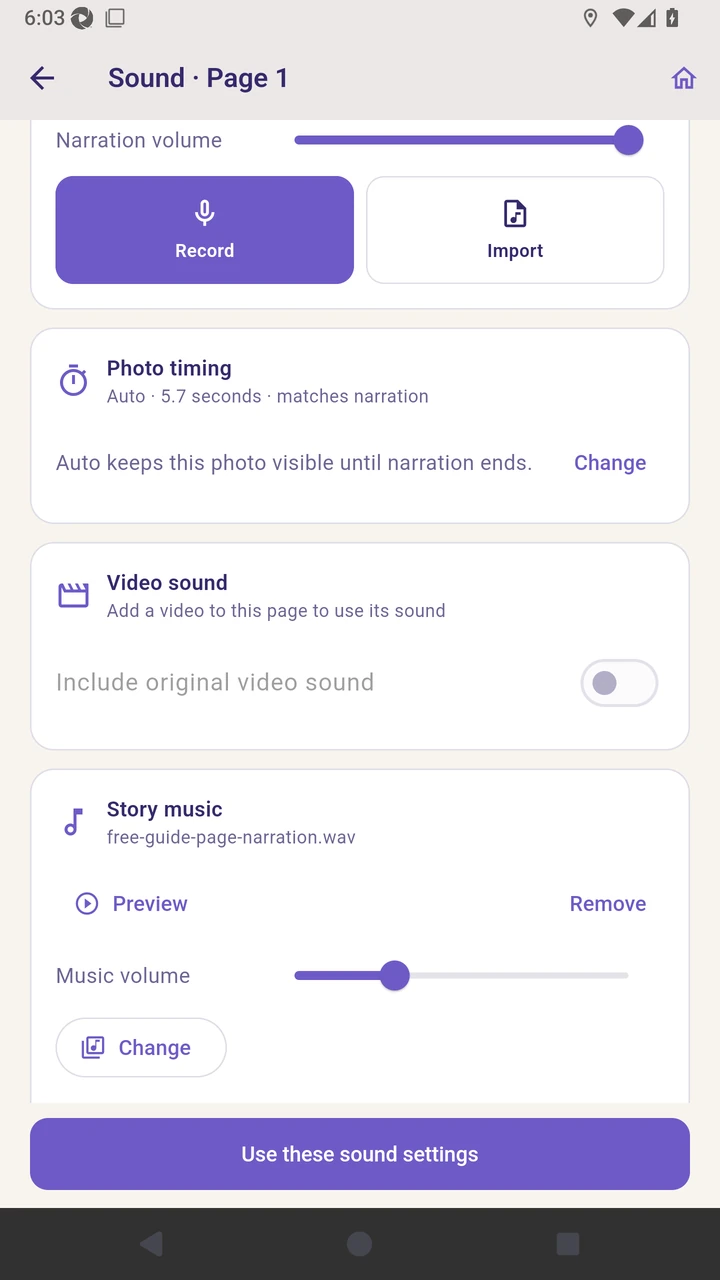
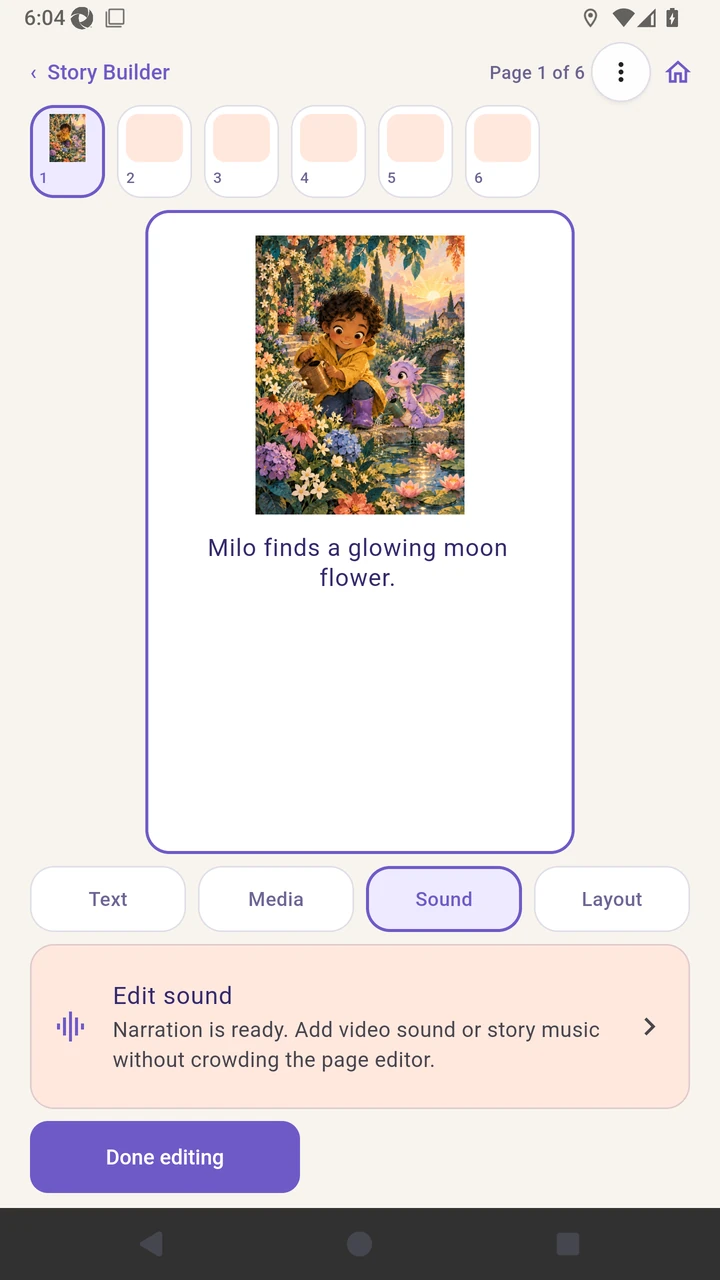
Result. The page keeps its imported narration and project music settings.
Read the narration transcript
Open Sound, then choose Edit sound to see the three audio layers. Import a prepared narration file for this page. Choose Preview to listen to the imported narration before saving it. Add local music and enable Lower music under narration. Choose Use these sound settings to save and return to the page.