Free tutorial · Chapter 4 of 12
Add and edit page text
Write, revise, and save text on a story page.
Free Free on every plan
Before you start
- Open a story page in the page editor.
Step by step
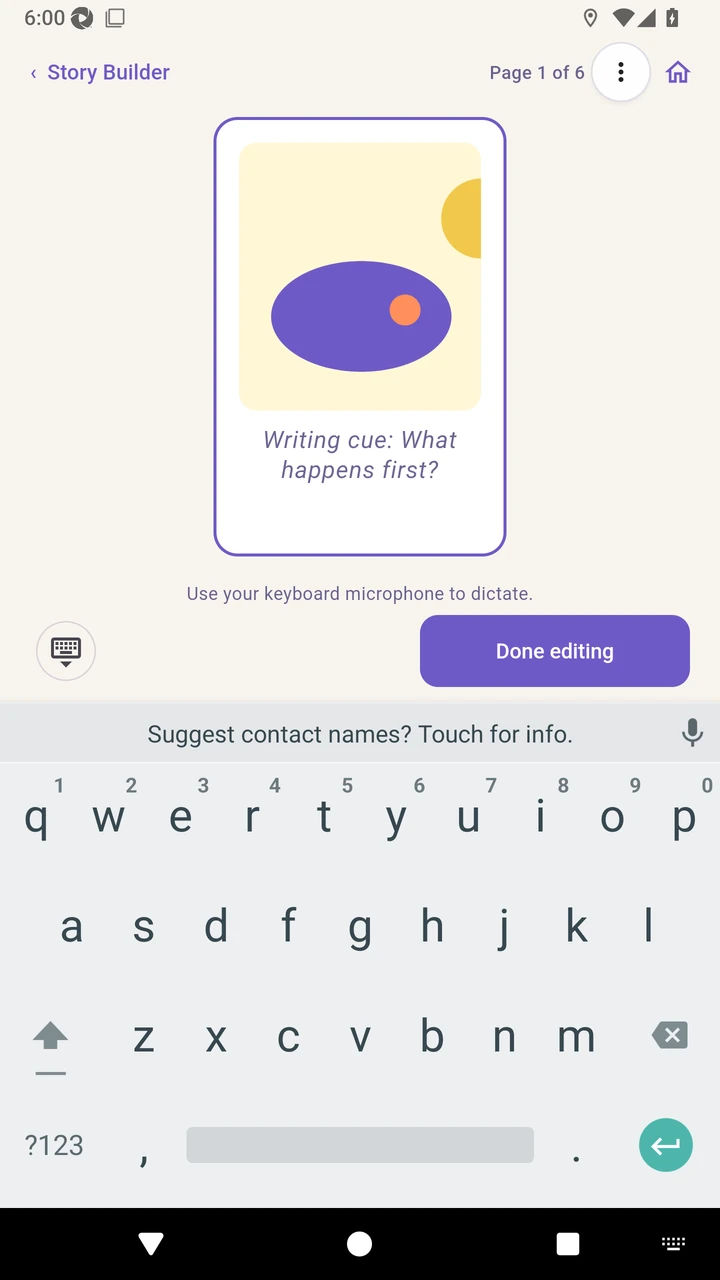
Open Text and find the microphone on the displayed device keyboard.
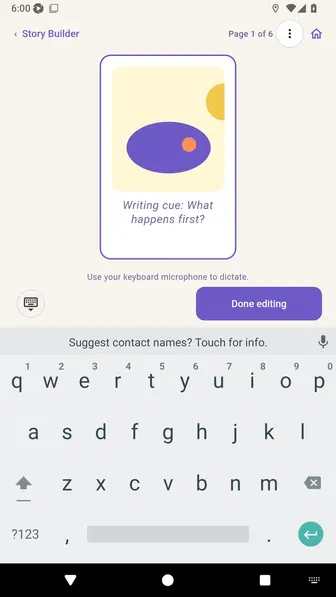
Tap the keyboard microphone to dictate when voice typing is enabled, then review or revise the recognized sentence.
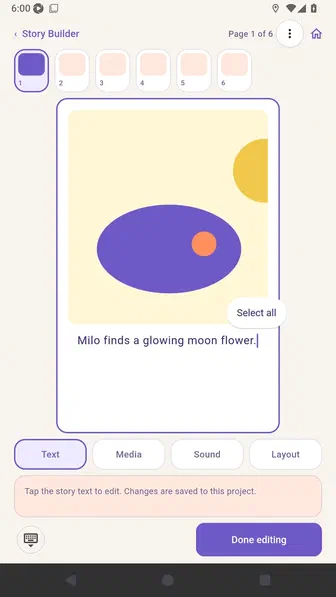
Finish editing, reopen the page, and confirm the sentence remains saved.
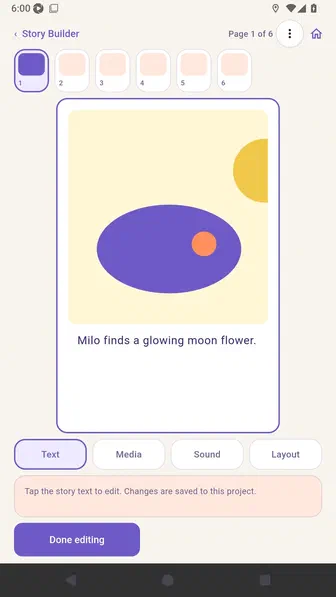
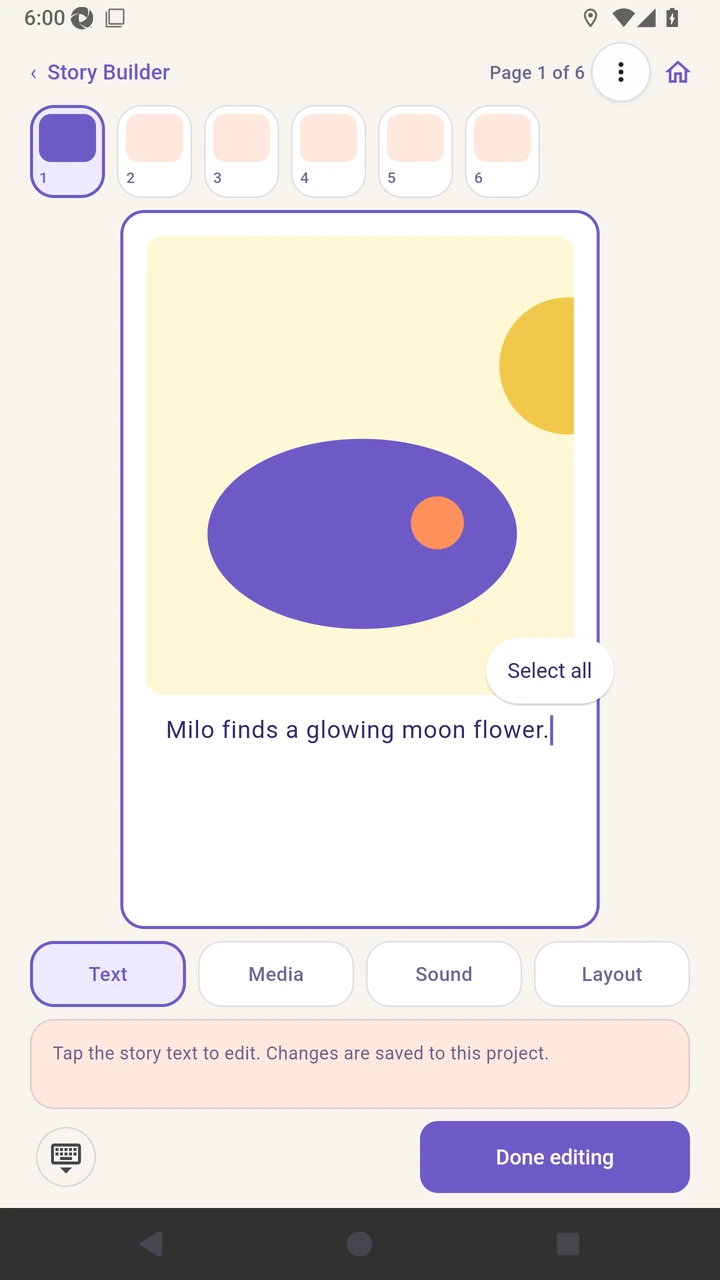
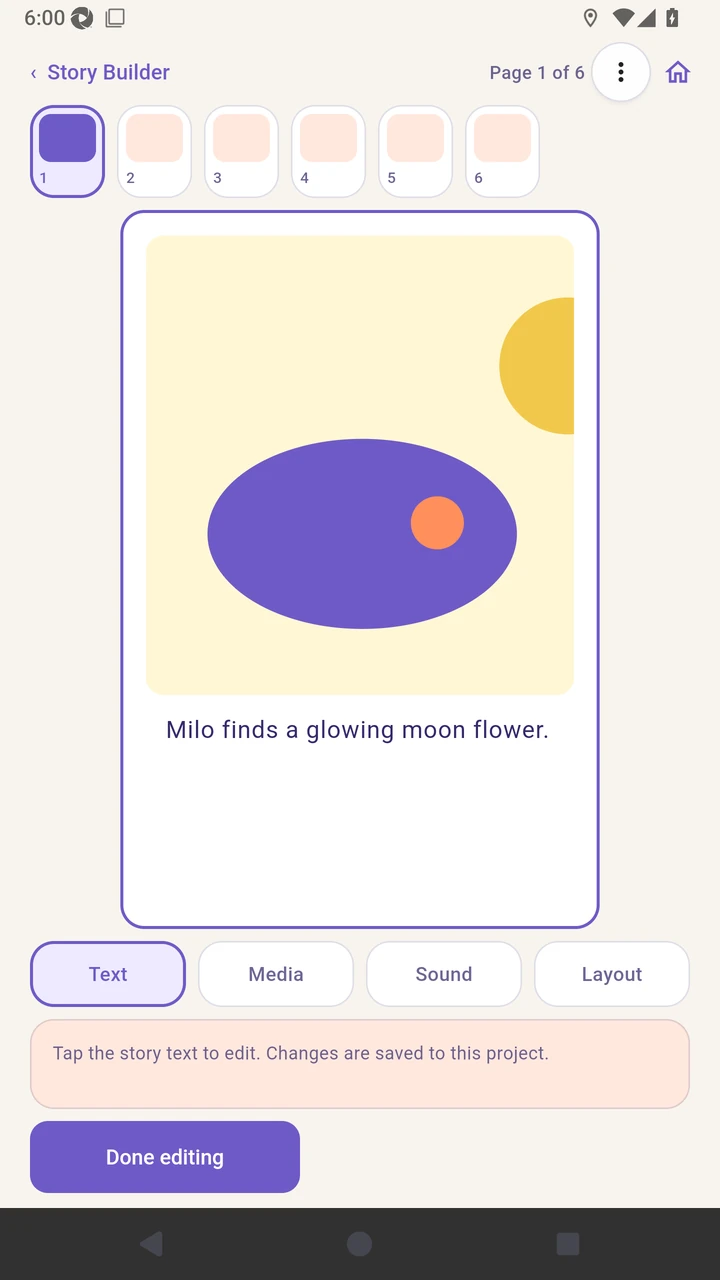
Result. The revised sentence remains on the same page after reopening the editor.
Read the narration transcript
Open a page, choose Text, and find the microphone on the open device keyboard. Tap that microphone to dictate when voice typing is enabled, then review or revise the recognized sentence with the keyboard. Choose Done editing, then reopen the page to confirm the text was saved.