Free tutorial · Chapter 3 of 12
Edit the cover
Change the cover text, local artwork placement, and layout.
Free Free on every plan
Before you start
- Open a project in Story Builder and select the cover card.
Step by step
Select the cover card and choose Edit cover.
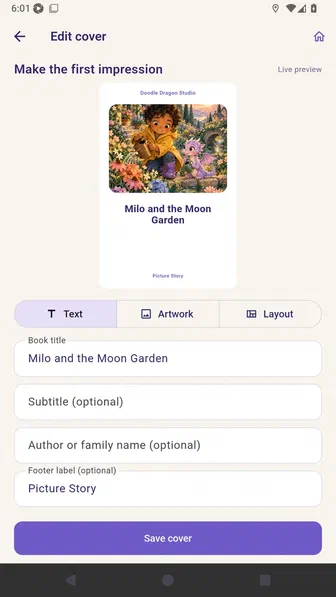
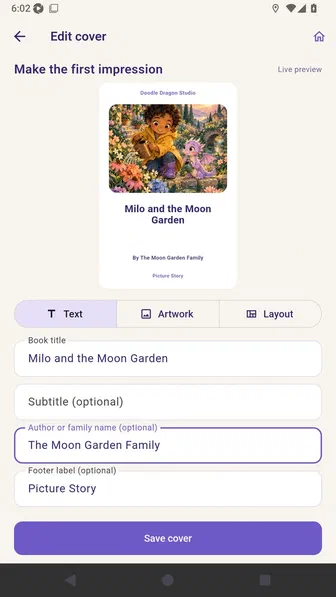
Update the optional subtitle and author fields.
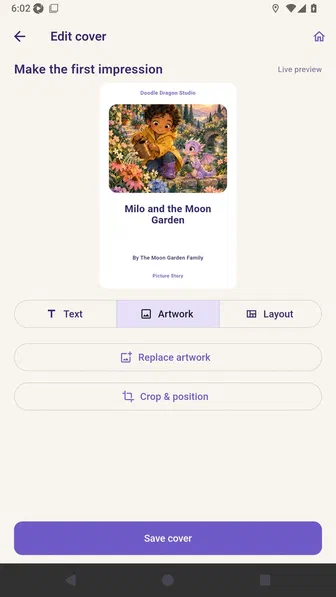
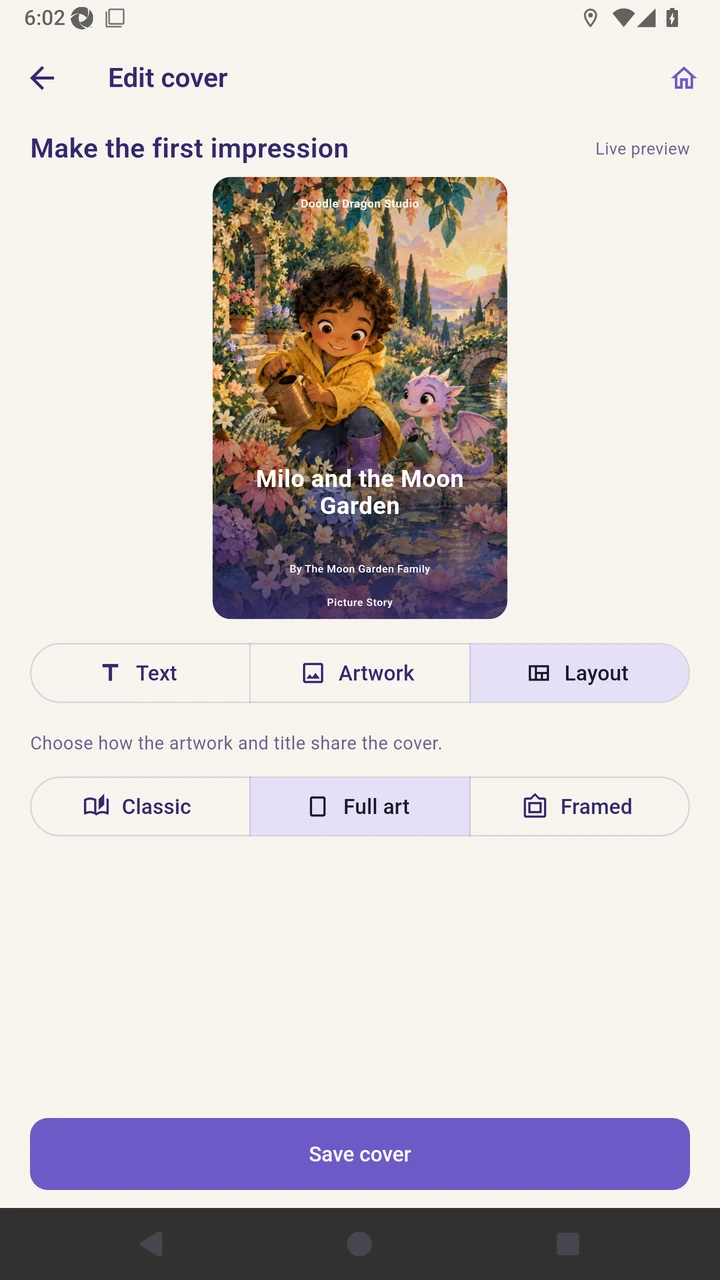
Open Artwork to replace or reposition the local cover image.
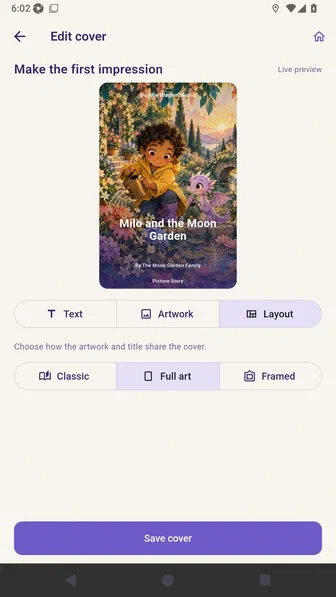
Choose Full art in Layout and review the cover preview.
Choose Save cover to return to Story Builder.
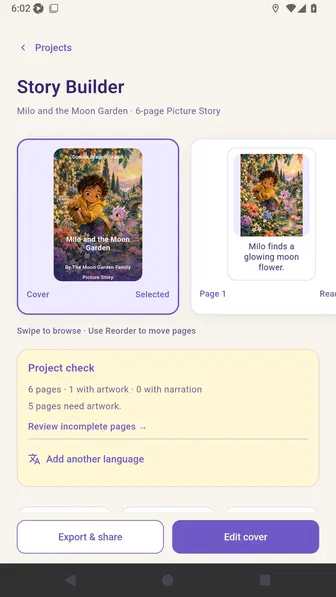
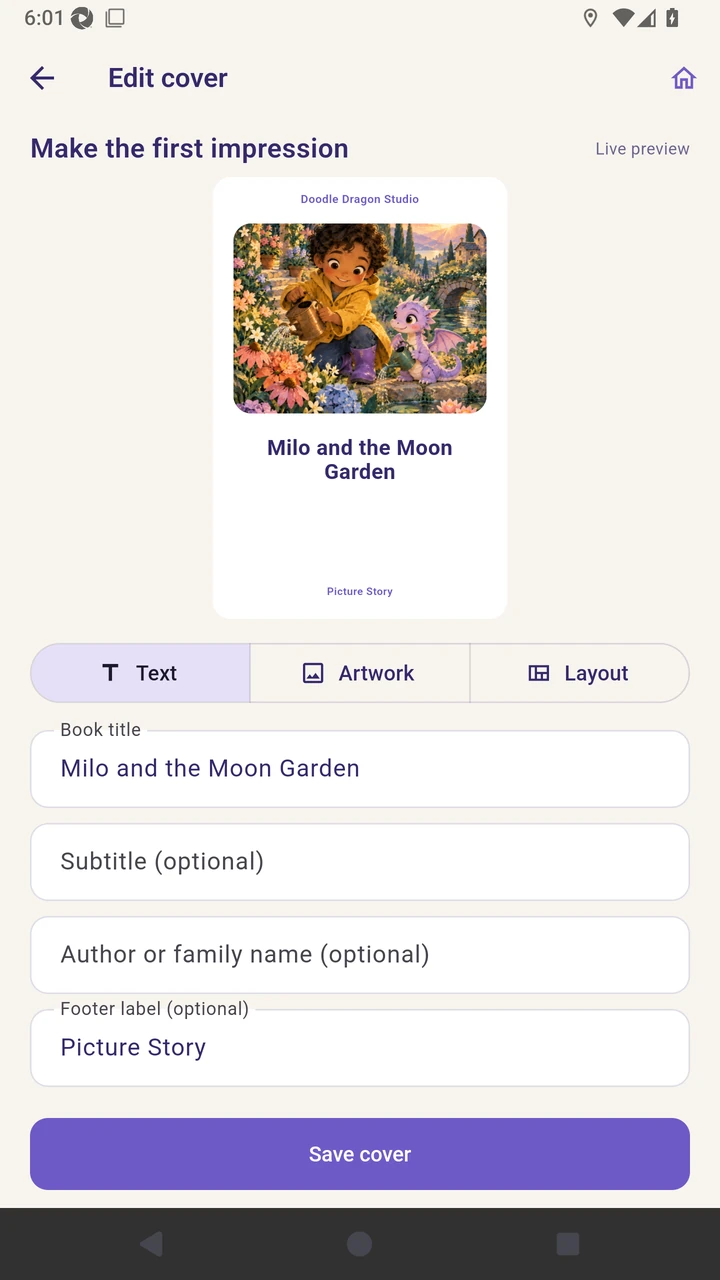
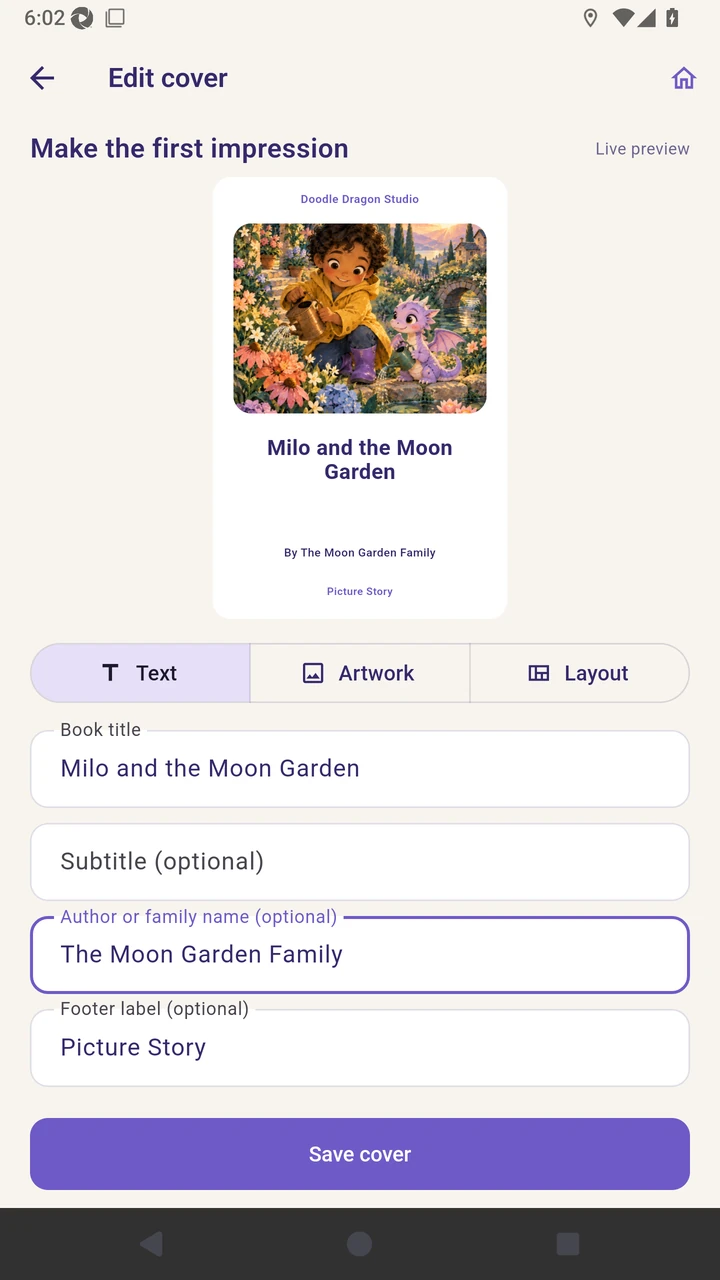
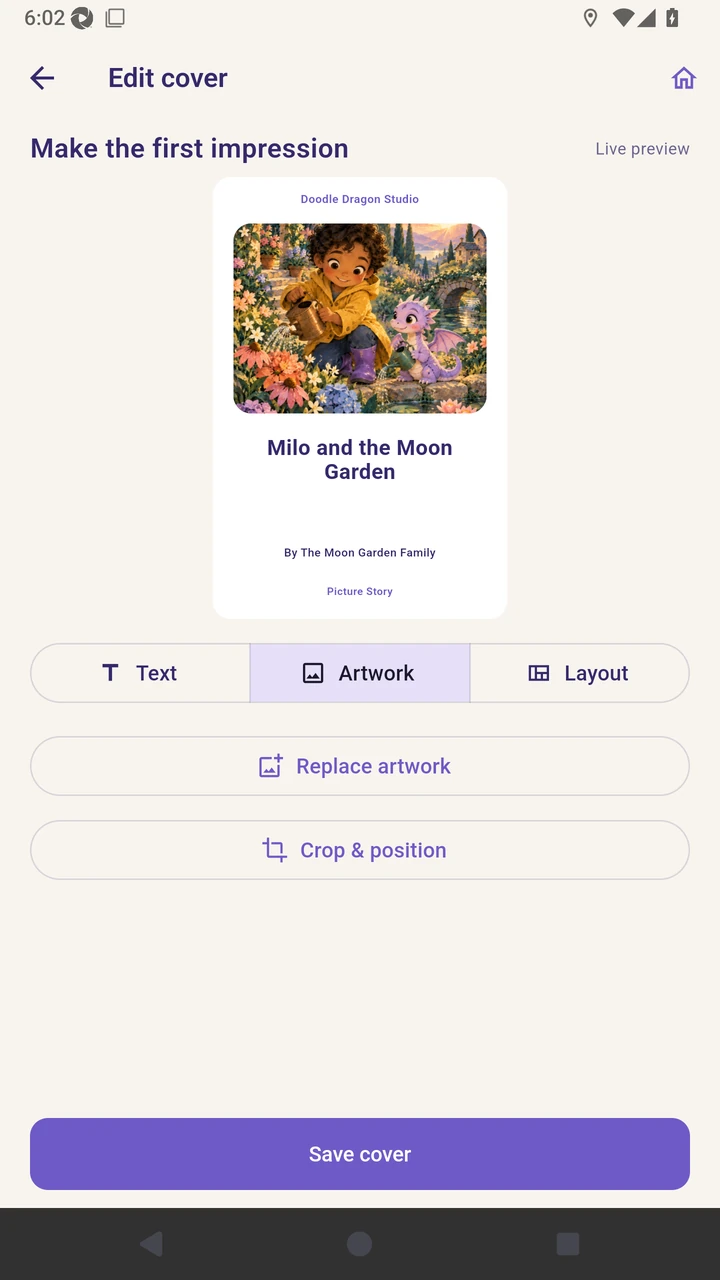
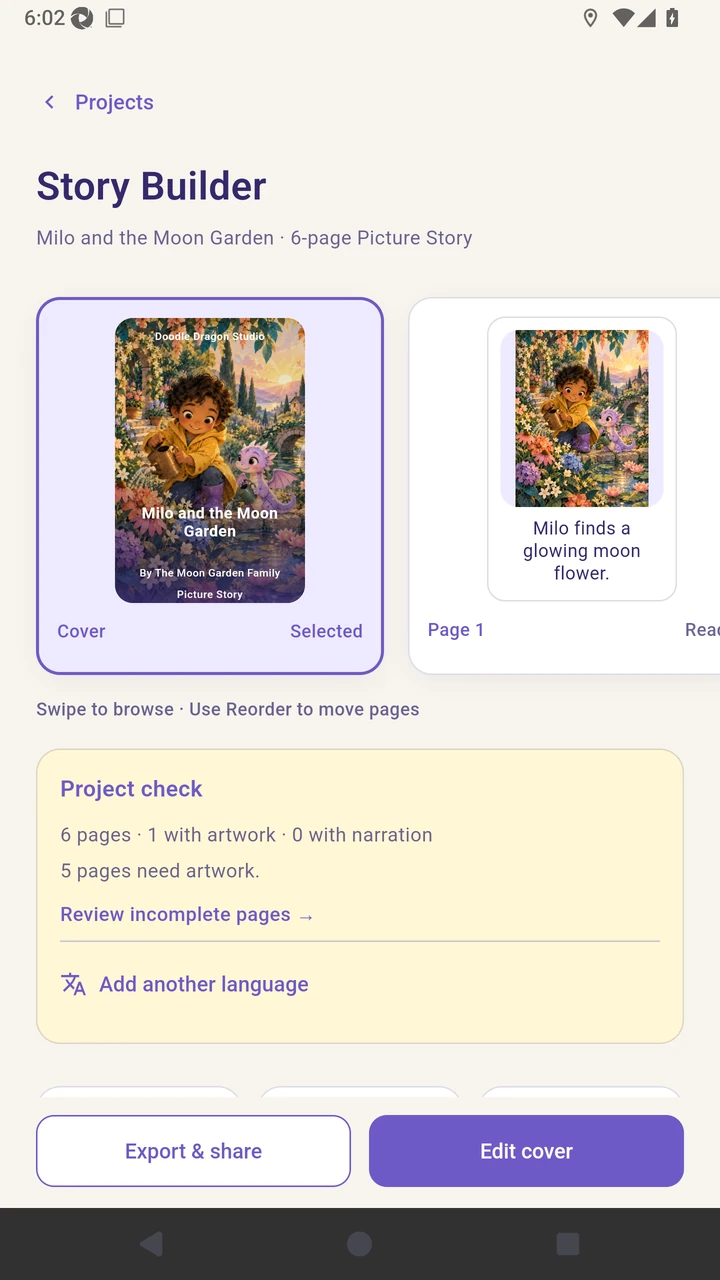
Result. Story Builder shows the saved cover title, subtitle, artwork framing, and layout.
Read the narration transcript
Select the cover card and choose Edit cover. Add an optional subtitle and family author. Turn off **Show Doodle Dragon Studio** when the cover should use only your own title and attribution. Open Artwork to replace or reposition the illustration. Choose Full art in Layout and review the live preview. Save the cover when the title and artwork look right.