Free tutorial · Chapter 12 of 12
Export and share
Choose a language and create PDF, video, and editable project files.
Free Free on every plan
Before you start
- Review the story and any language content you intend to export.
Step by step
Open Export and share to view the available file types.
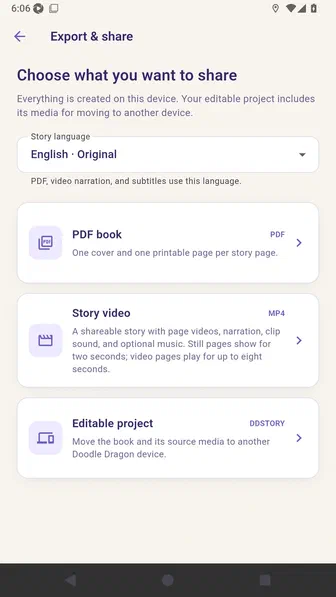
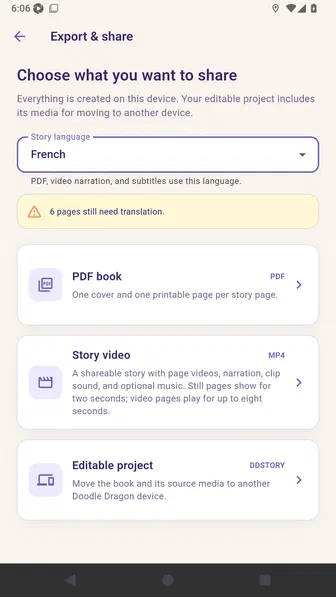
Use Story language to choose which reviewed language the export will use.
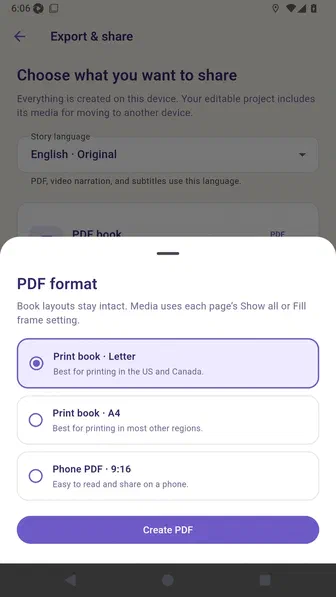
Choose PDF book and select the print or phone format.
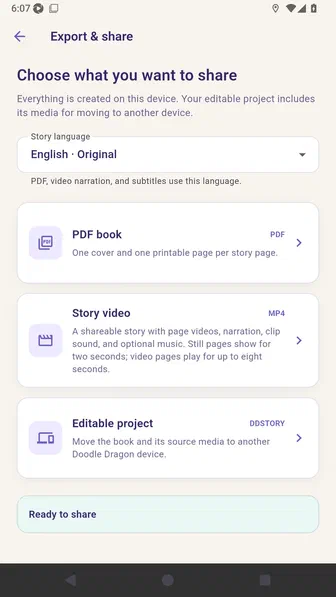
Create the PDF and wait for Ready to share.
Choose Story video, select a destination format, and keep the subtitle option enabled.
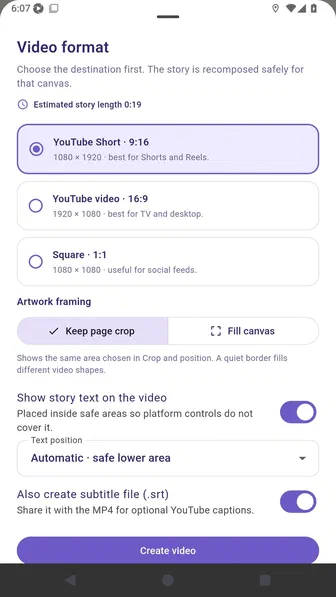
Wait for Video and subtitles ready, then review the completed story length.
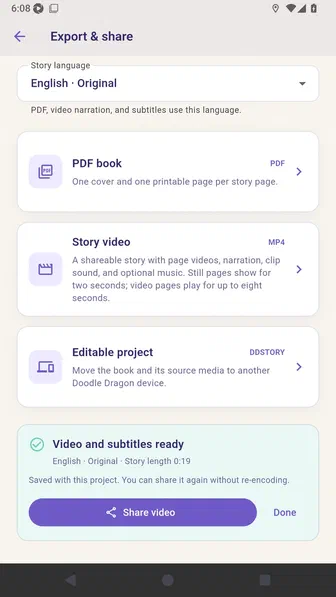
Choose Editable project to package the book and its source media.
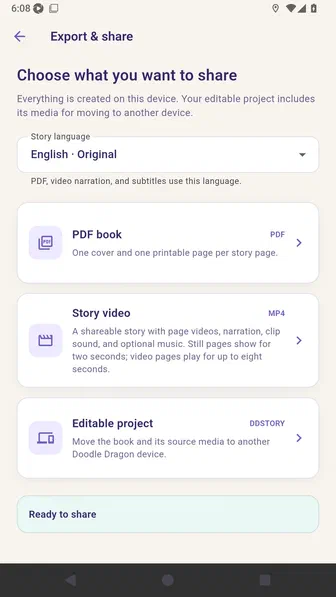
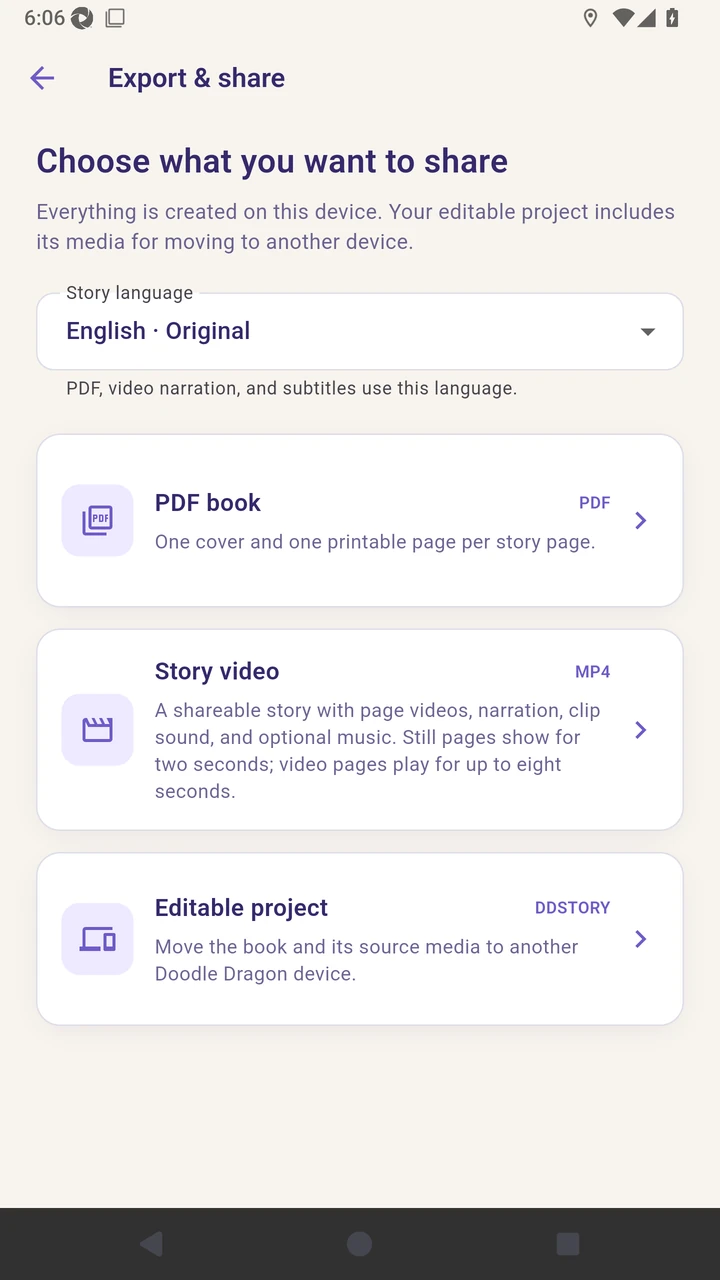
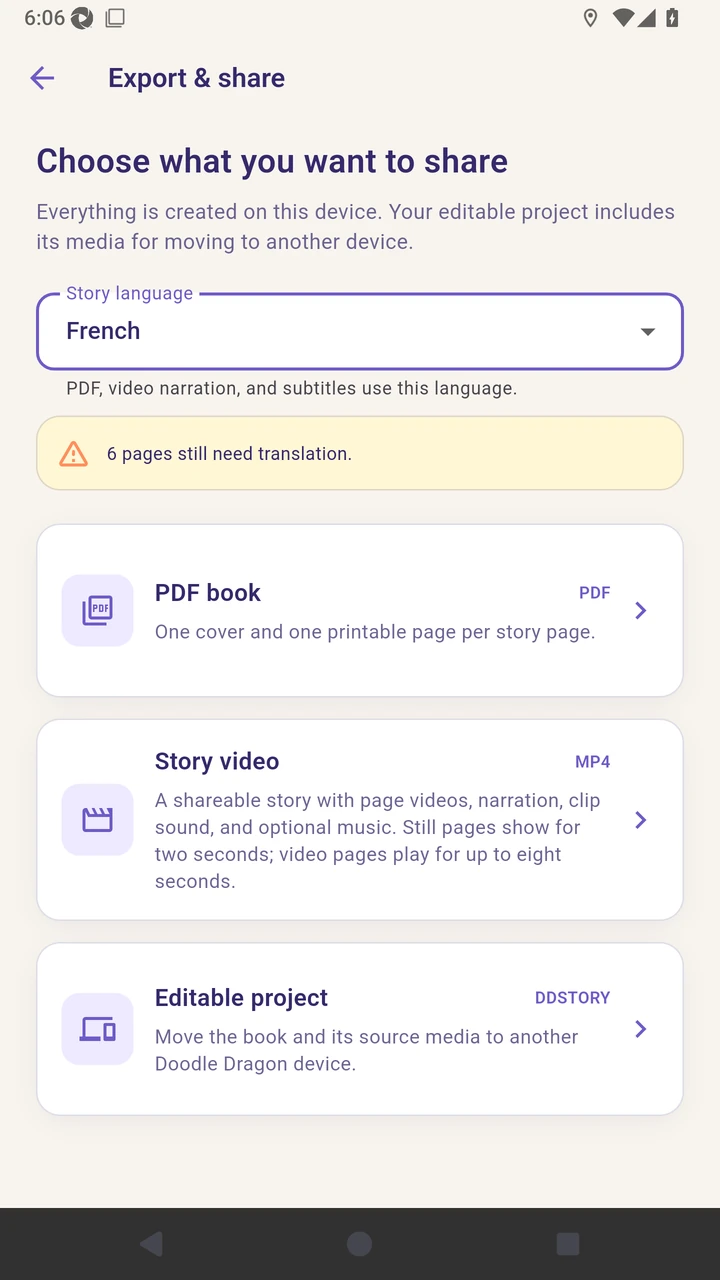
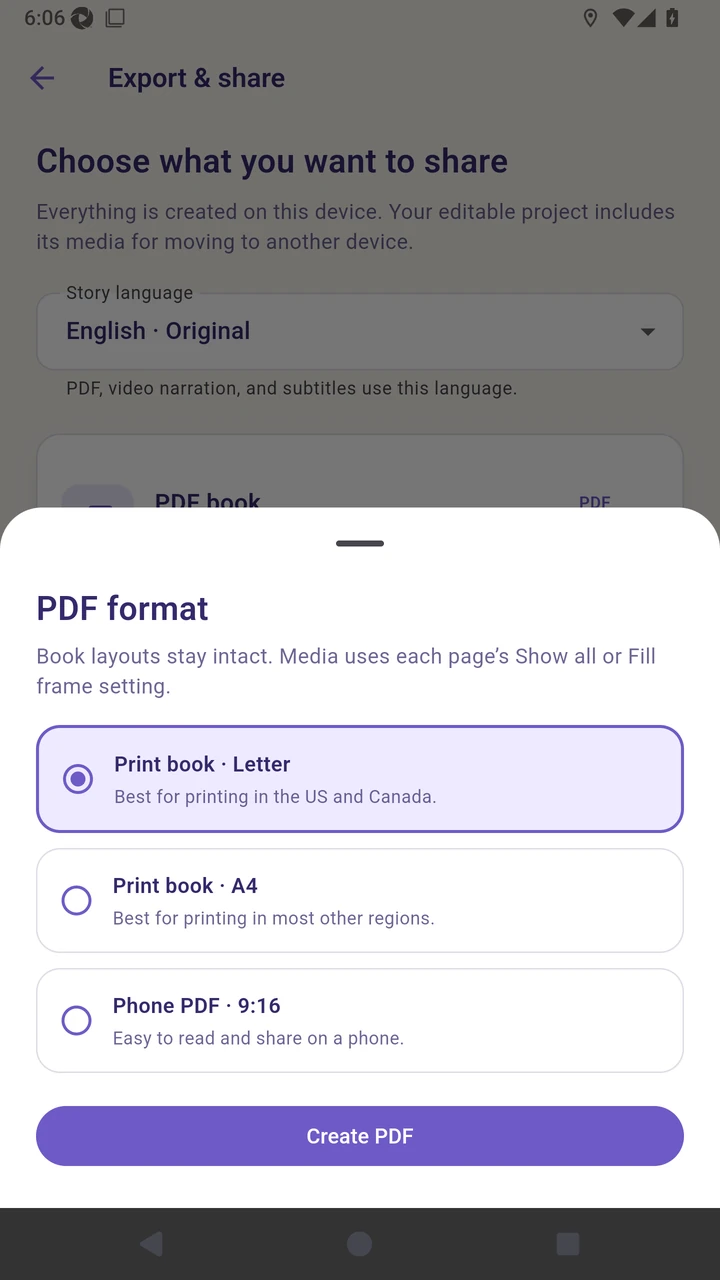
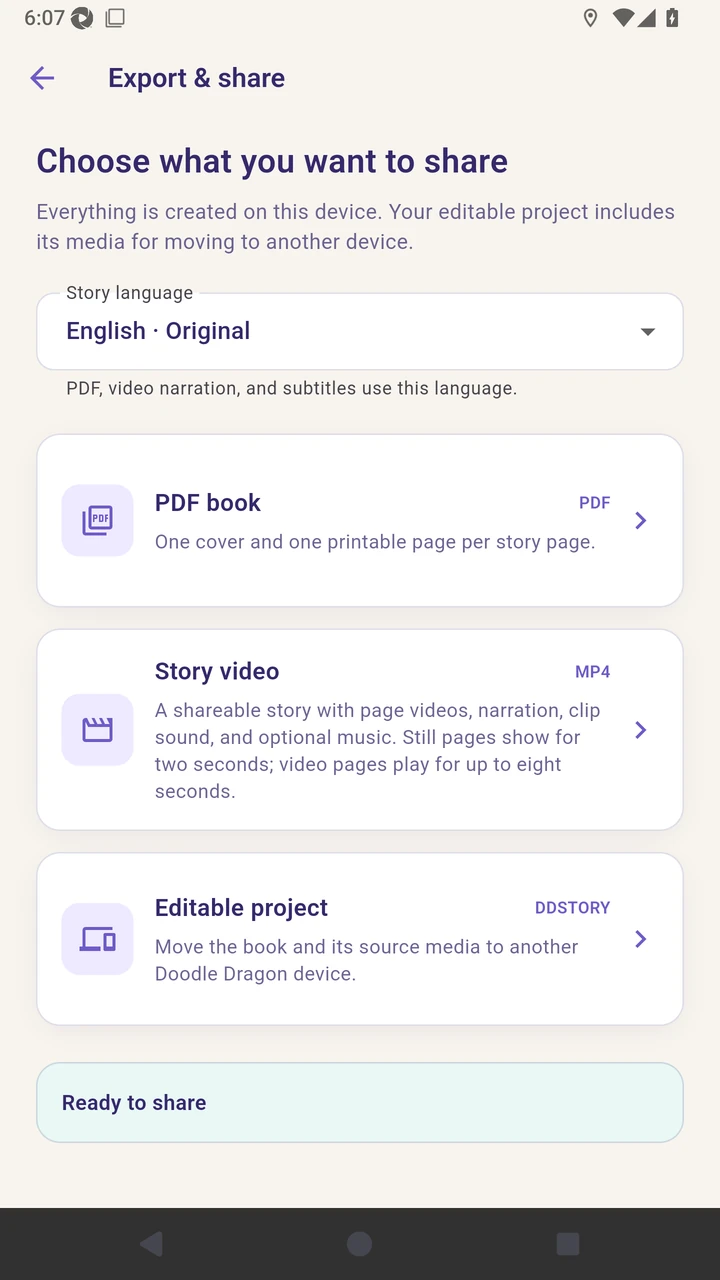
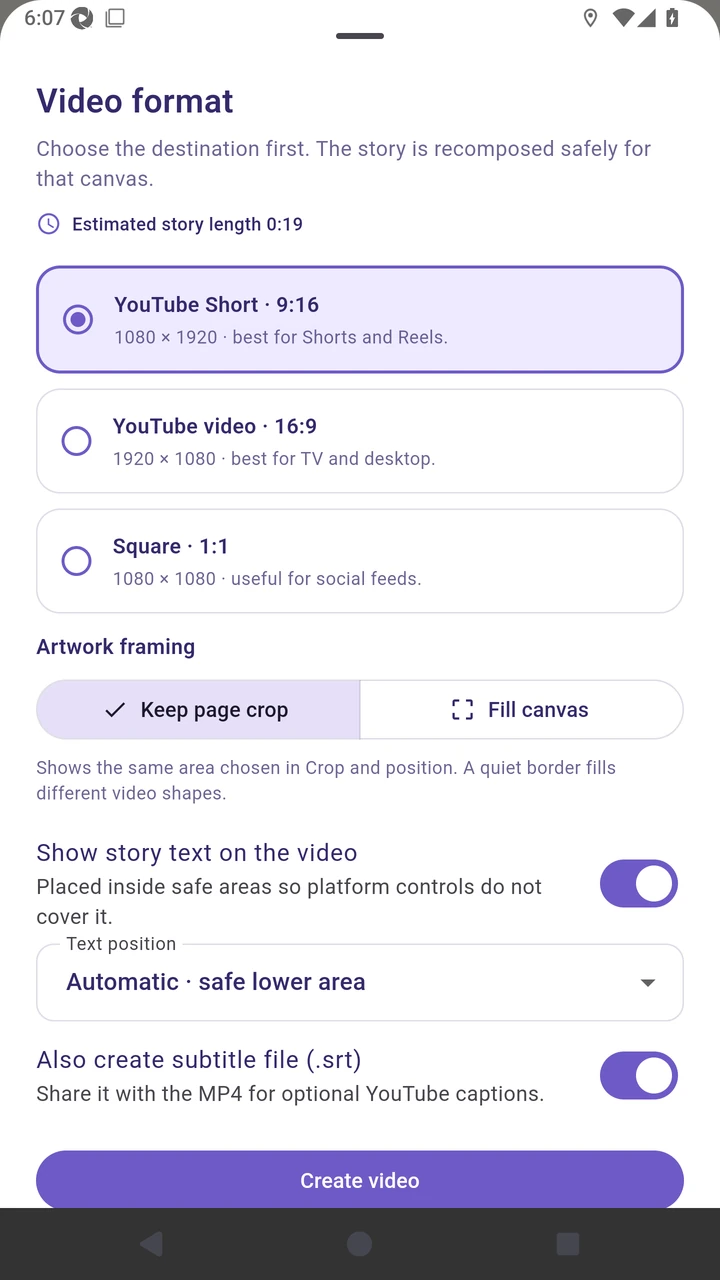
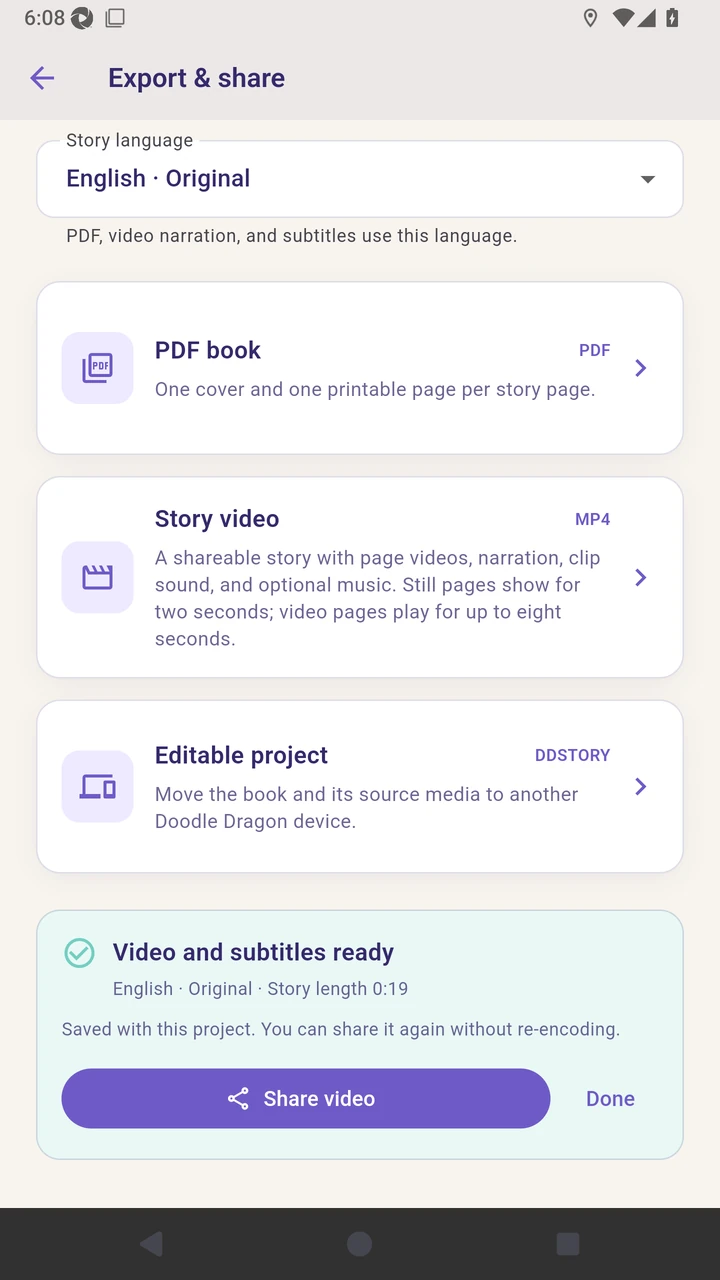
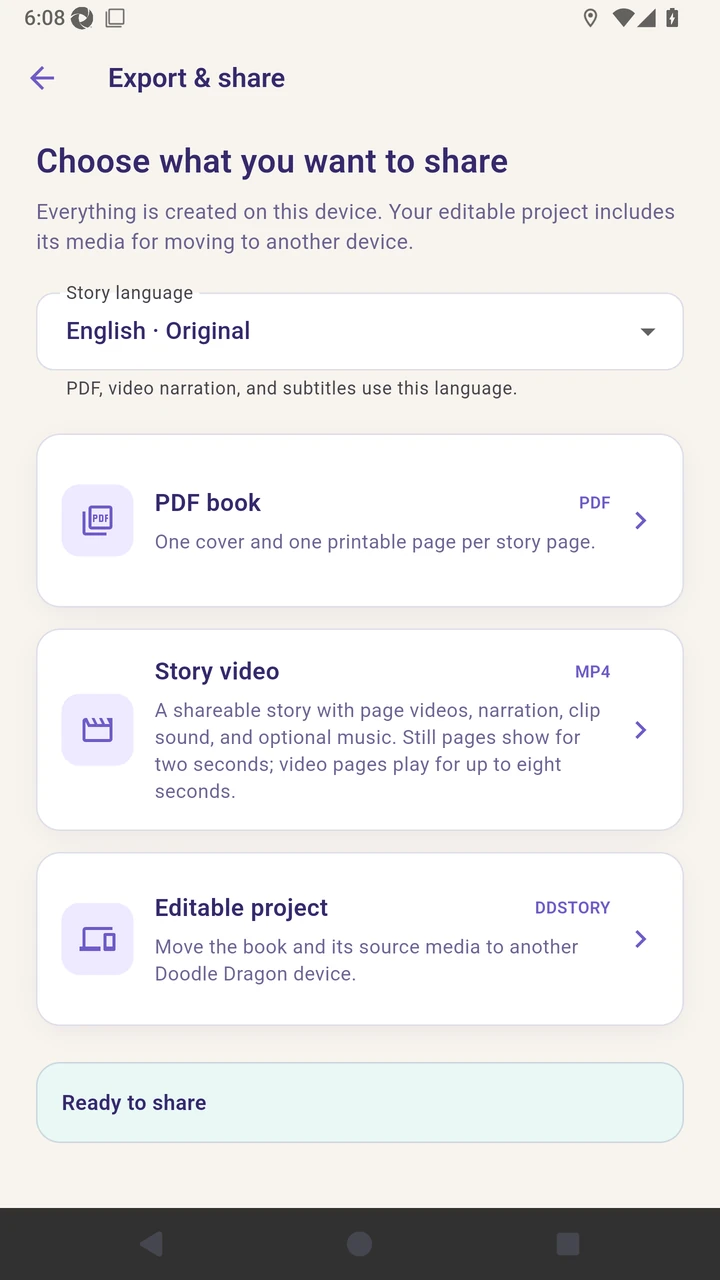
Result. Validated PDF, MP4, subtitle, and DDSTORY files are ready for the platform share step.
Read the narration transcript
Open Export and share to review the available file types for the finished story. Use Story language to choose which reviewed language every exported file will use. For a PDF book, select either the print layout or the phone-friendly format. Create the PDF and wait until the export screen confirms that the selected-language book is ready to share. For a story video, choose the destination format and keep subtitles enabled when needed. Wait while the story video and subtitle file are created, then review the completed story length. You can also package the source media as an editable project for another Doodle Dragon device.