Generate a whole video book
Plan, review, and generate a movie in the background, with a clip for every page, then fix individual scenes before export.
Studio Motion Studio Motion only
1. Prepare the plan
Start with a movie plan. Describe who the characters are, where they are, what they do, and who says each line. Choose an art style, the page count, the voice approach, and the clip length. Use 9:16 for a portrait video.
Review the pages before saving the draft. Composition requirements belong in the artwork instructions: for example, “Robert wears a blue shirt, Leo wears a green T-shirt, and Max is a small tan dog in every scene.” Speech must be short enough for each clip.
2. Choose Generate a movie and review the quote
Open Finish your book for the saved draft and choose Generate a movie. Choose 5- or 10-second clips, then choose start and end frames so neighbouring page pictures guide each transition. Review the selected pages, frames, sound choices, and maximum credit quote.
At the standard rates, a ten-page movie with ten new illustrations and ten five-second videos costs 350 credits for media: 100 for pictures and 250 for clips. A new AI plan adds 5, making 355 credits before optional image descriptions, separate narration, translation, or new variations. Existing usable media and your selected settings can change the quote; use the amount in the app.
Watch: configure a complete AI movie
3. Start the run and follow progress
Once accepted, generation runs on the server. You can leave the editor or close the app, then return to Projects to check progress and receive completed results. Queued video work can take time. Keep an internet connection when checking status or downloading results.
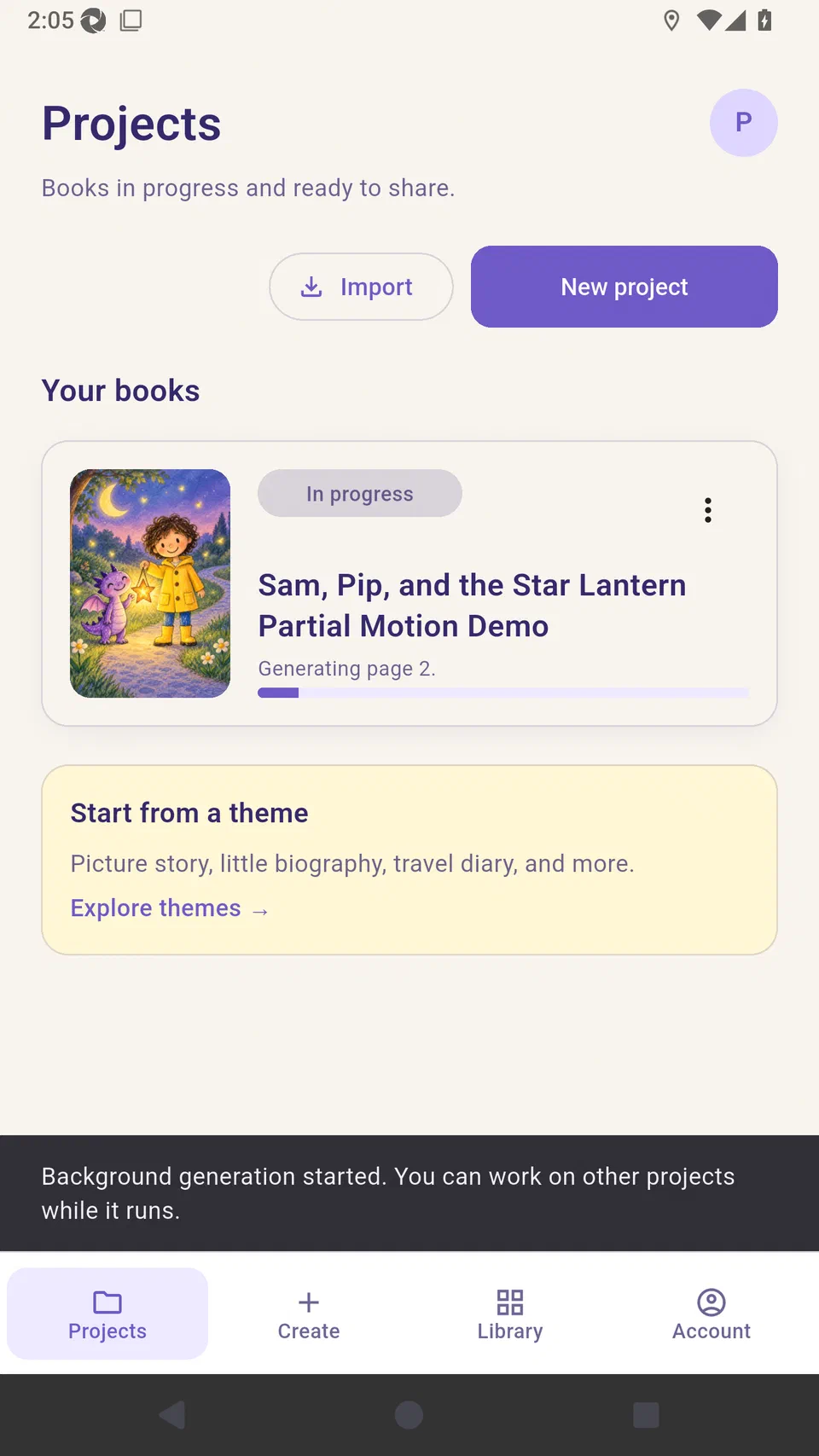
A whole-movie run attaches completed media to the pages selected for the run. This is different from a manual replacement, which waits for Use on page.
4. Recover unfinished work
If a page fails, check the run details before starting another run. Completed pages are kept: choose Continue unfinished movie, then Resume generation, and only the unfinished work runs again. Stopping a run stops remaining work; it does not undo completed generations or refund successful results. Work already in progress may finish.
The same request is protected against duplicate charging, but choosing a new variation is a new paid generation. Check the next quote before confirming.
Watch: run and resume background movie generation
5. Review pictures, voices, and transitions
Check that every character is present, the intended speaker is visible, and the right character says the right words. Listen for rushed lines and unwanted sounds, and watch how each clip hands over to the next.
Use the page editor to repair only what needs changing. When manually replacing a clip, keep the existing one until you accept the new candidate. See Create or replace an AI video clip.
6. Export the reviewed result
Preview the complete project, check the cover and sound levels, and export an
MP4 with your chosen aspect ratio. Export itself is free. Save an editable
.ddstory archive if you want to move the project to another device.
Watch: preview and export the Motion story
Watch the Studio Motion walkthrough
Tutorial screens may differ from the latest beta.