Studio Motion tutorial · Chapter 5 of 12
Configure a complete AI movie
Choose movie generation, clip length, and frame guidance.
Studio Motion Studio Motion only
Before you start
- Review the complete Motion plan.
Step by step
Open Finish your book and compare the editable draft, picture, and movie choices.
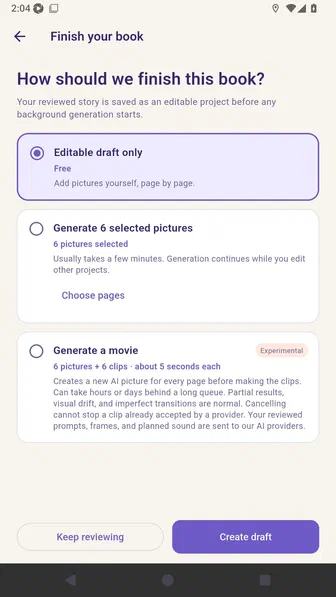
Select Generate a movie and review its experimental queue guidance and credit quote.
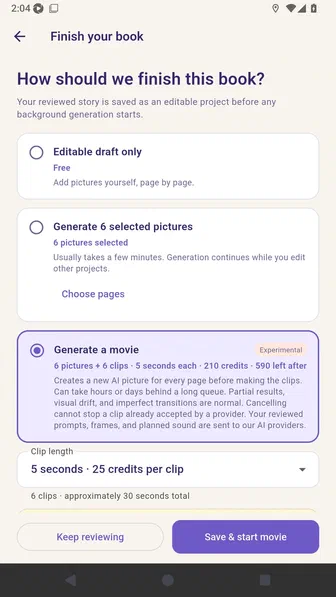
Choose ten-second clips and review the total movie duration.
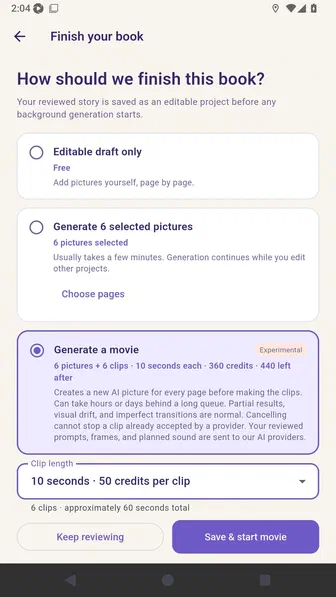
Choose start and end frames so adjacent page pictures guide each transition.
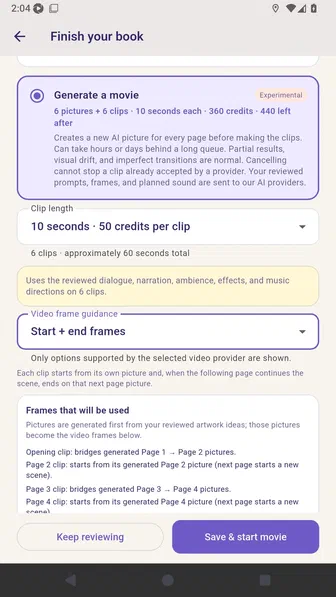
Expand the frame plan to see how page pictures bridge the generated clips.
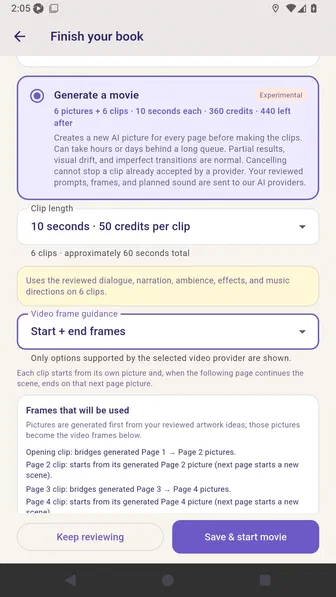
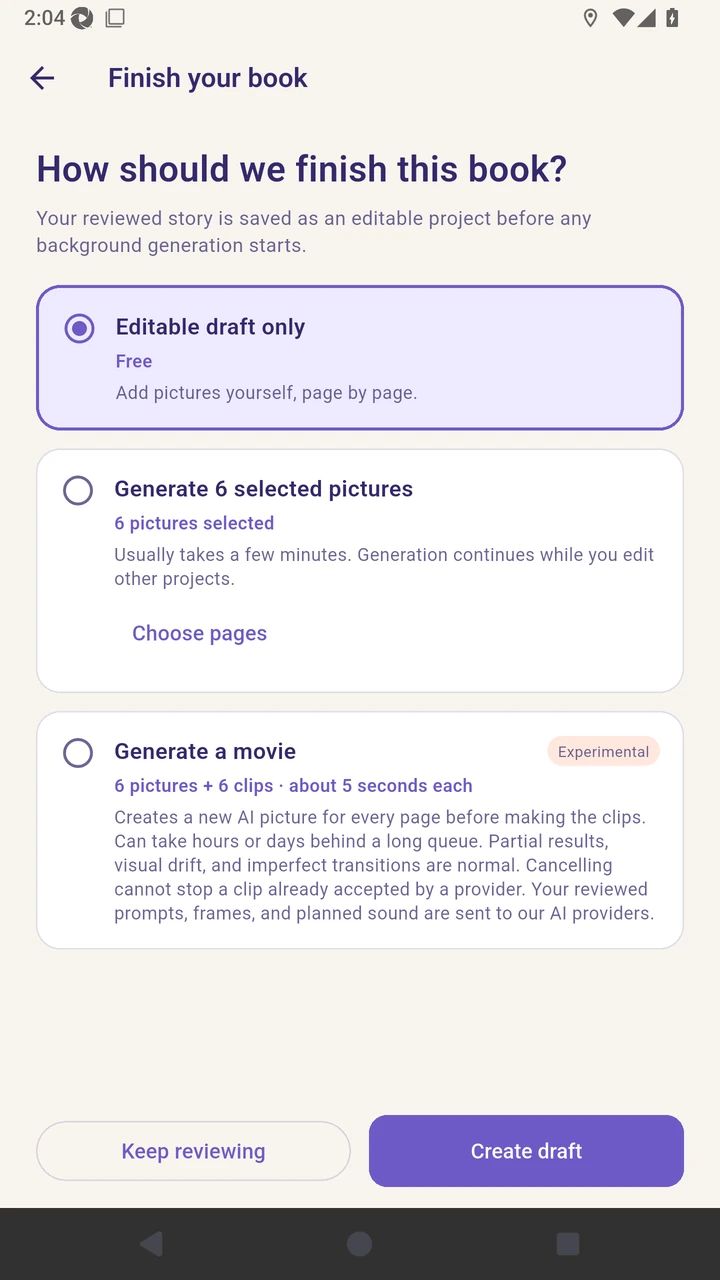
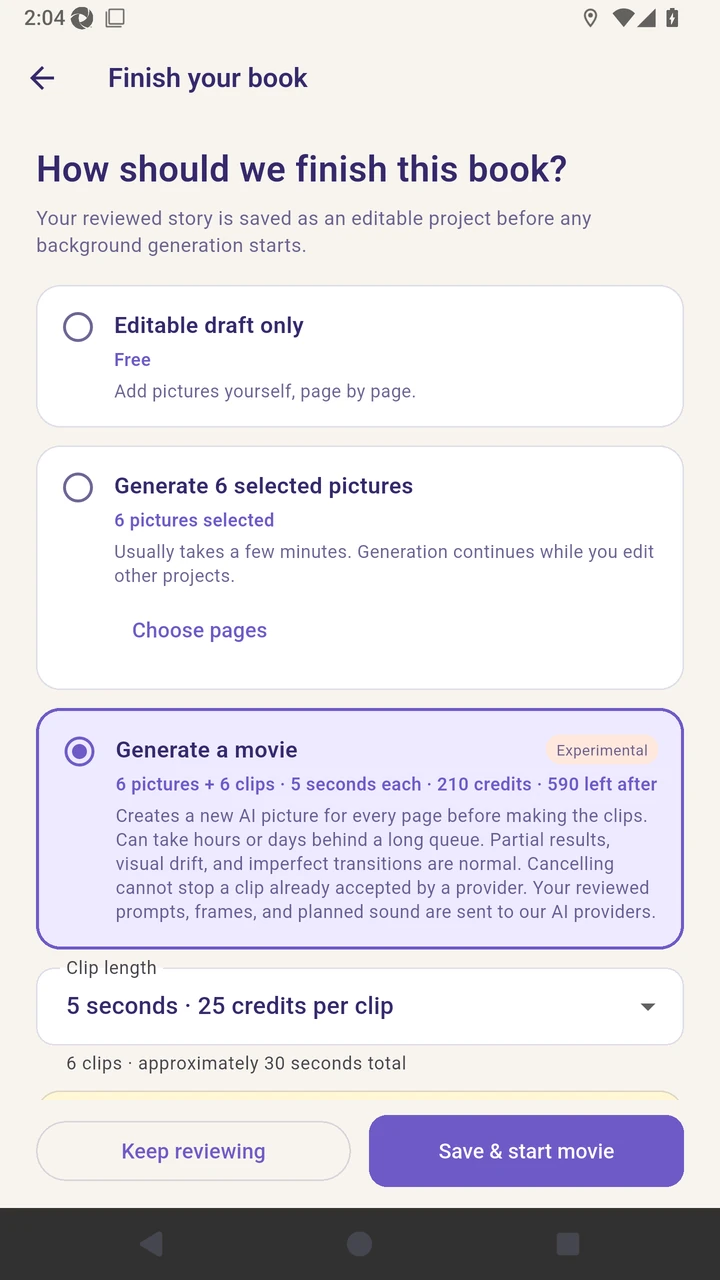
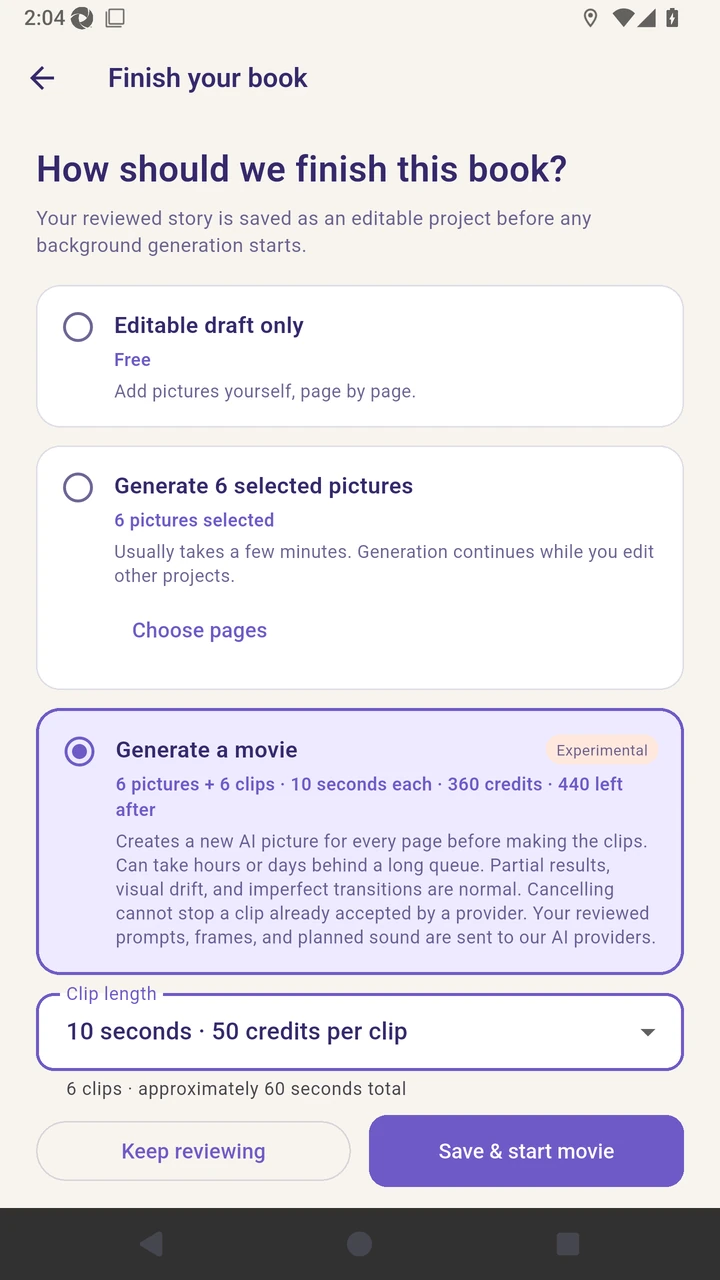
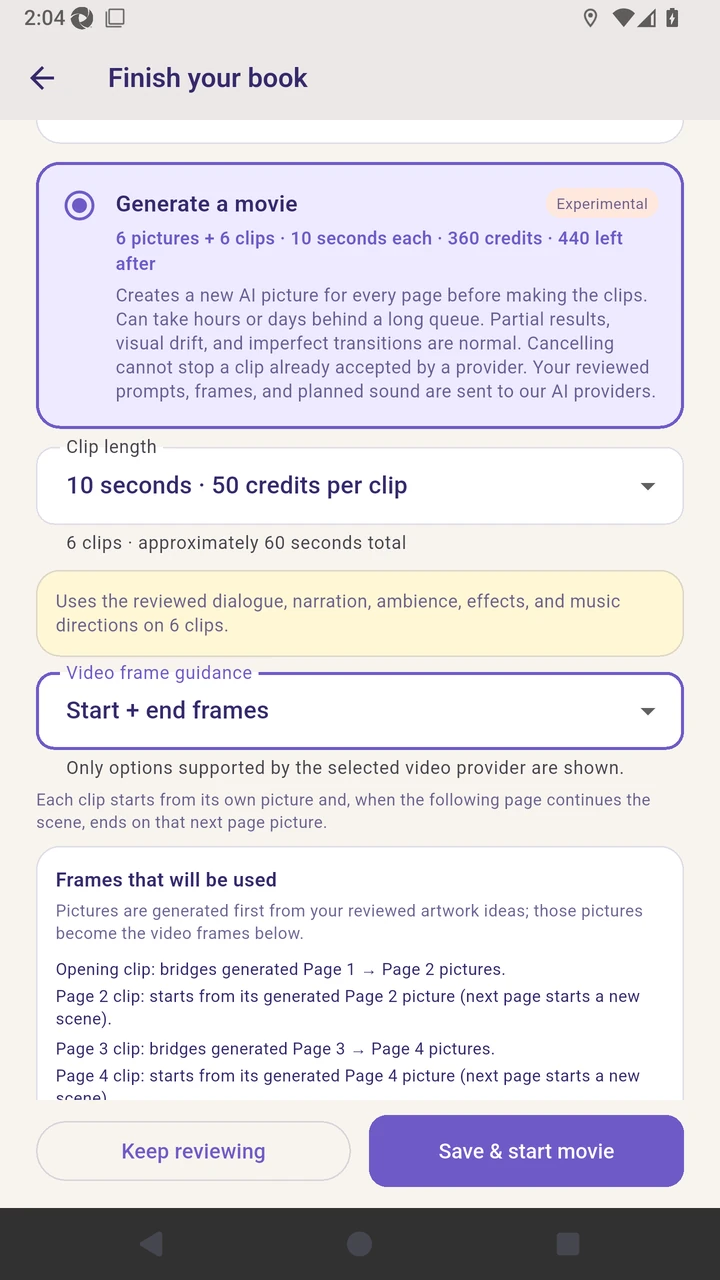
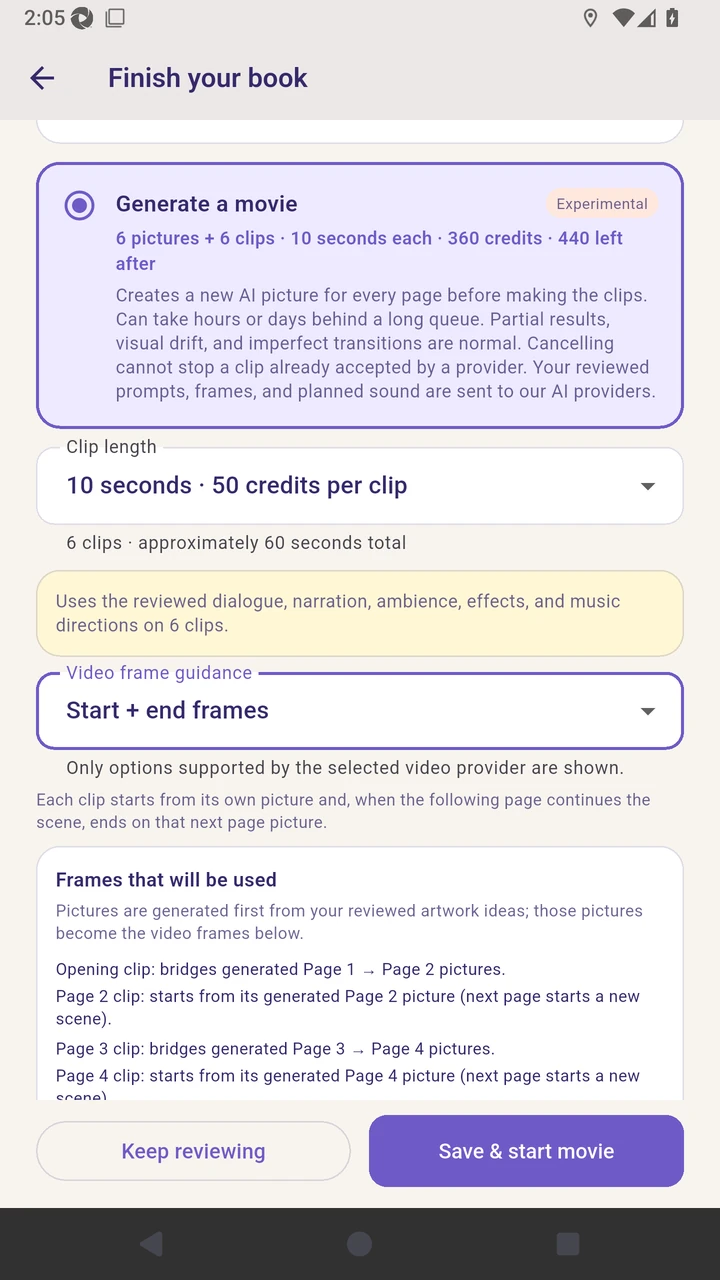
Result. The six-page movie configuration and maximum credit quote are ready.
Read the narration transcript
Open Finish your book and compare the editable draft, picture, and movie choices. Select Generate a movie and review its experimental queue guidance and credit quote. Choose ten-second clips and review the total movie duration. Choose start and end frames so adjacent page pictures guide each transition. Expand the frame plan to see how page pictures bridge the generated clips.