Studio Motion tutorial · Chapter 8 of 12
Direct motion, sound, and video options
Set the visual action, camera, transition, sound, duration, shape, privacy, and cost for one clip.
Studio Motion Studio Motion only
Before you start
- Open Create AI video on page one.
Step by step
Choose Animate an image and use this page’s artwork as the opening frame.
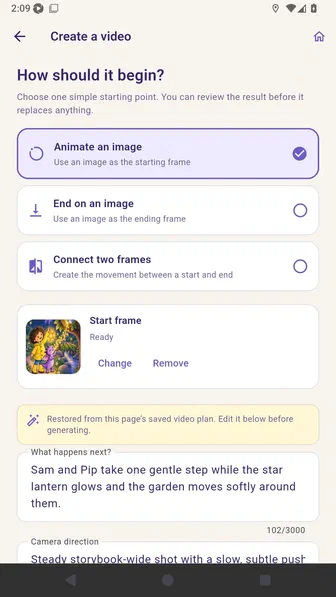
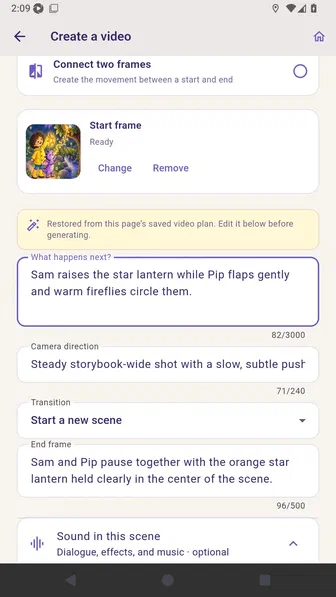
Edit what happens next, then review the planned camera movement, scene transition, and final composition.
Open Voice in this clip and choose no voice, character speech, an off-screen video narrator, or narration added separately.
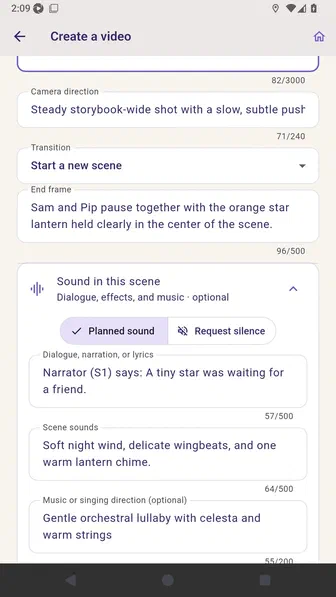
Choose Generate ambience to edit scene sounds and music direction, or choose Silent background to omit them. This setting is independent of the voice choice.
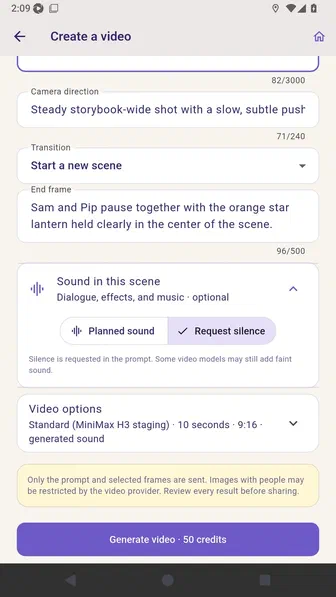
Expand Video options, where you can check quality and duration as well as project shape and crop-safe framing.
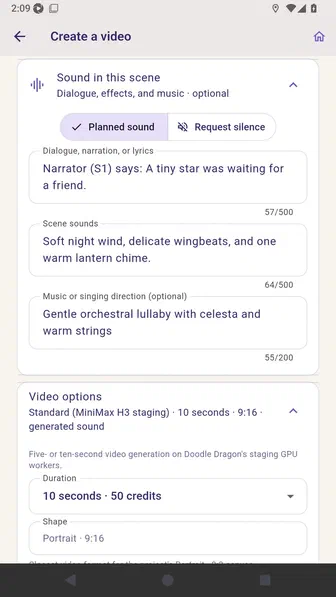
Review what will be sent to the provider and the displayed credit cost before generating.
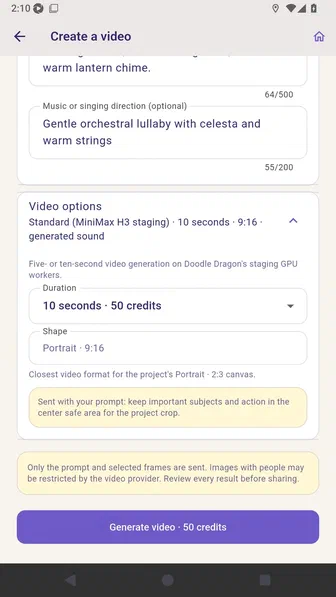
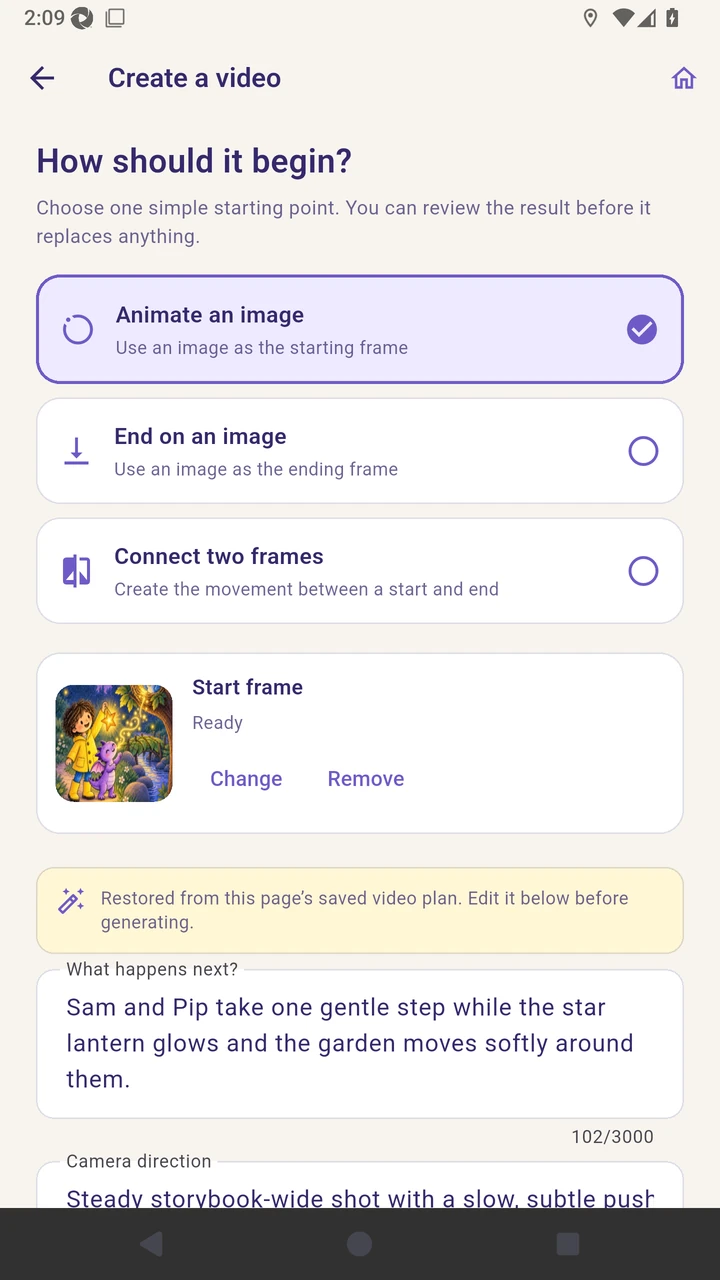
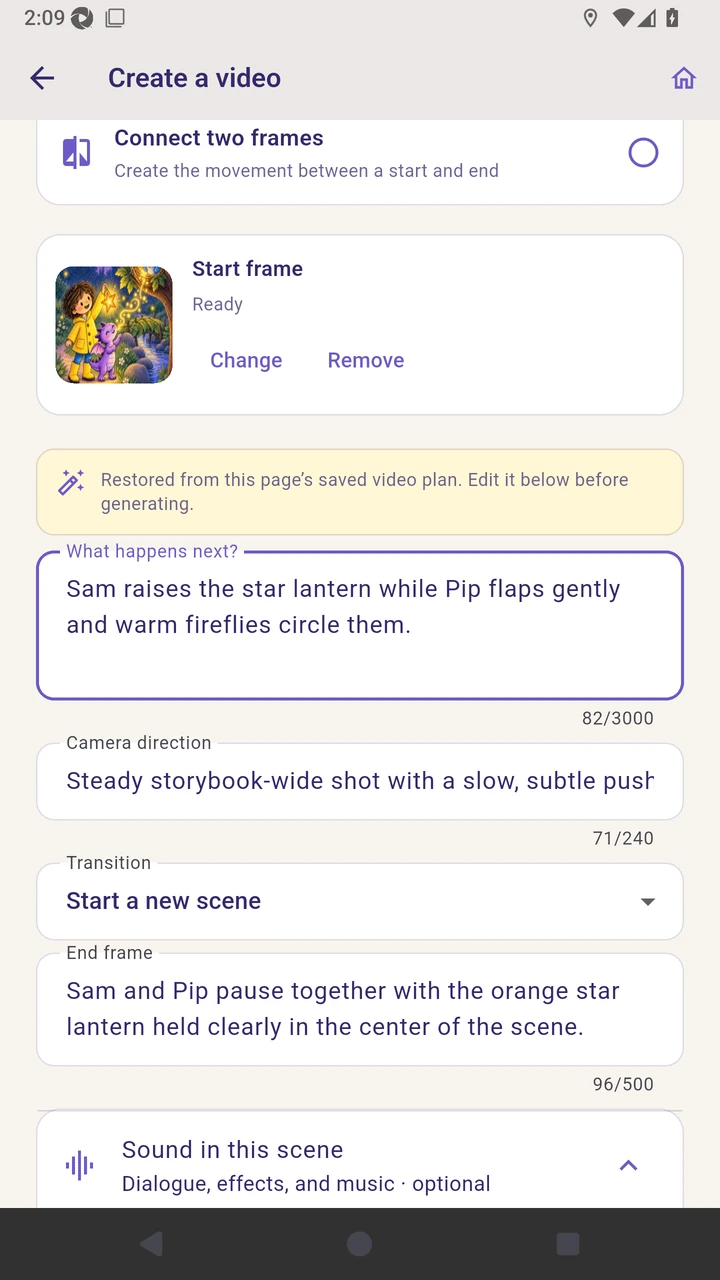
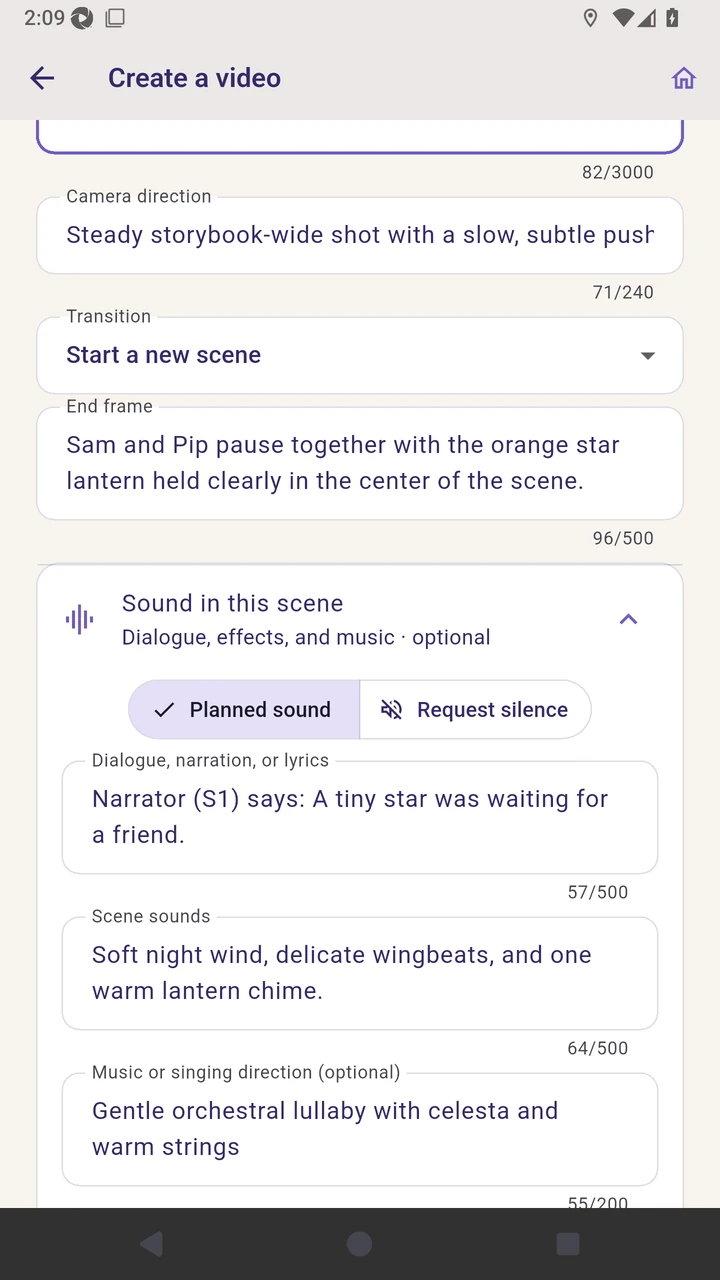
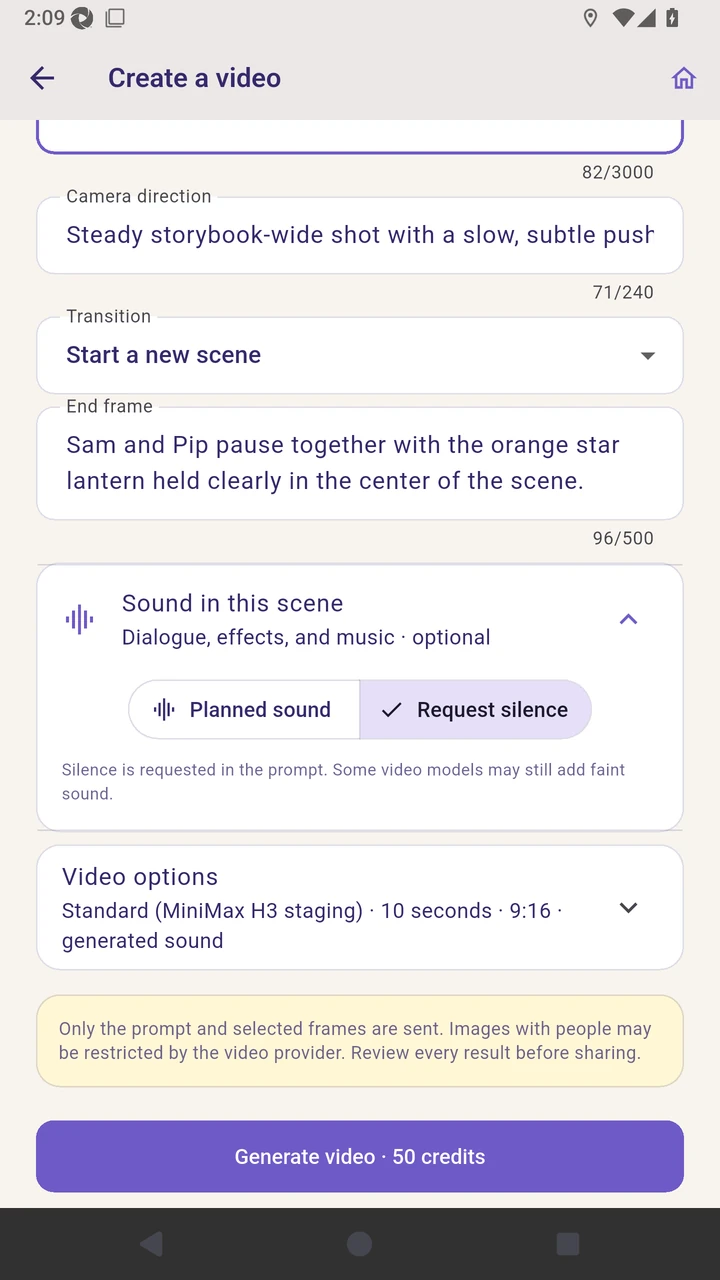
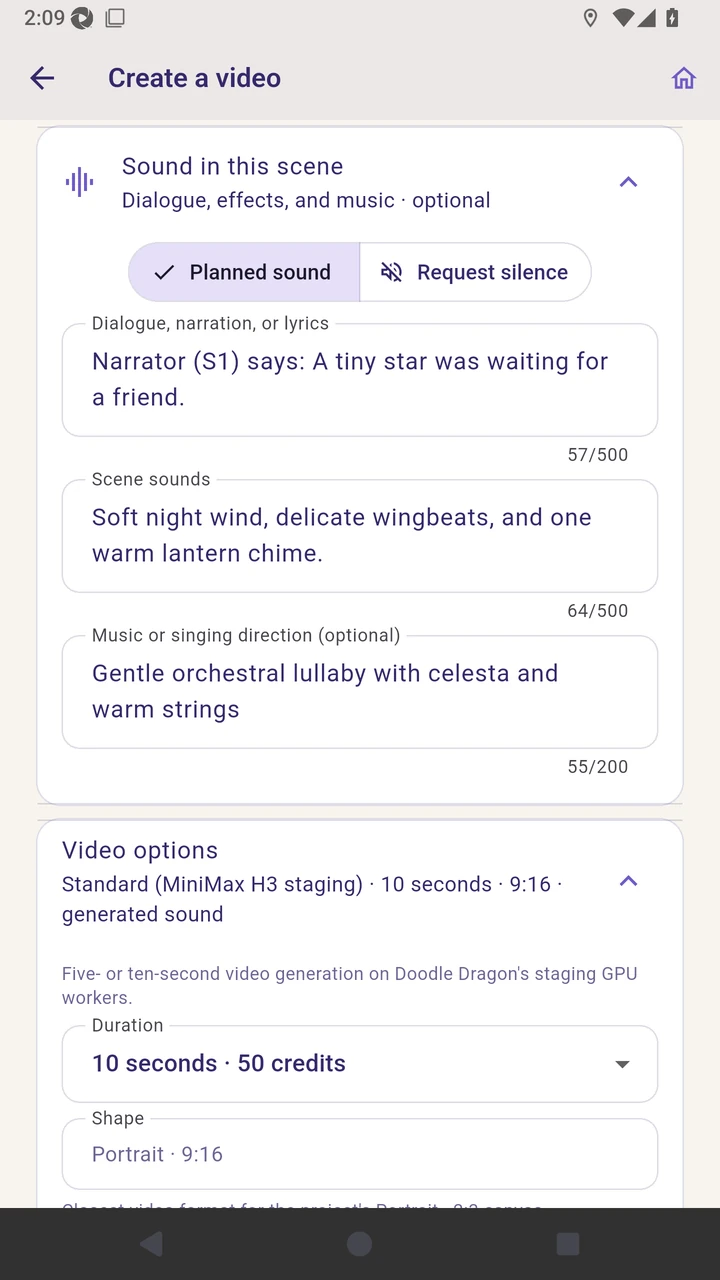
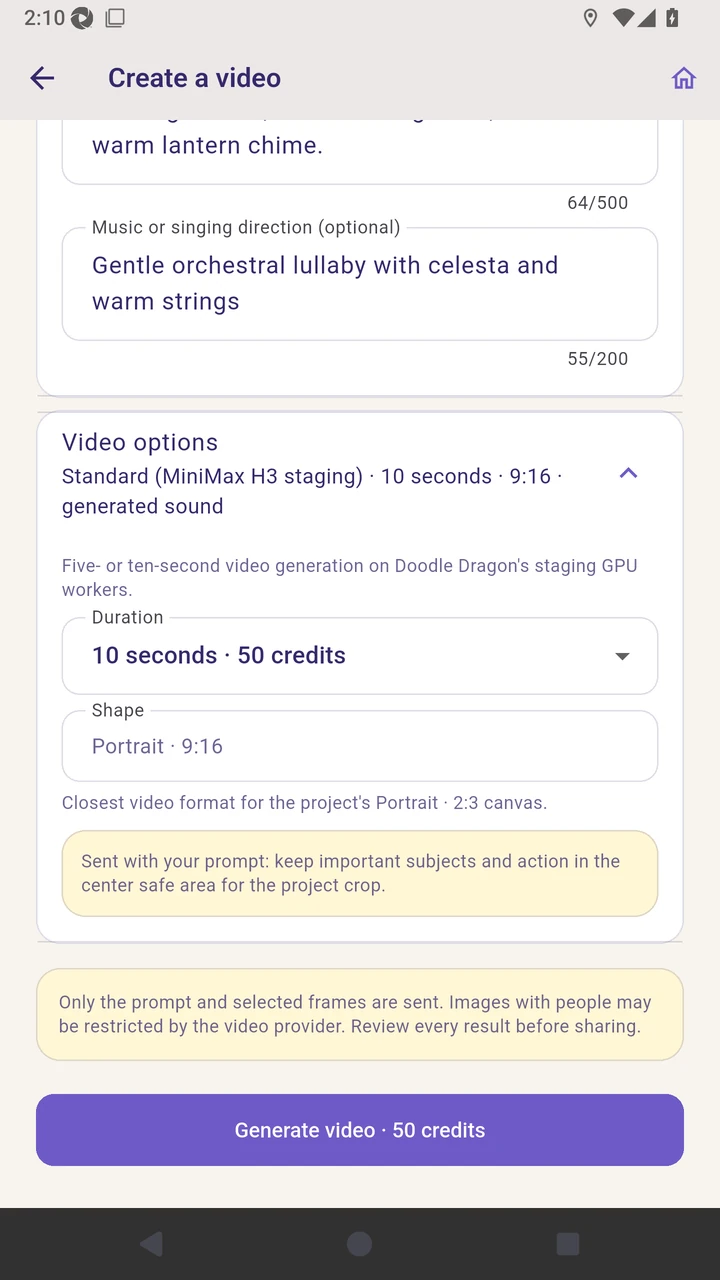
Result. A complete editable page-video request is ready to submit.
Read the narration transcript
Choose Animate an image and use this page’s artwork as the opening frame. Edit what happens next, then review the planned camera movement, scene transition, and final composition. Open Voice in this clip and choose no voice, character speech, an off-screen video narrator, or separate narration. Choose generated ambience or a silent background independently. Expand Video options, where you can check quality and duration as well as project shape and crop-safe framing. Review what will be sent to the provider and the displayed credit cost before generating.