Studio Motion tutorial · Chapter 1 of 12
Launch Studio Motion and review sign-in
Open Doodle Dragon, review first launch, and choose a safe parent sign-in path.
Studio Motion Studio Motion only
Before you start
- Install the protected staging build on a disposable emulator.
Step by step
Welcome to Doodle Dragon Studio Motion, which includes every Studio Plus feature; this tutorial shows the added video-generation tools.
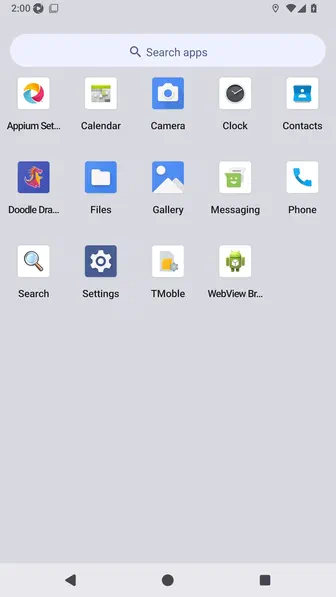
Use a child’s sketch as an anchor, plan its motion and sound, generate page clips and a complete movie, then preview and export the result.
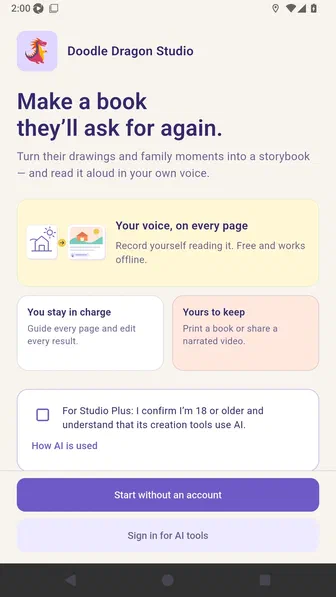
Confirm that an adult is using the Studio AI tools.
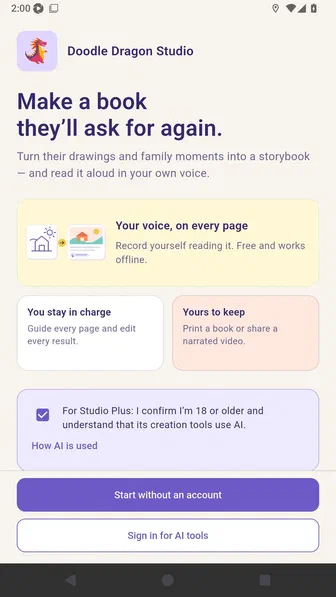
Choose a parent sign-in provider to enter the protected demonstration profile.
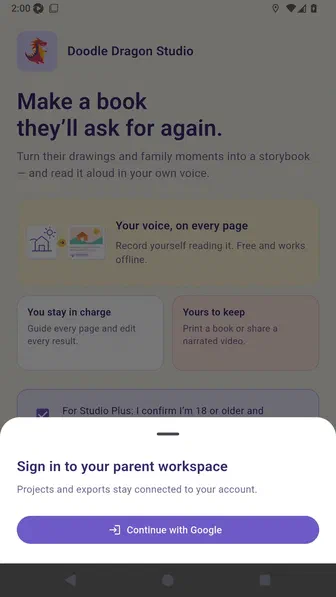
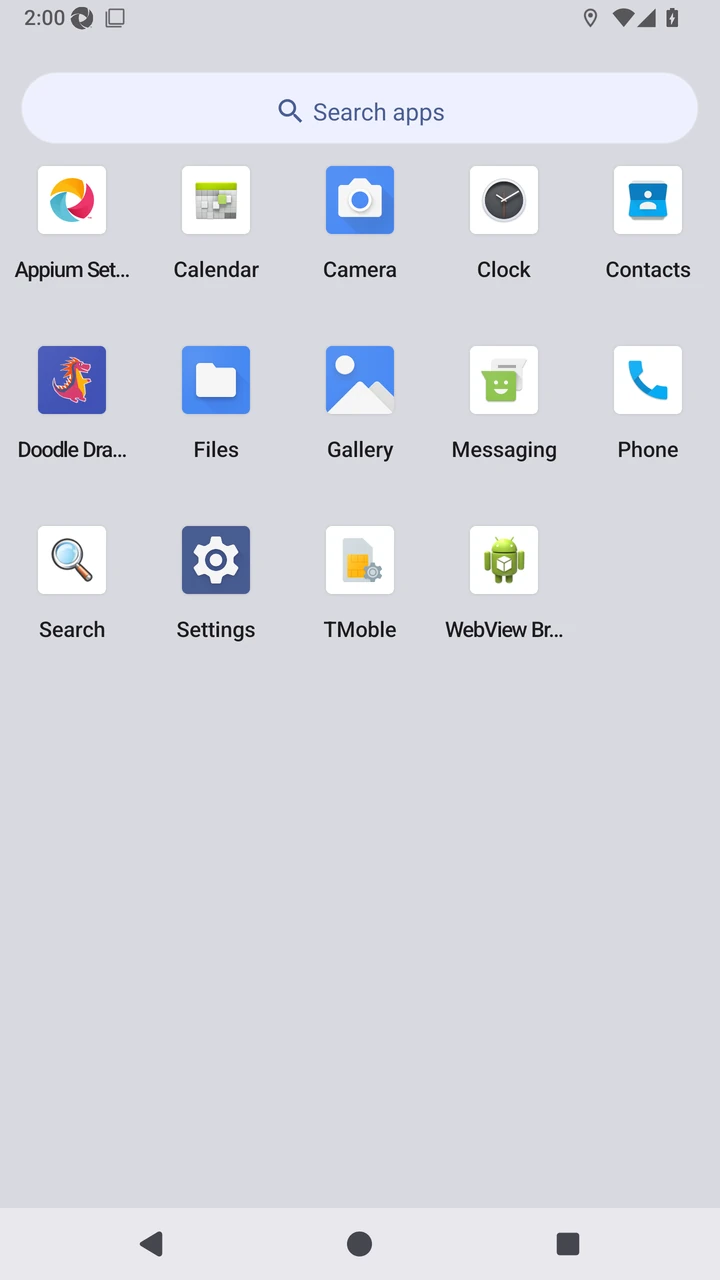
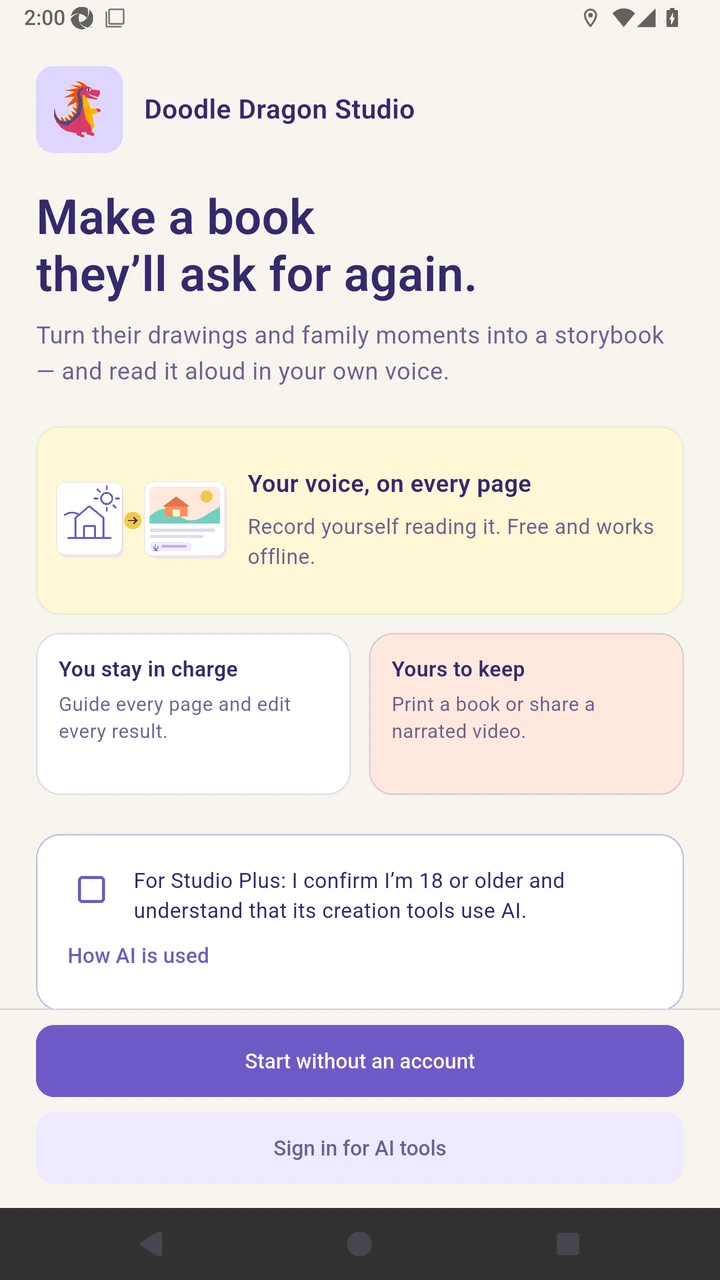
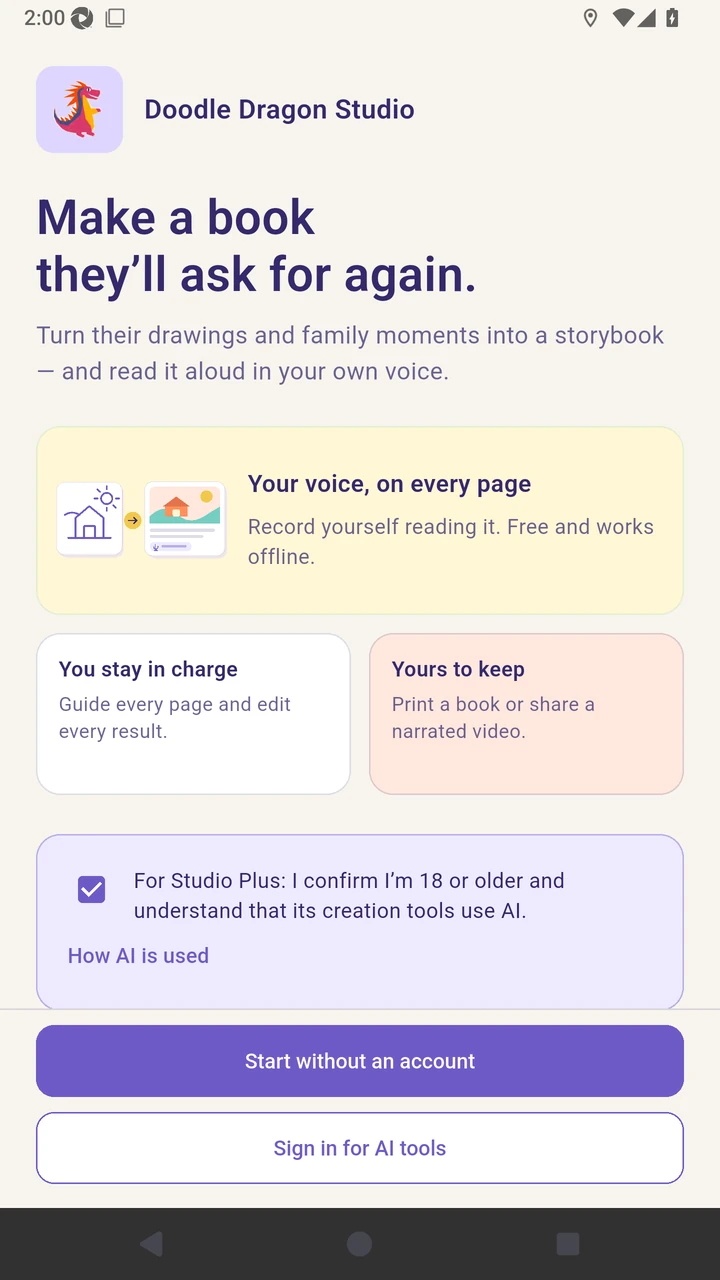
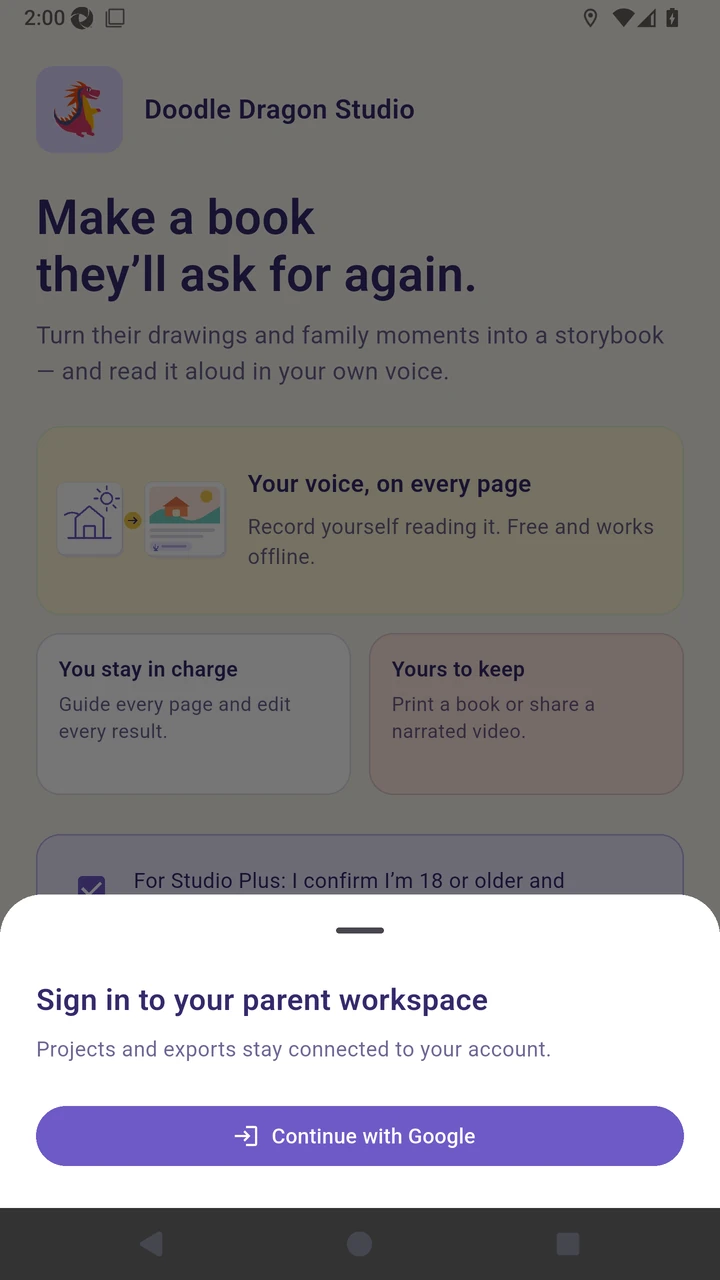
Result. The protected Studio Motion documentation profile opens without exposing credentials.
Read the narration transcript
Welcome to Doodle Dragon Studio Motion, which includes every Studio Plus feature; this tutorial shows the added video-generation tools. Use a child’s sketch as an anchor, plan its motion and sound, generate page clips and a complete movie, then preview and export the result. Confirm that an adult is using the Studio AI tools. Choose a parent sign-in provider to enter the protected demonstration profile.