Studio Motion tutorial · Chapter 3 of 12
Plan a Motion story from a child sketch
Choose the story format, switch to AI planning, and attach a reviewed anchor sketch.
Studio Motion Studio Motion only
Before you start
- Studio Motion is active.
Step by step
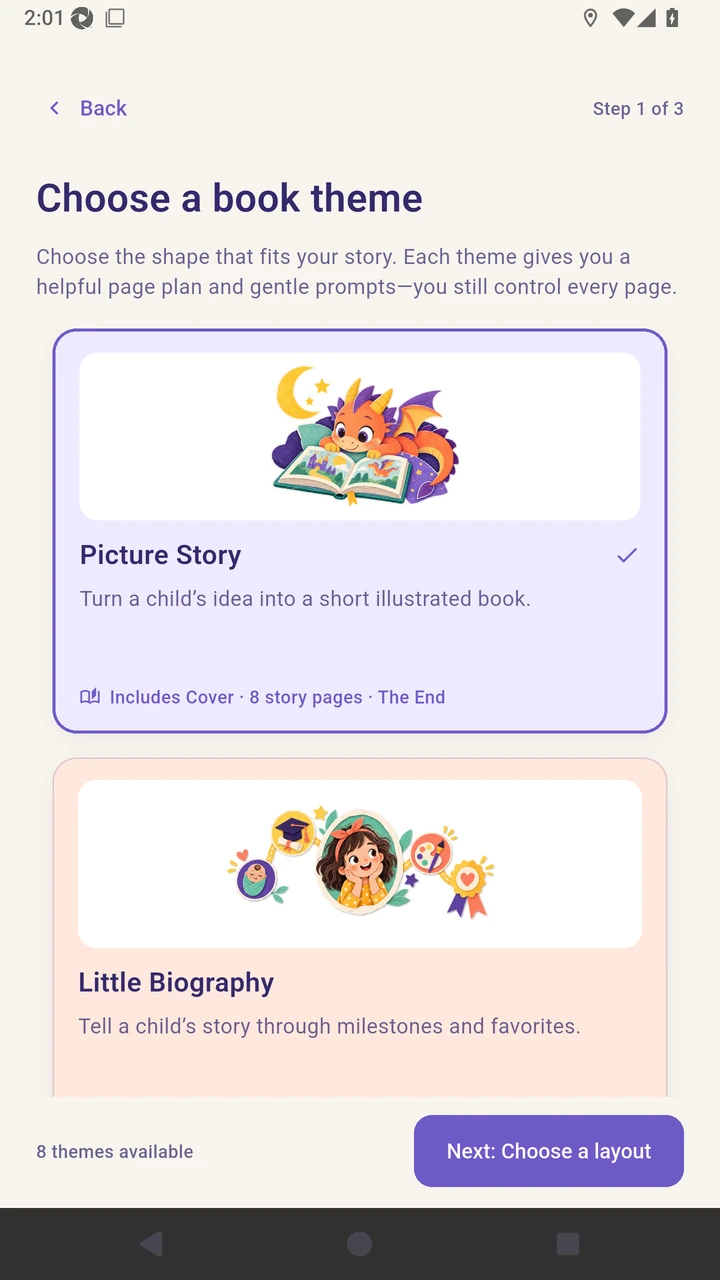
Create a Picture Story.
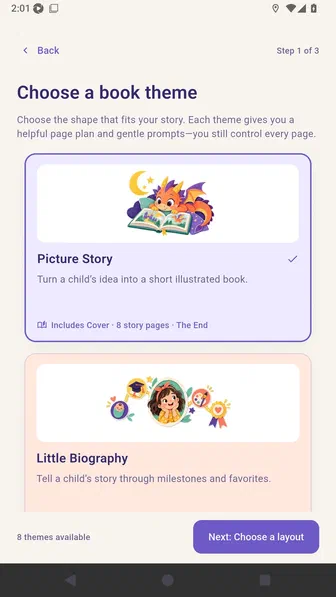
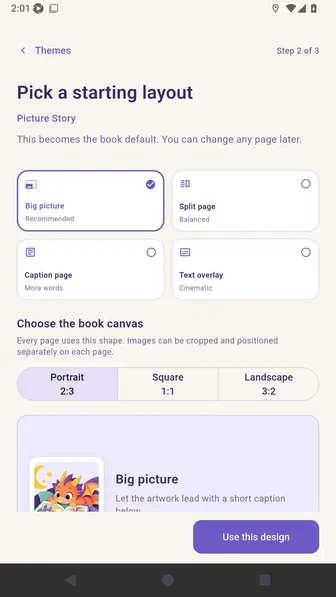
Choose Big picture for the page layout.
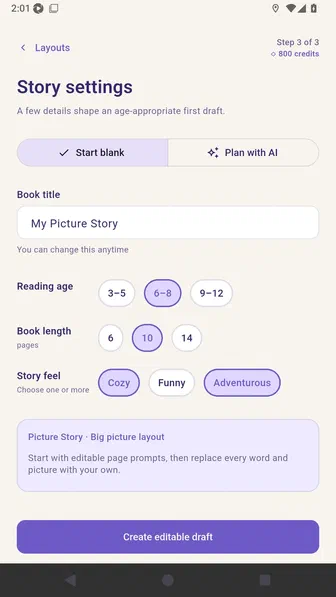
Story settings opens on Start blank for a local editable draft.
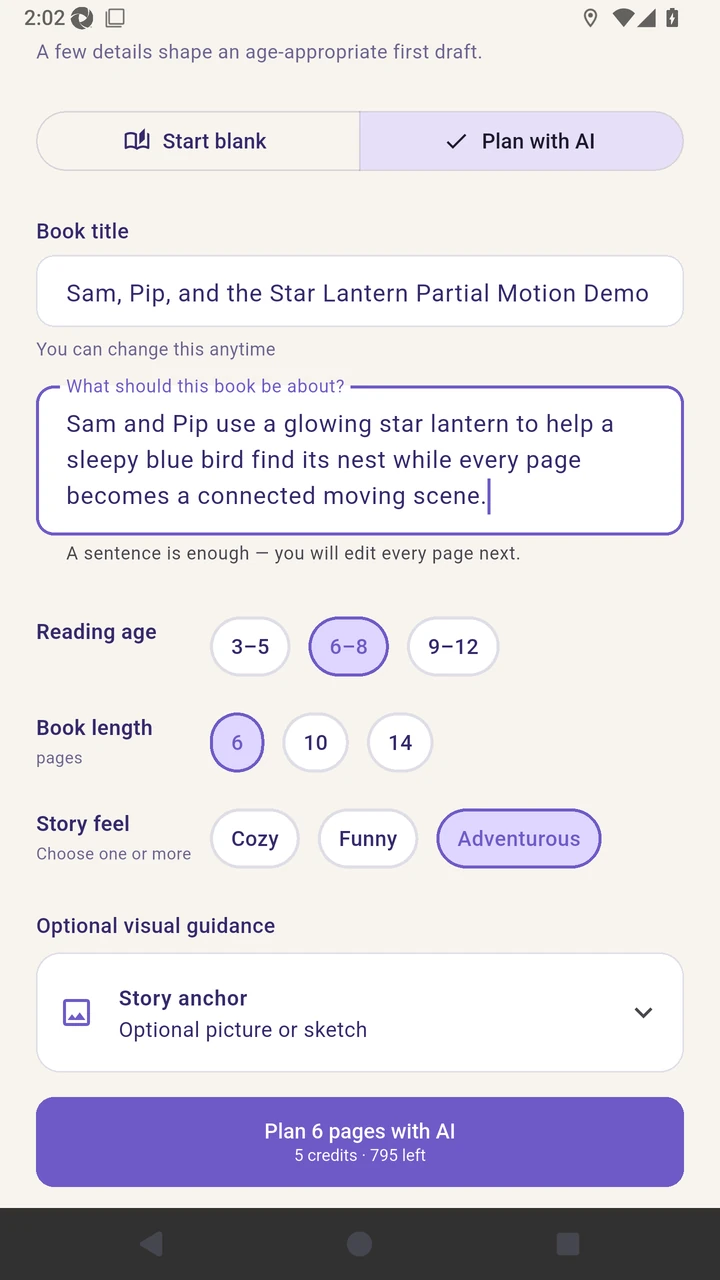
Switch to Plan with AI to reveal the story premise field.
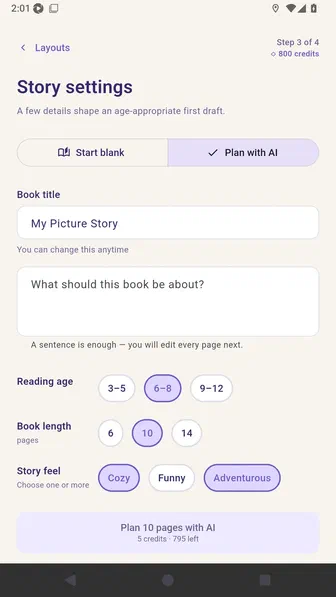
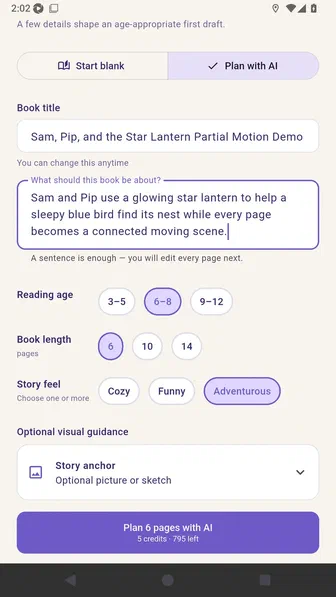
Enter the title and a short premise for Sam and Pip.
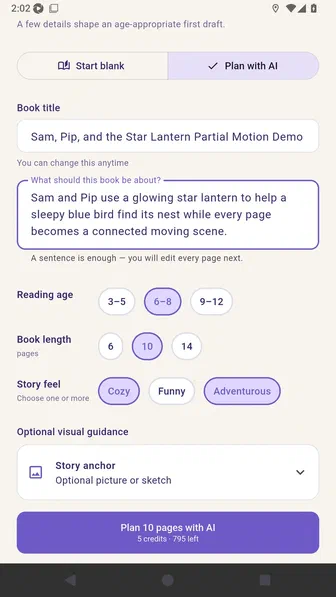
Choose ages six through eight, six pages, and a cozy feel.
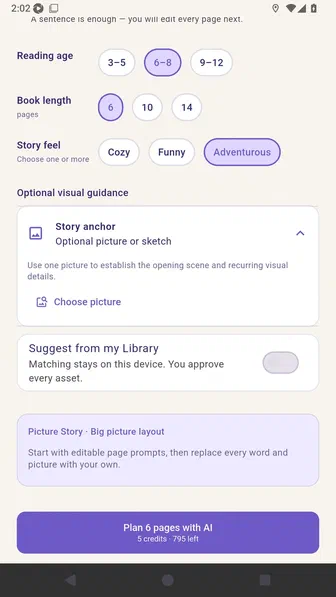
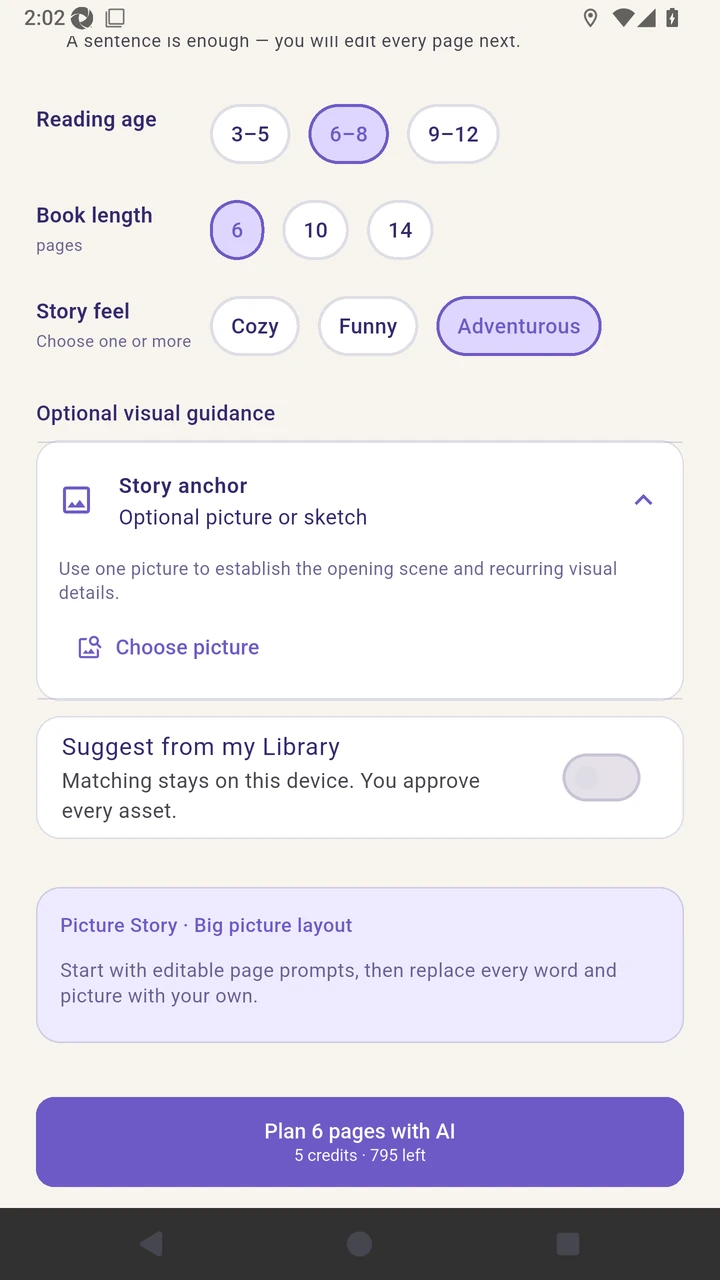
Expand Story anchor and choose a picture.
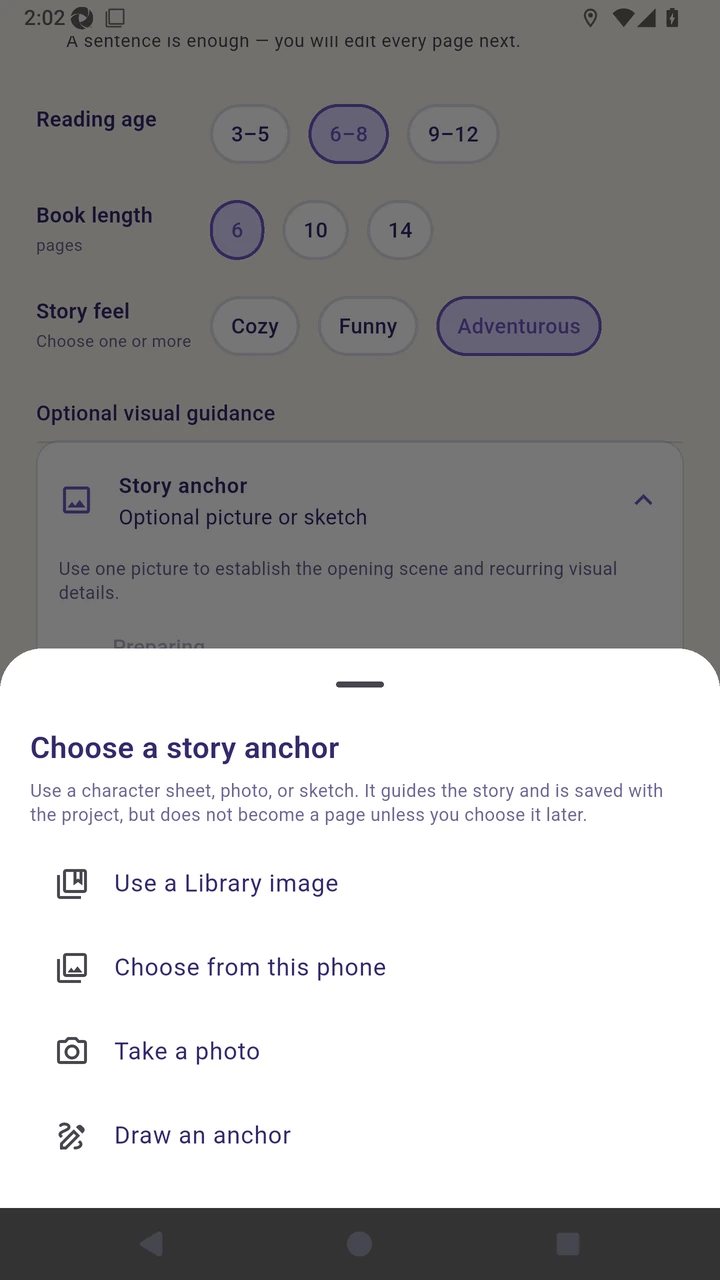
Review every available anchor source.
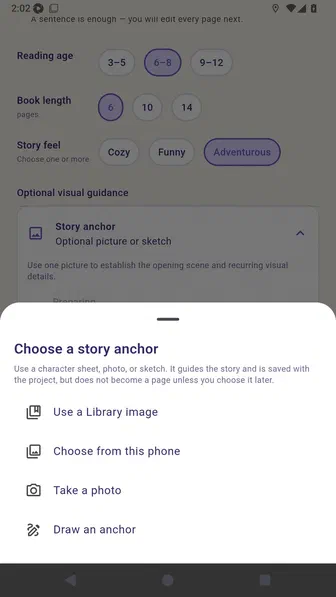
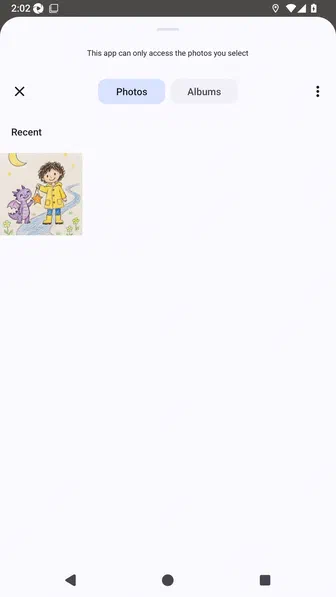
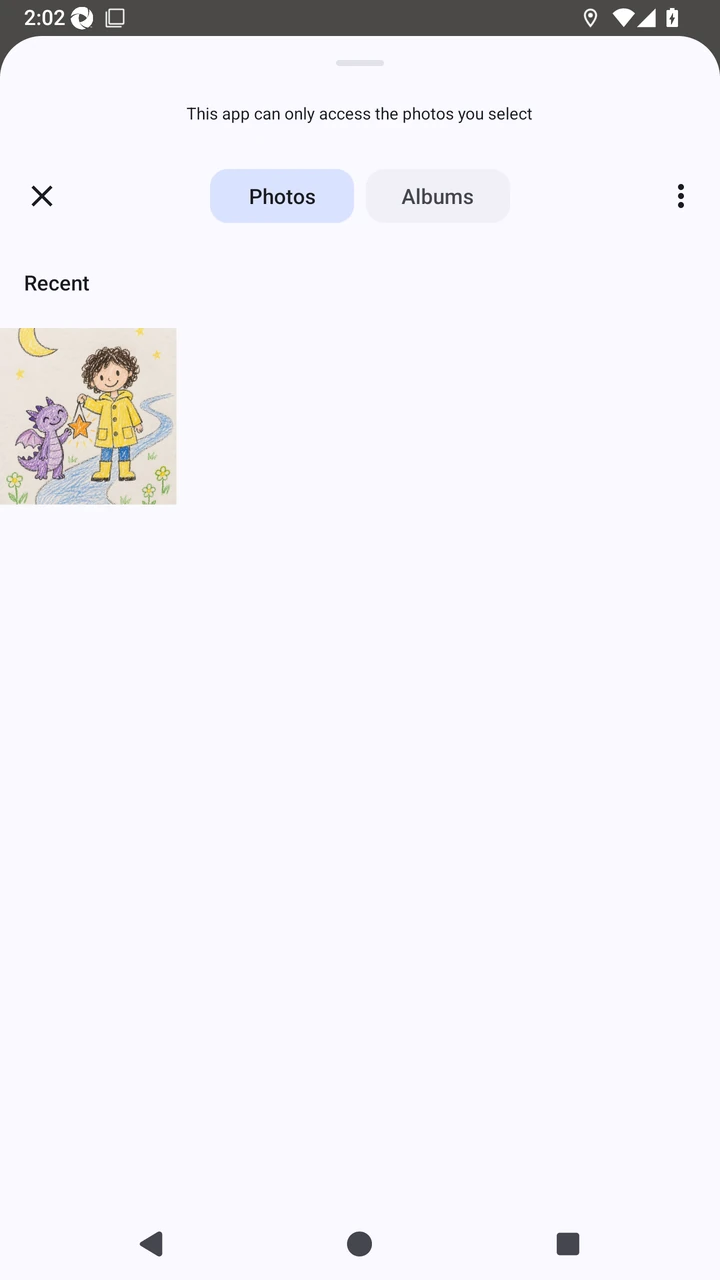
Choose the bundled child sketch in the Android photo picker.
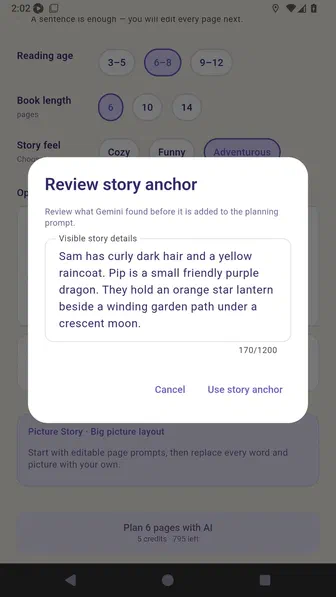
Review the visible character and scene details found in the sketch.
Attach the reviewed sketch to guide recurring visual details.
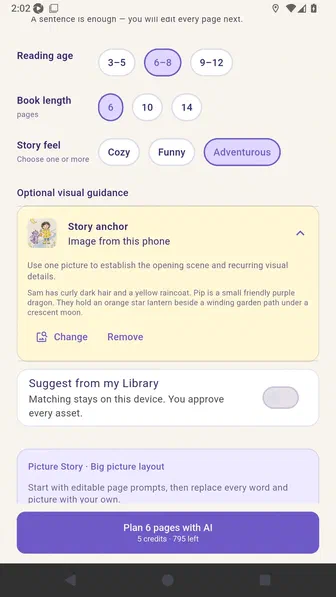
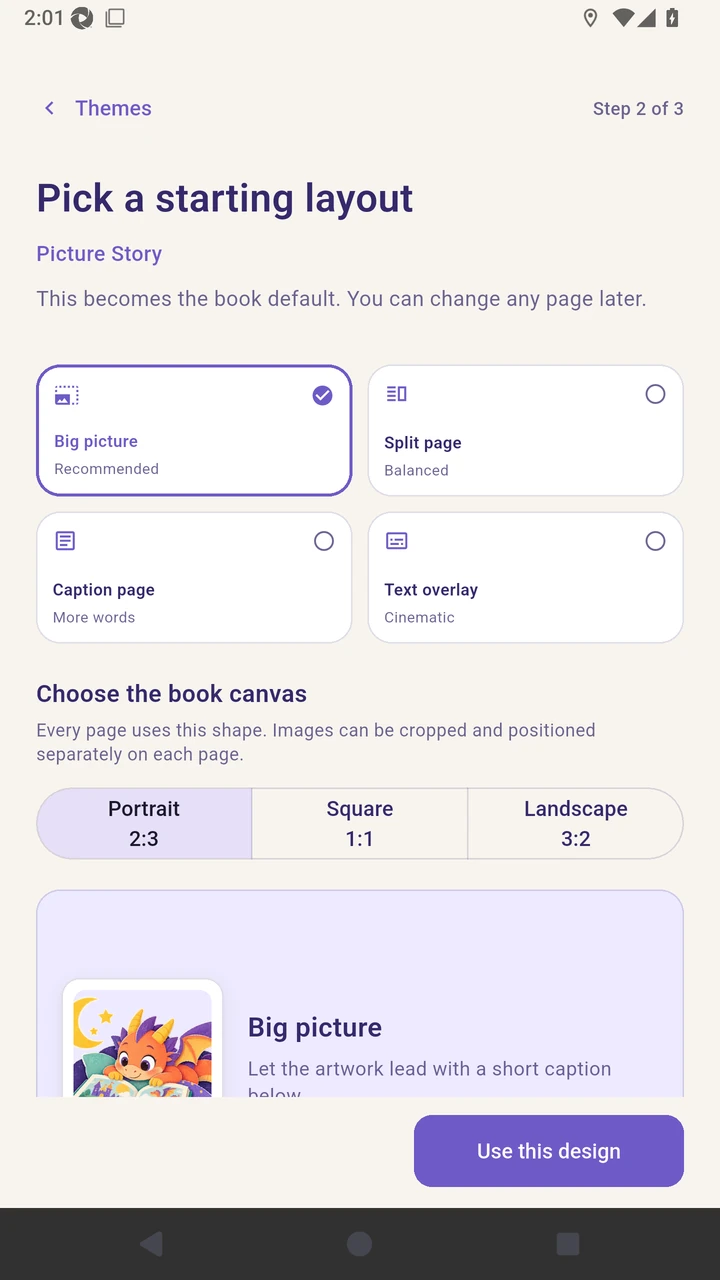
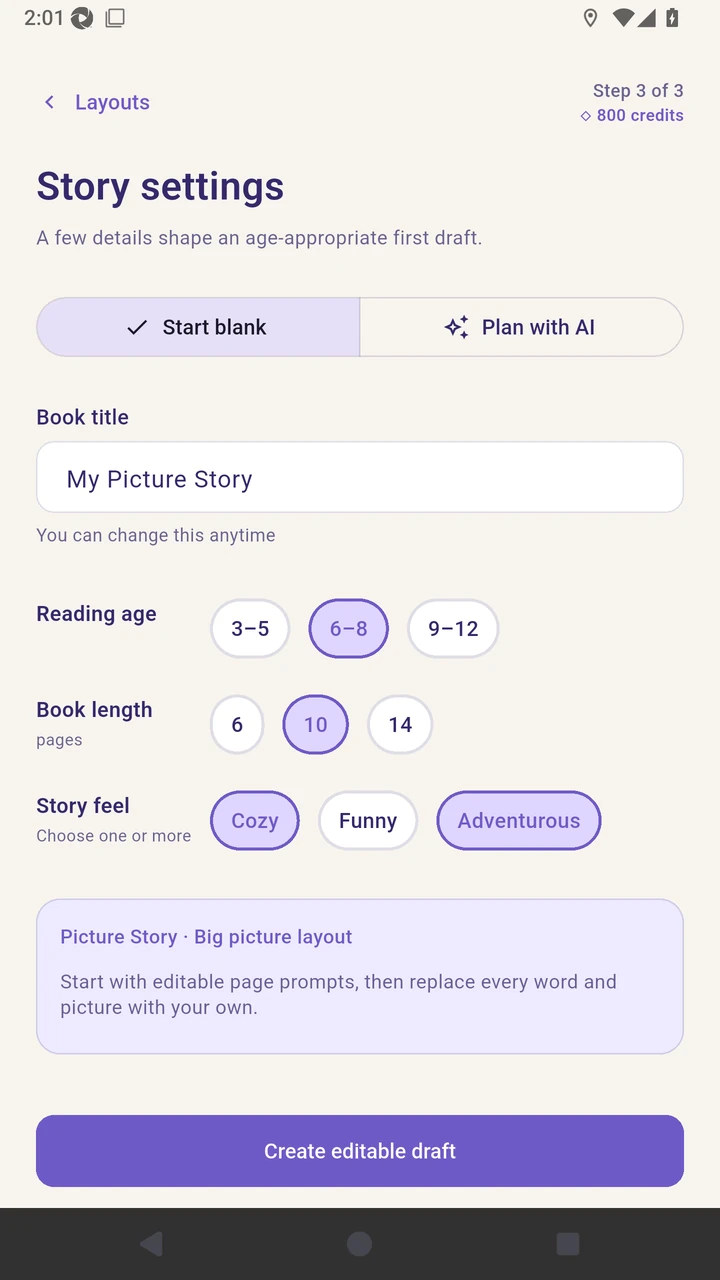
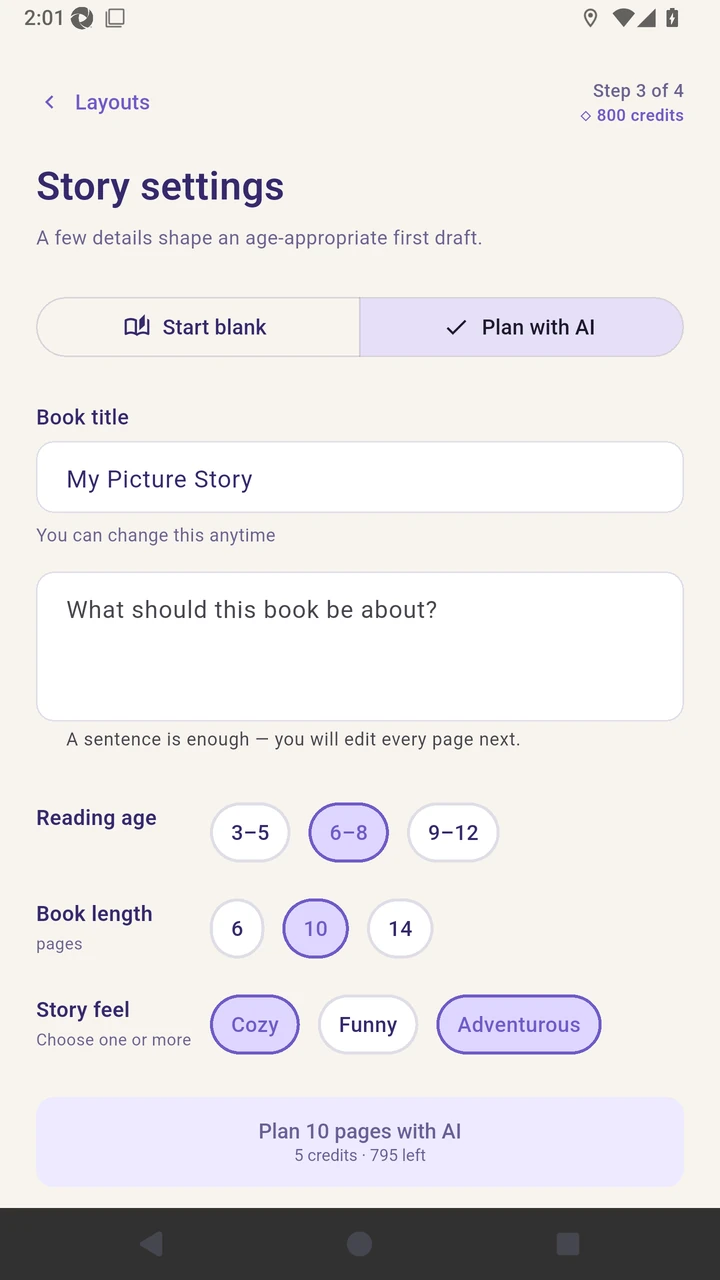
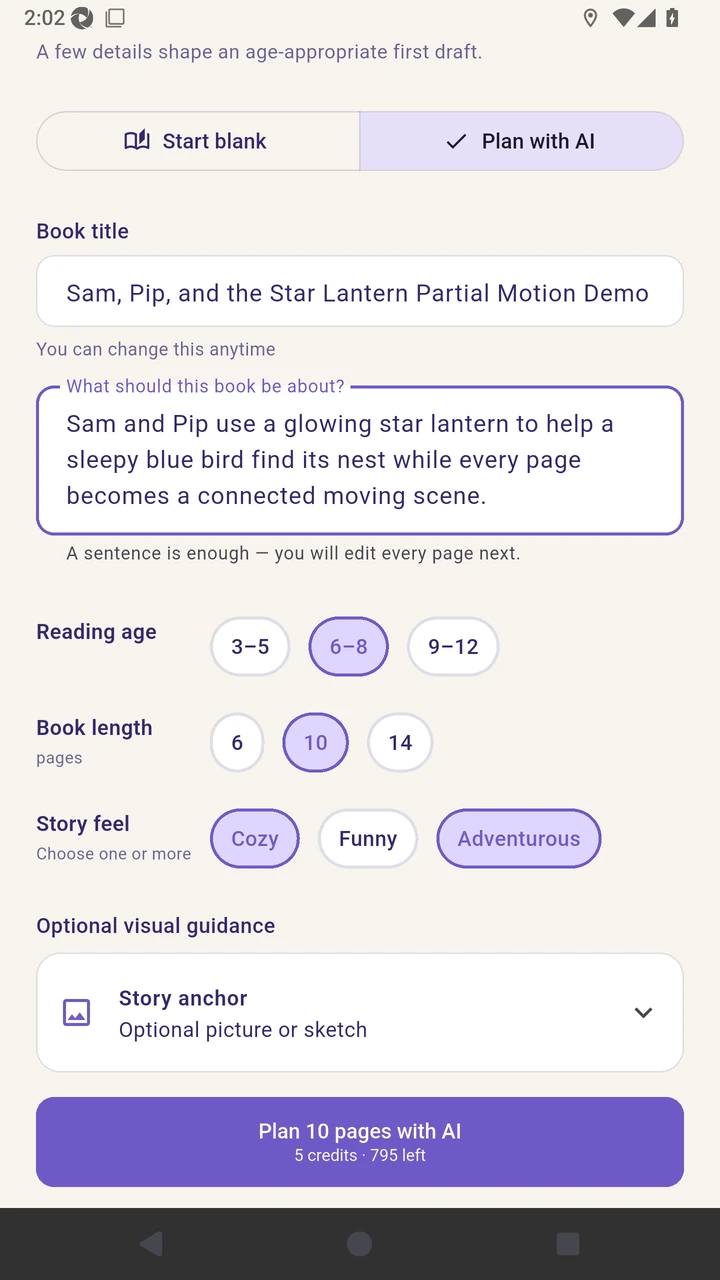
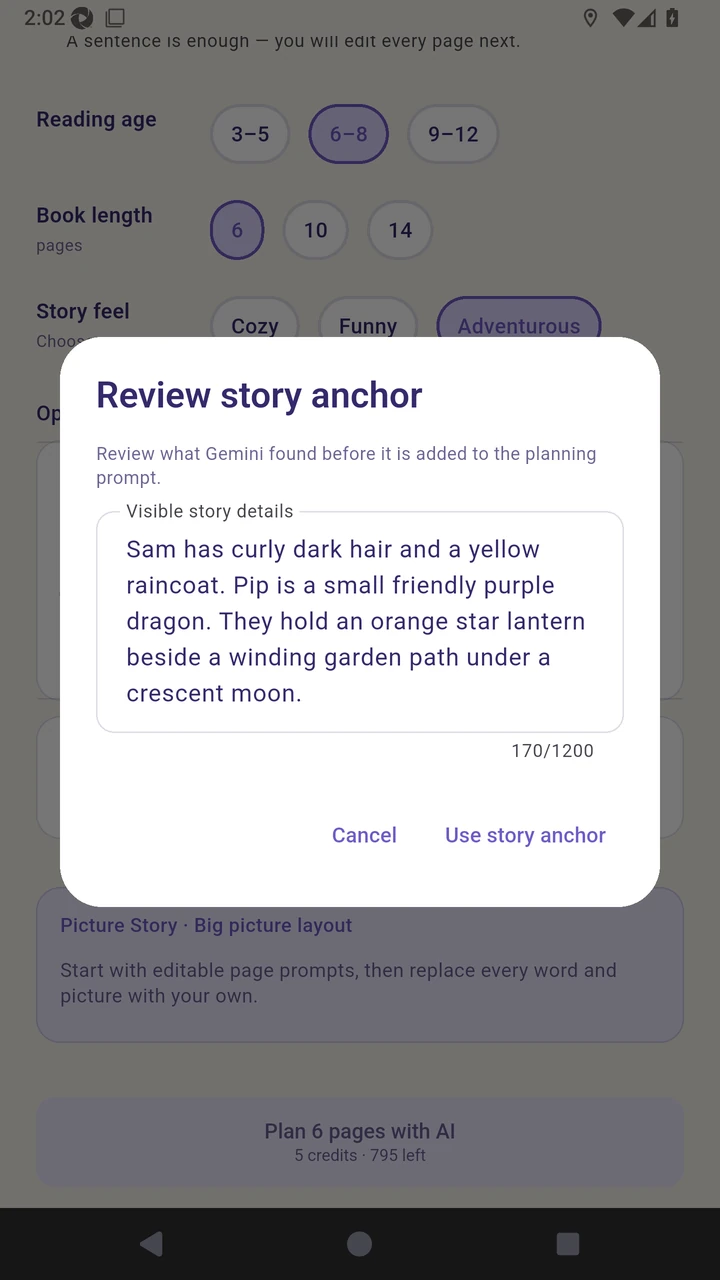
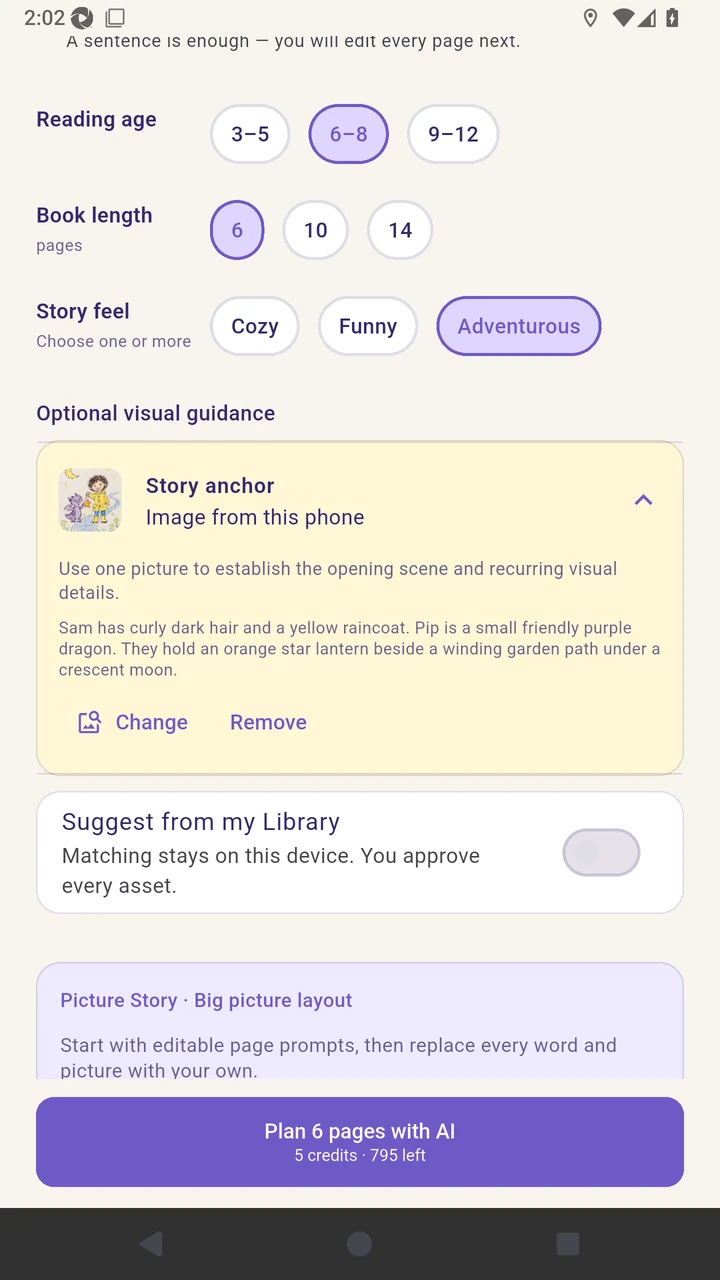
Result. The title, premise, settings, and reviewed child sketch are ready for planning.
Read the narration transcript
Create a Picture Story. Choose Big picture for the page layout. Story settings opens on Start blank for a local editable draft. Switch to Plan with AI to reveal the story premise field. Enter the title and a short premise for Sam and Pip. Choose ages six through eight, six pages, and a cozy feel. Expand Story anchor and choose a picture. Review every available anchor source. Choose the bundled child sketch in the Android photo picker. Review the visible character and scene details found in the sketch. Attach the reviewed sketch to guide recurring visual details.