Studio Motion tutorial · Chapter 12 of 12
Preview and export the Motion story
Play page video, preview the book, and create a vertical MP4 without subtitles.
Studio Motion Studio Motion only
Before you start
- Generated page videos are attached.
Step by step
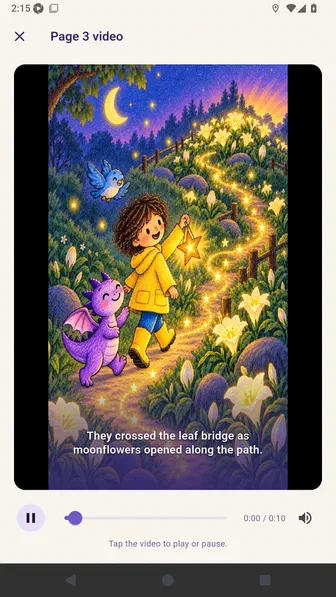
Play a generated page video inside the editor and close the preview.
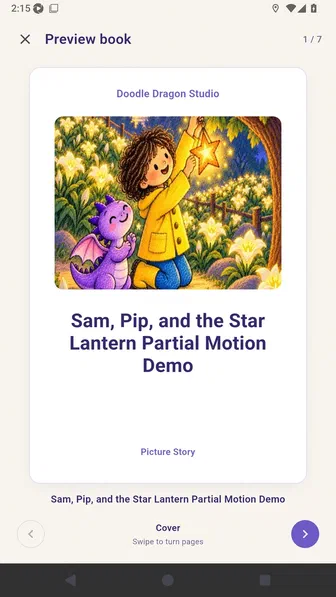
Open the story preview to inspect the cover and animated pages.
Open Export and share, then choose Story video.
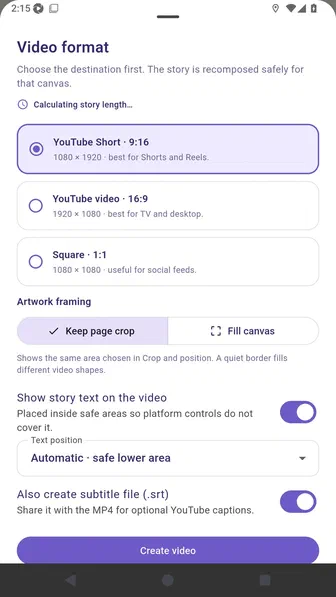
Choose a vertical video and review artwork framing and story-text controls.
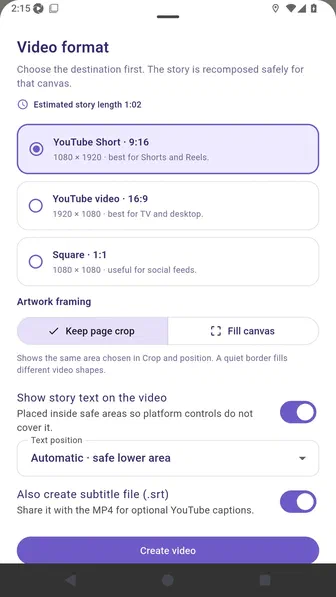
Confirm that the subtitle-file option is off before creating the video.
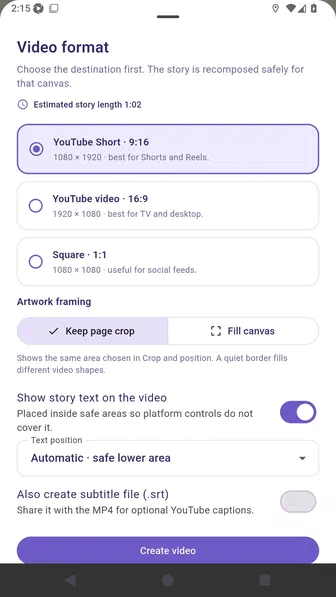
Wait for the MP4 to finish and validate that the video is ready without subtitles.
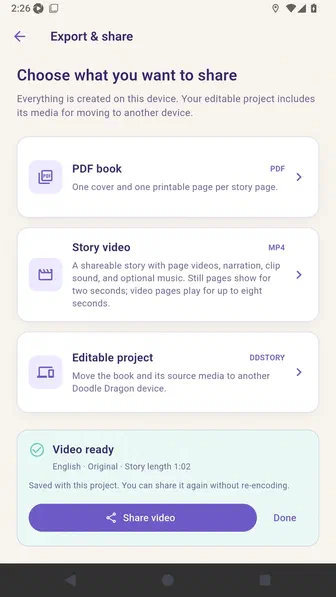
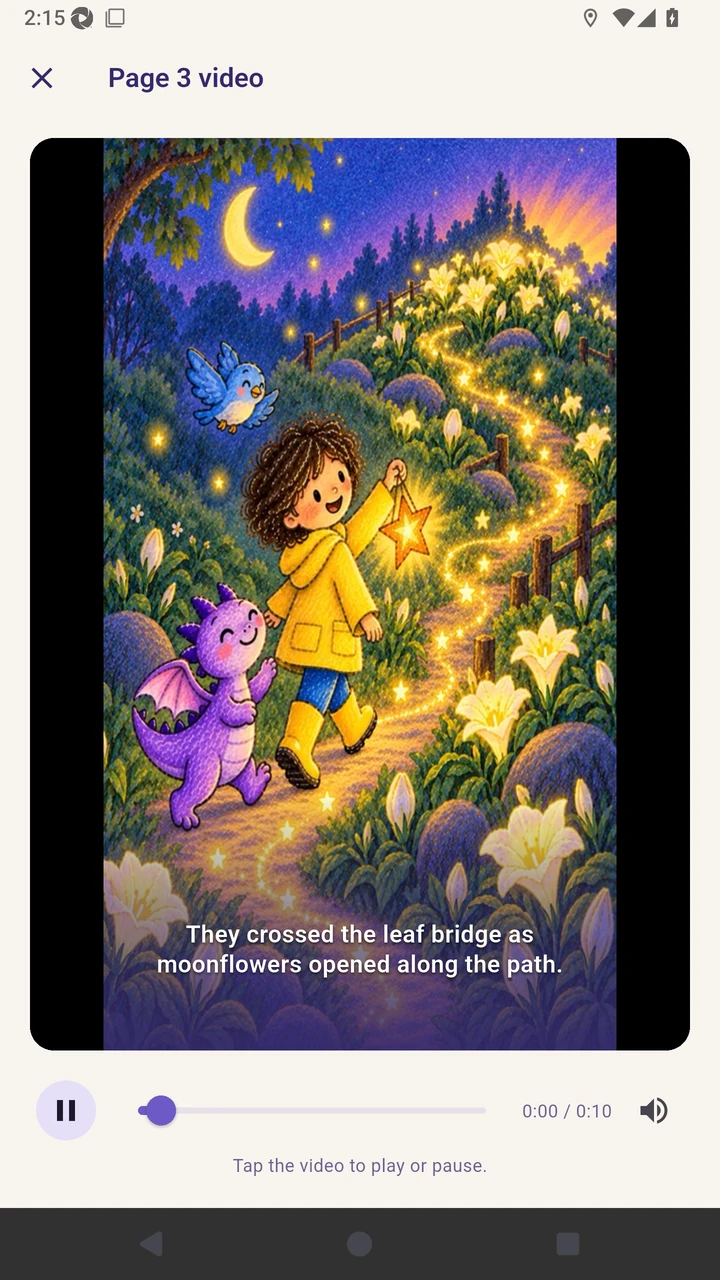
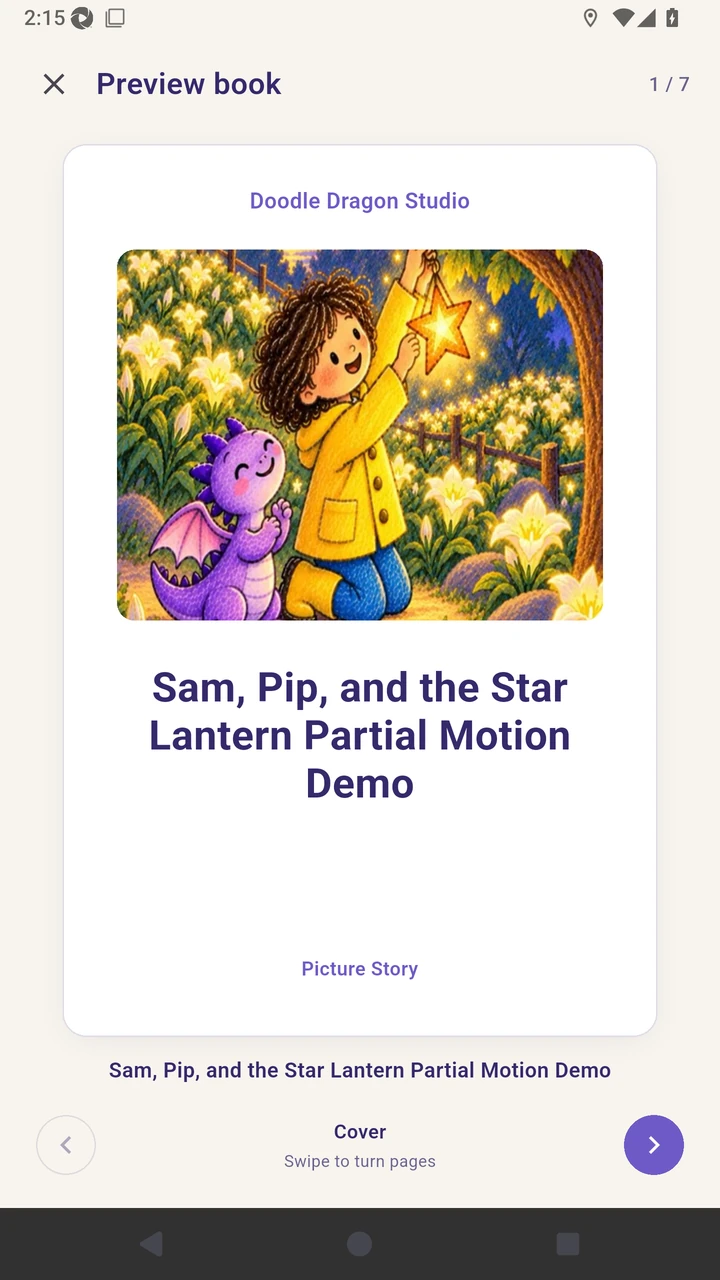
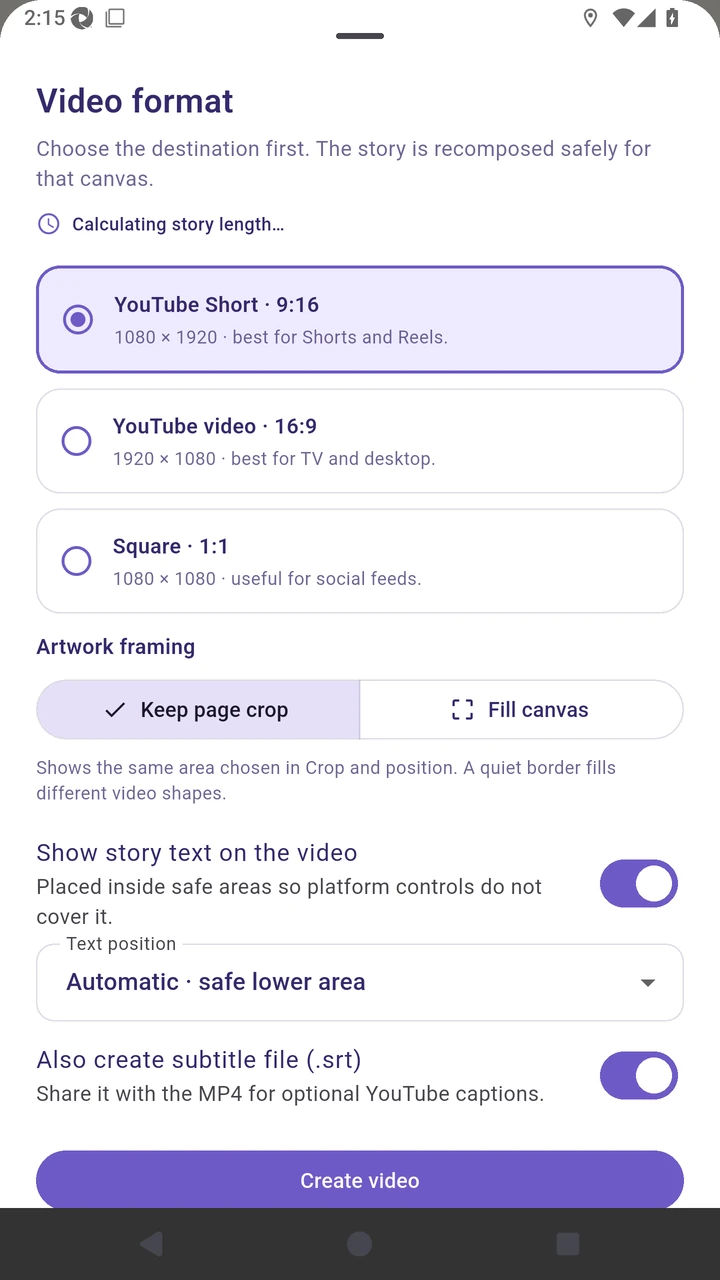
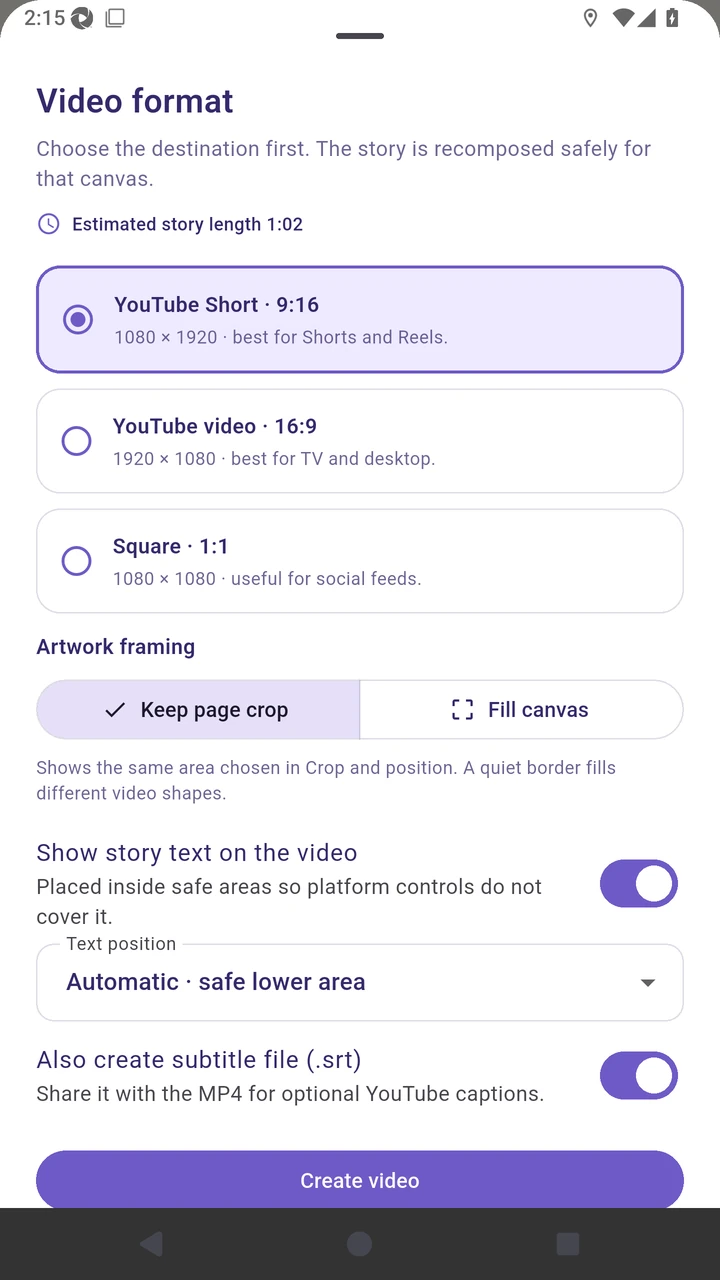
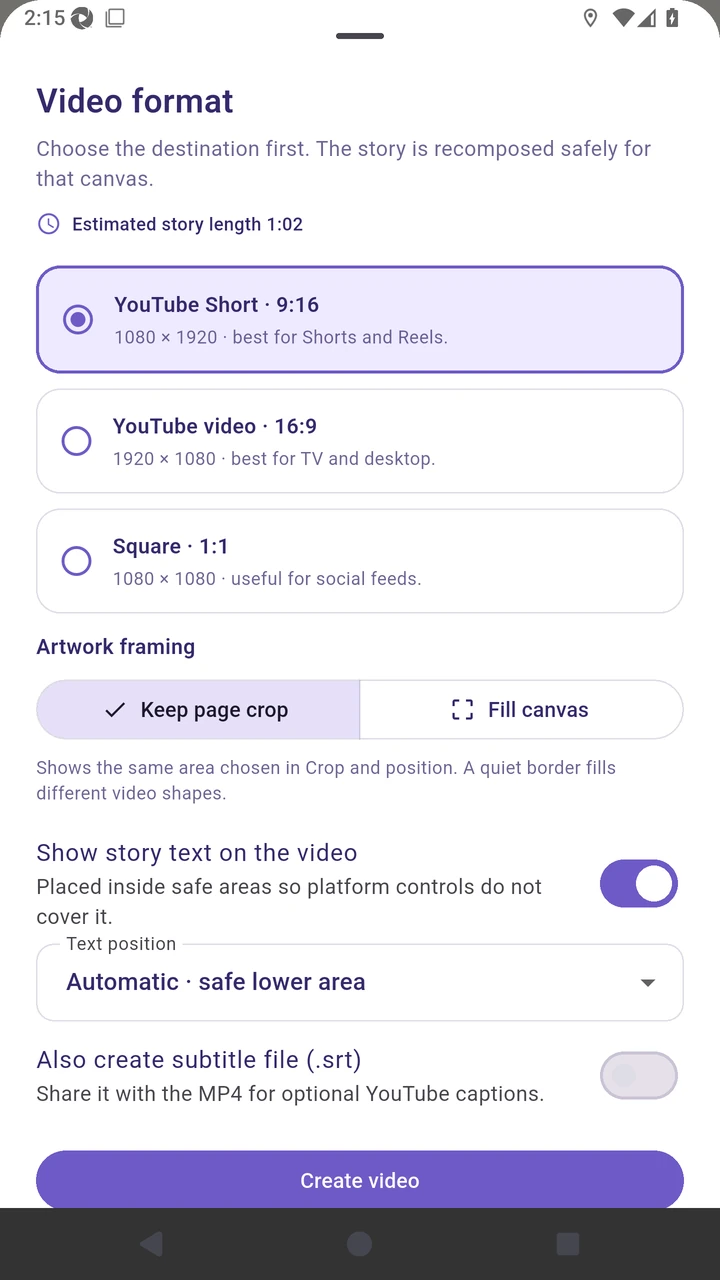
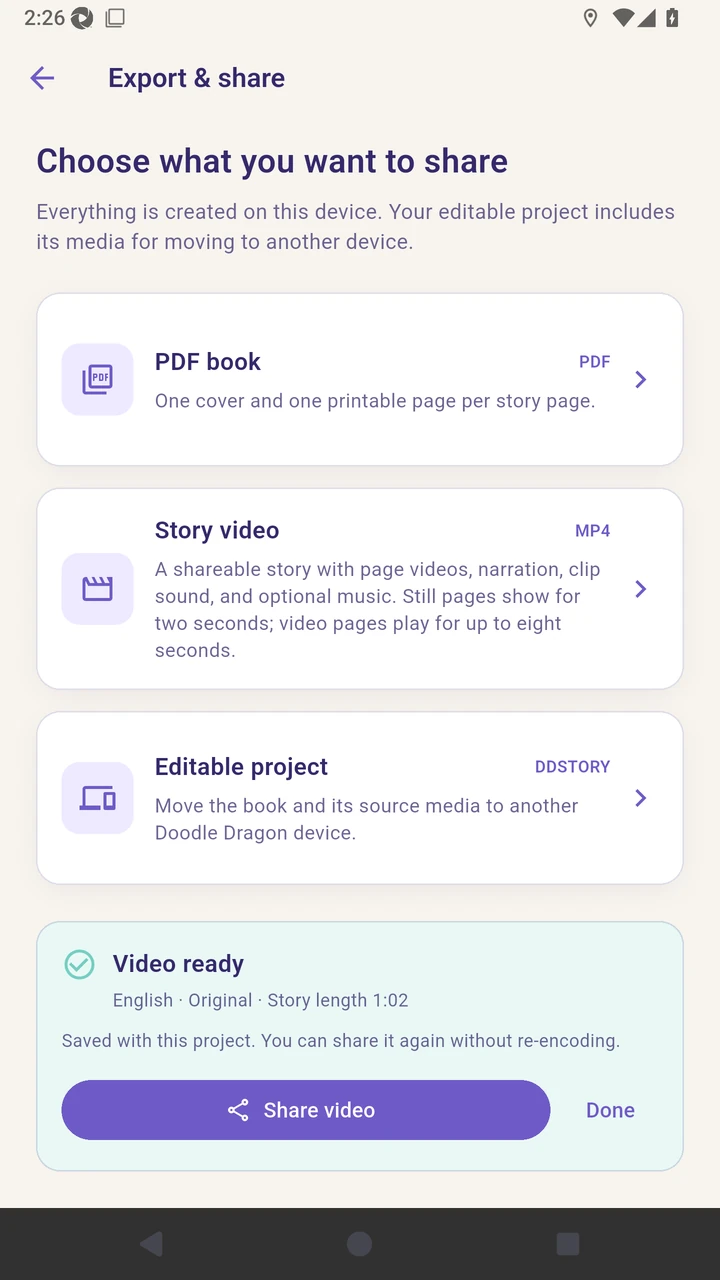
Result. A validated vertical Motion story MP4 is ready to share without an SRT file.
Read the narration transcript
Play a generated page video inside the editor and close the preview. Open the story preview to inspect the cover and animated pages. Open Export and share, then choose Story video. Choose a vertical video and review artwork framing and story-text controls. Turn the subtitle-file option off before creating the video. Wait for the MP4 to finish and validate that the video is ready without subtitles.