Studio Motion tutorial · Chapter 6 of 12
Run and resume background movie generation
Start a durable movie job, keep editing, resume a partial result, and open the completed project.
Studio Motion Studio Motion only
Before you start
- Configure the complete movie.
Step by step
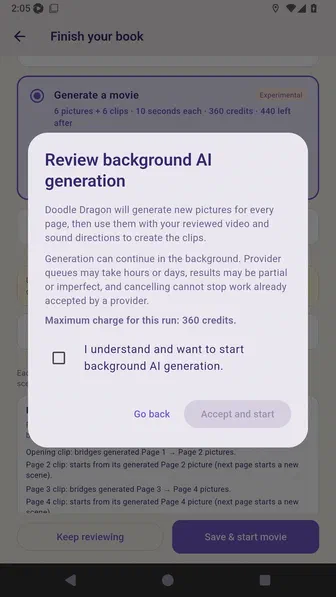
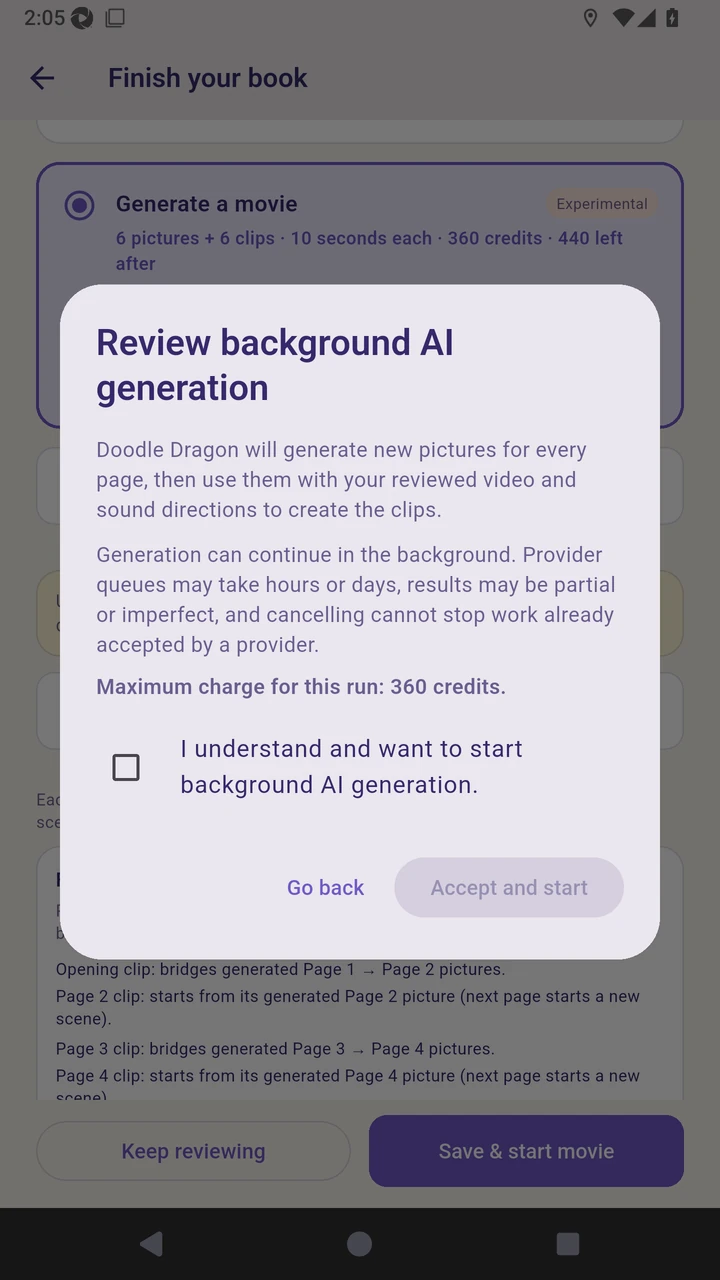
Review the background AI disclosure before starting the movie.
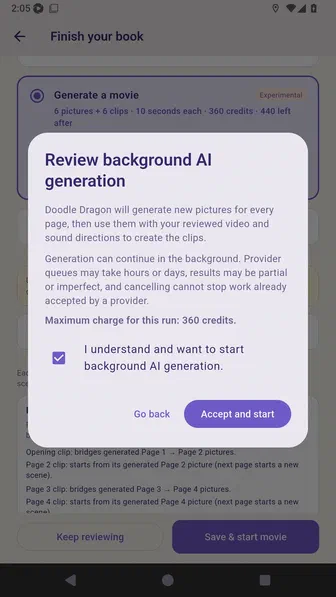
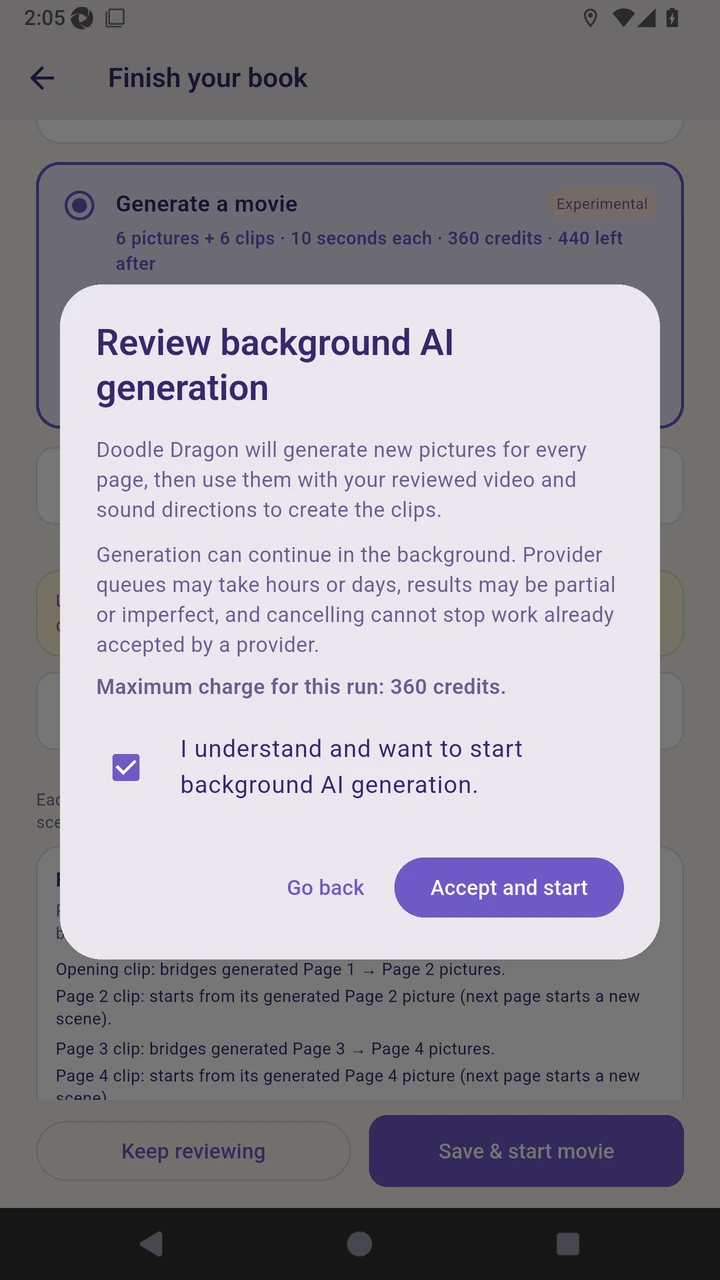
Accept the disclosure and start background generation.
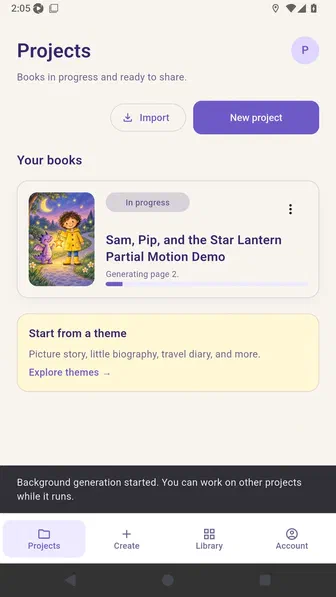
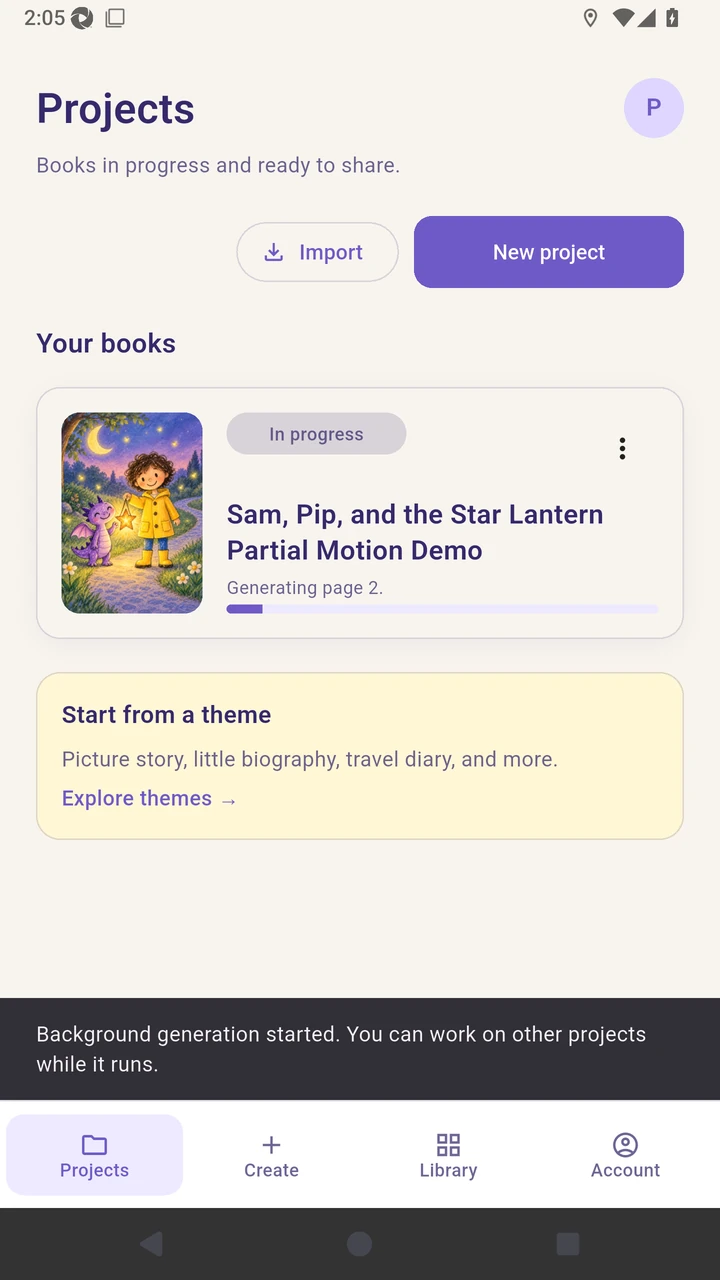
The Projects screen shows that the movie continues in the background.
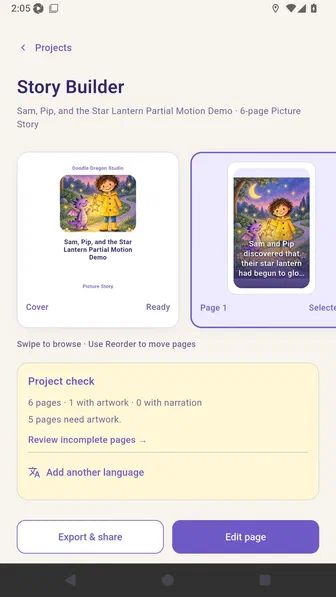
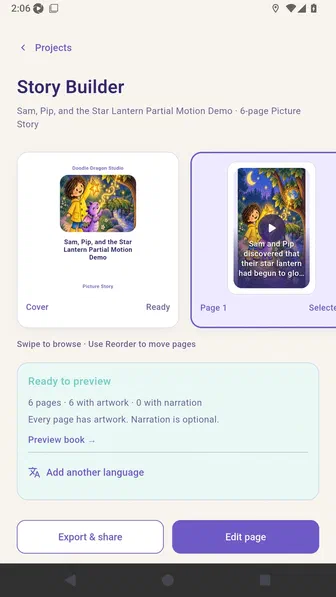
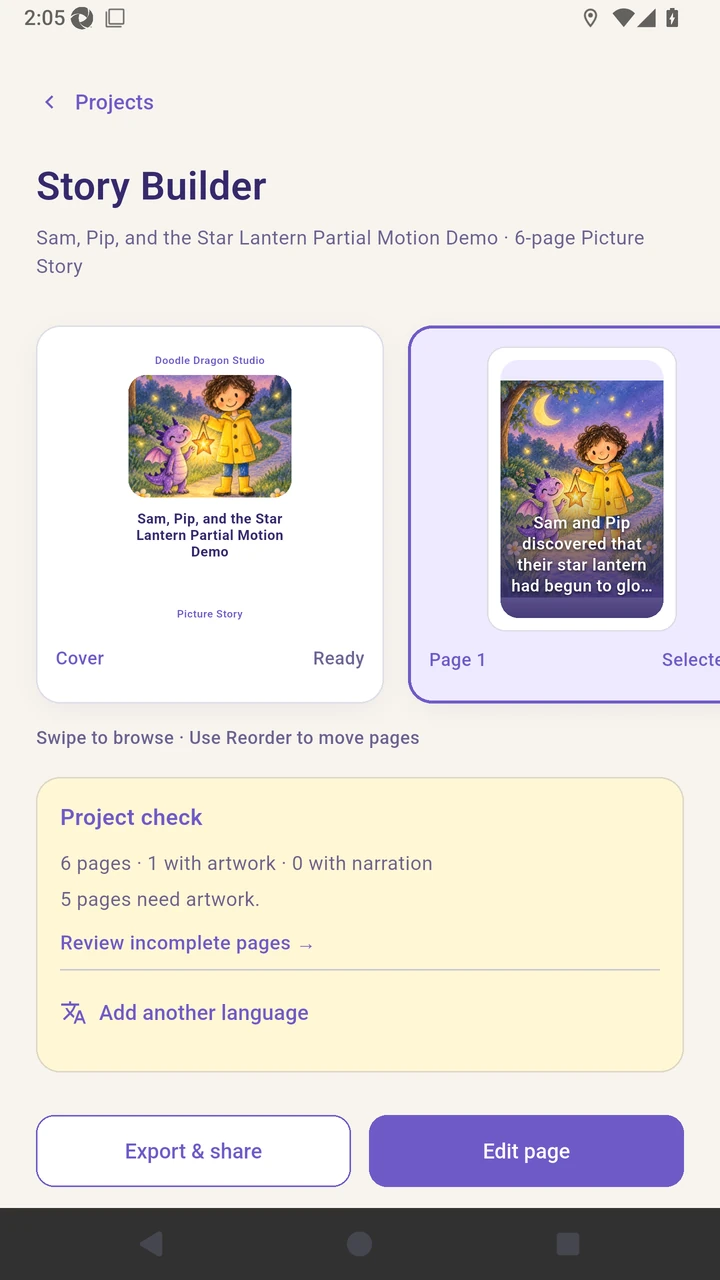
Open the project to confirm that the story remains readable and editable during generation.
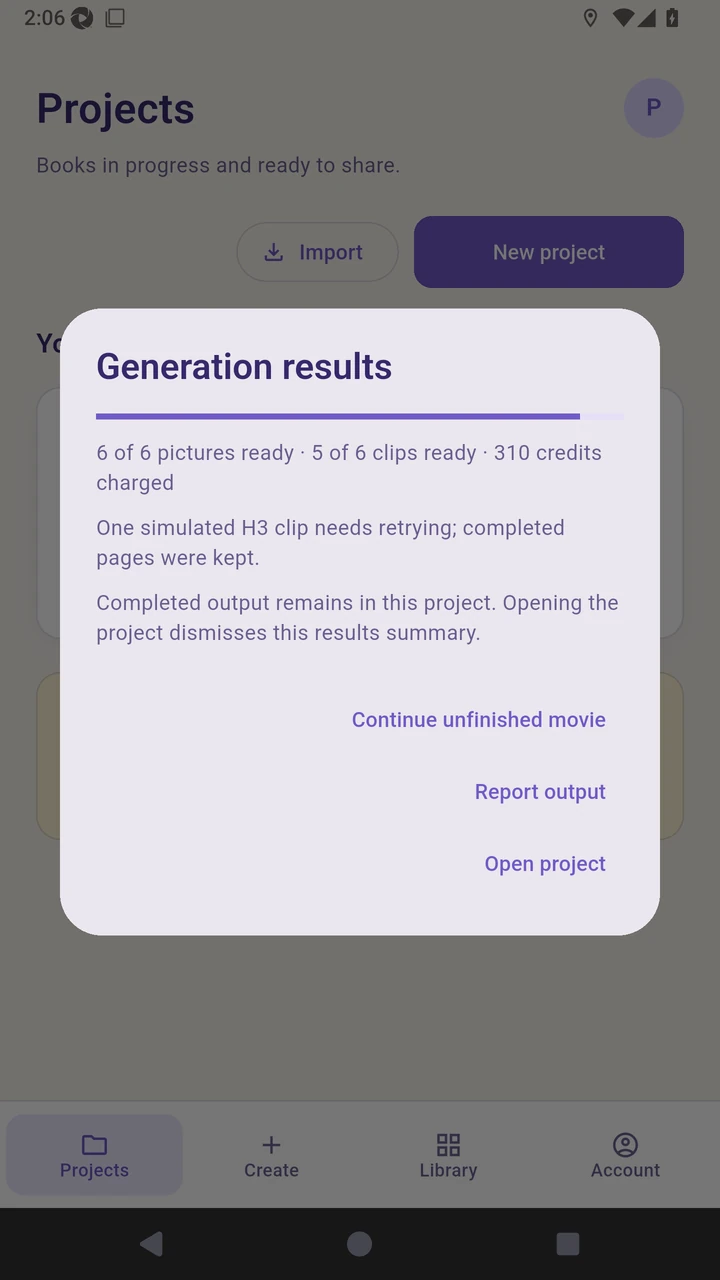
Review the partial result, where completed pictures and clips are preserved.
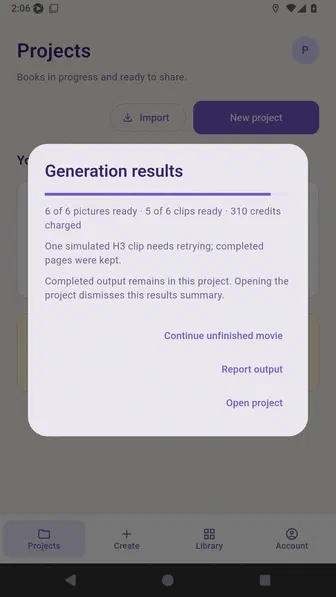
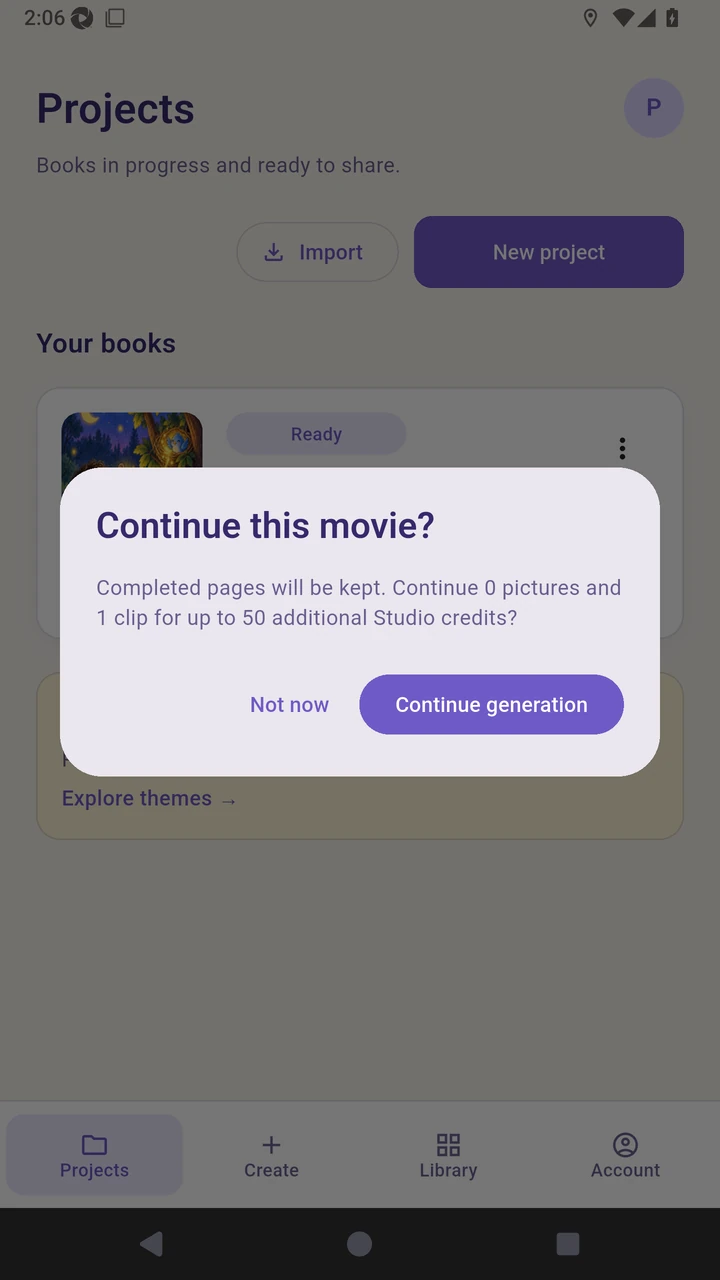
Choose Continue unfinished movie and confirm that finished pages will be kept.
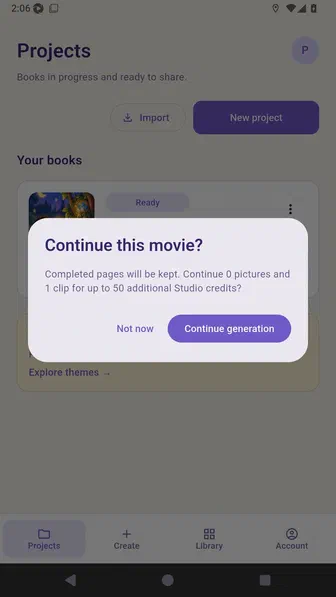
Choose Resume generation so completed pages stay untouched while the unfinished work continues.
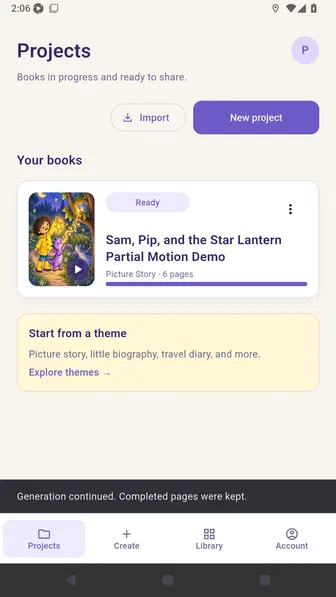
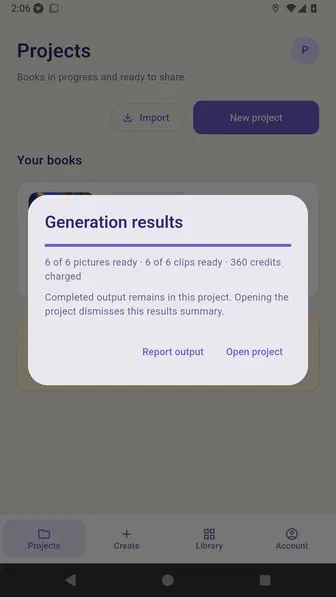
Open the final result after all six clips are ready.
Story Builder shows the completed video on each page.
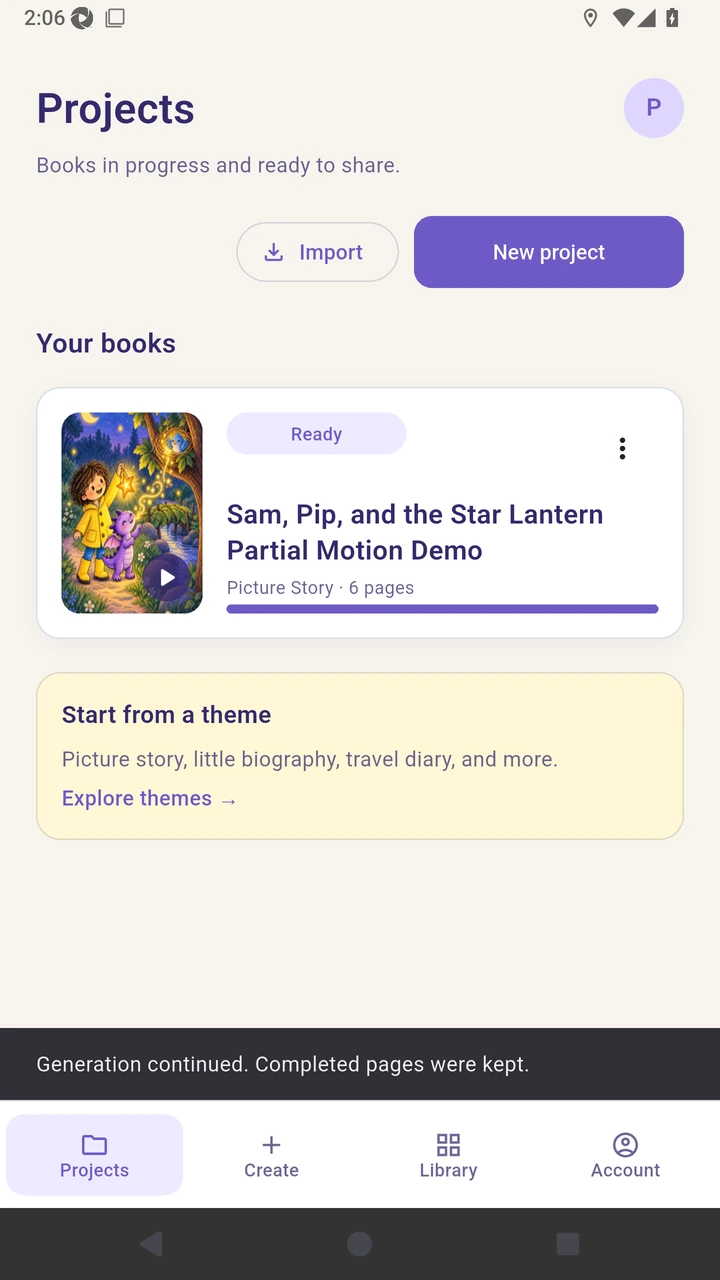
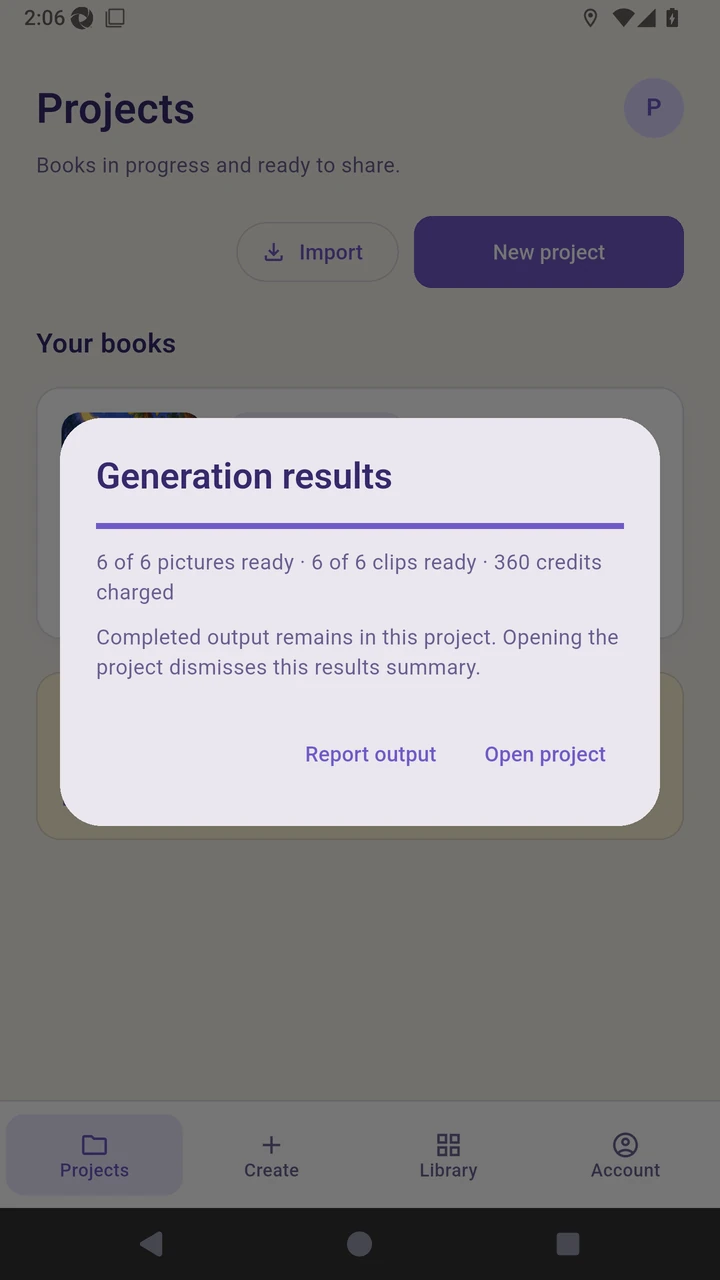
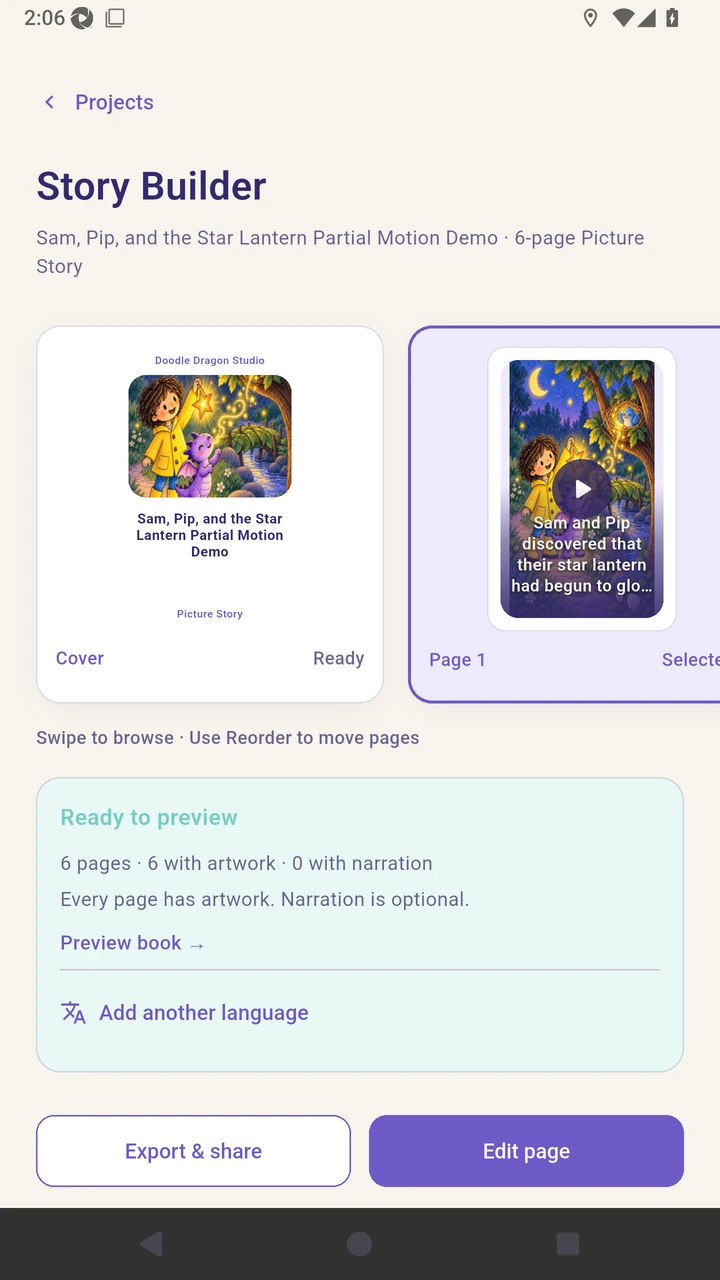
Result. All six generated clips are attached to their story pages.
Read the narration transcript
Review the background AI disclosure before starting the movie. Accept the disclosure and start background generation. The Projects screen shows that the movie continues in the background. Open the project to confirm that the story remains readable and editable during generation. Review the partial result, where completed pictures and clips are preserved. Choose Continue unfinished movie and confirm that finished pages will be kept. Choose Resume generation so completed pages stay untouched while the unfinished work continues. Open the final result after all six clips are ready. Story Builder shows the completed video on each page.