Studio Plus tutorial · Chapter 3 of 11
Start an AI-planned project
Choose a theme and layout, then provide a title and short story premise.
Studio Plus Studio Plus and Studio Motion
Before you start
- Studio Plus is active.
Step by step
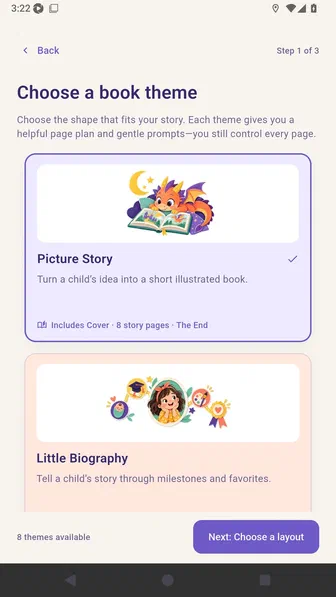
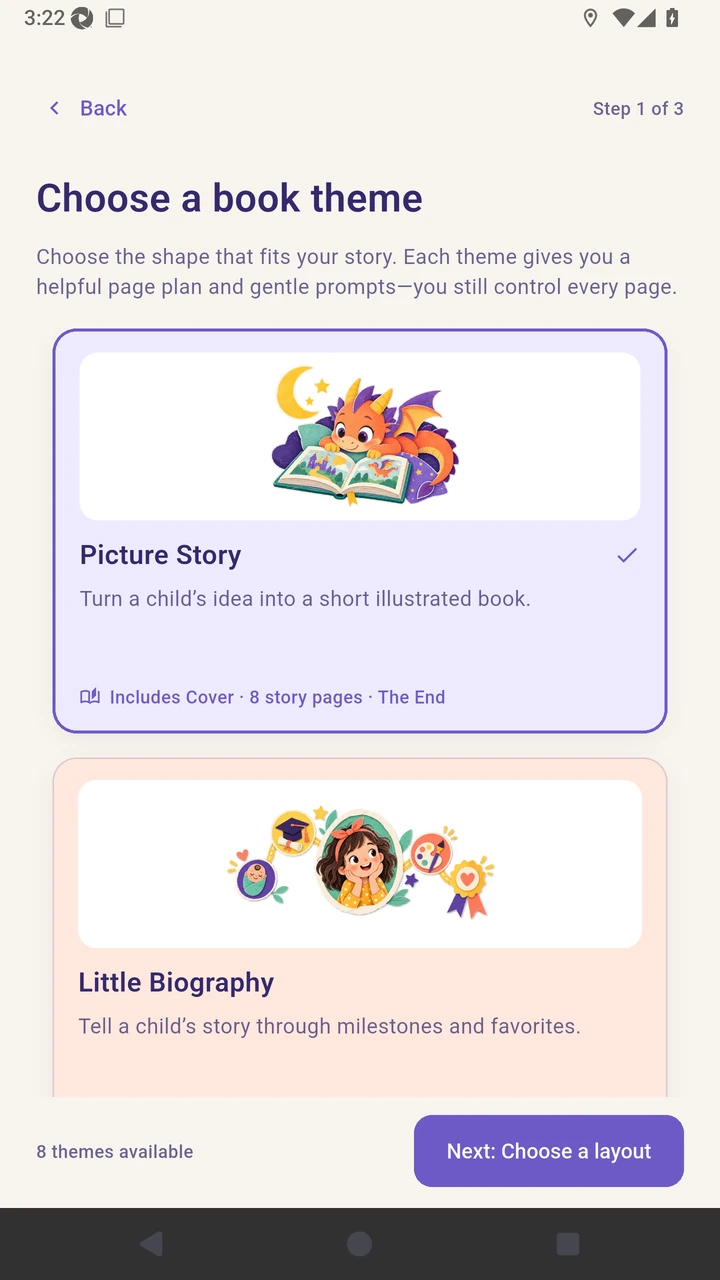
Choose Create your first book, then select Picture Story.
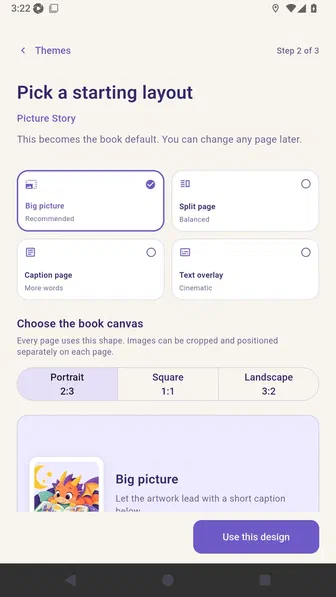
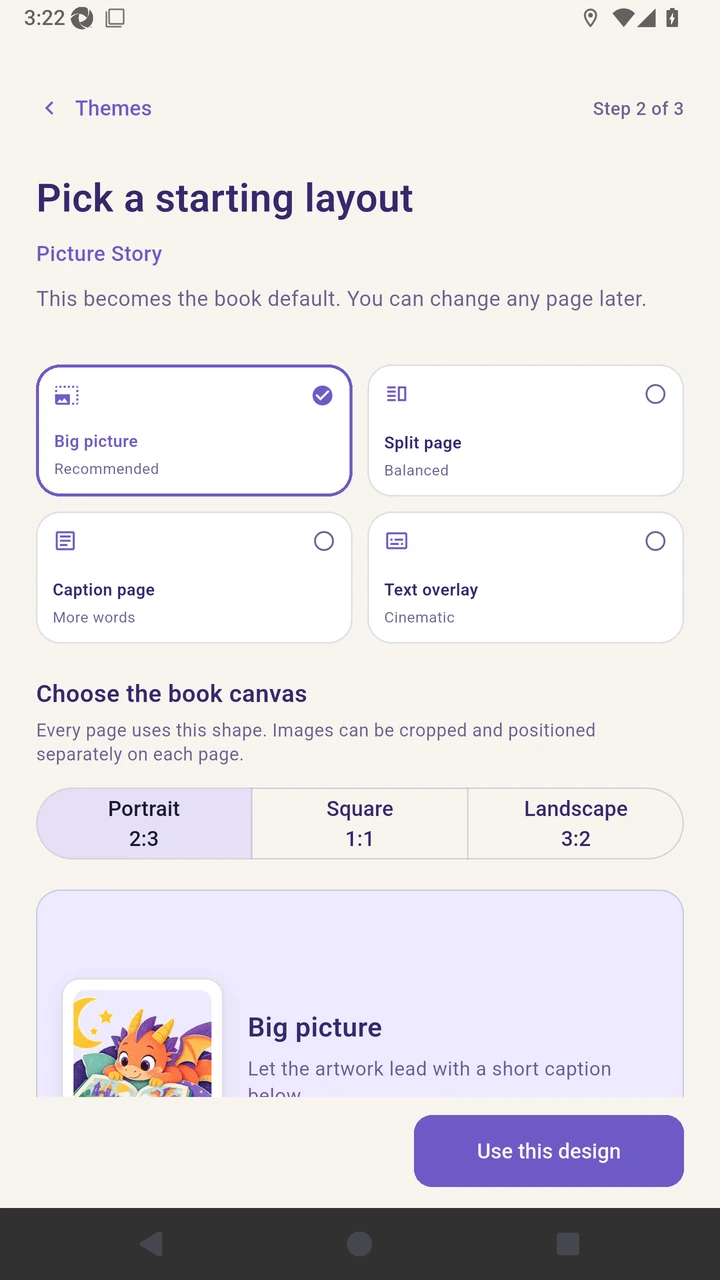
Choose Big picture as the starting page layout.
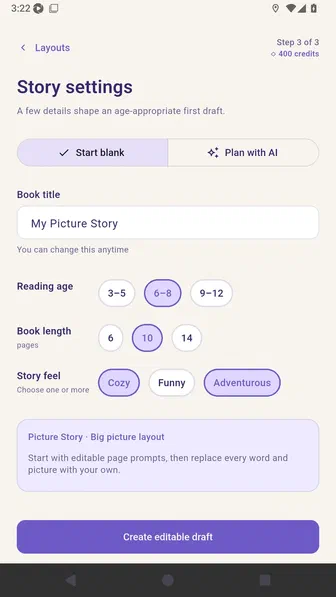
Story settings opens on Start blank, which creates an editable draft without AI planning.
Switch to the Plan with AI tab to add a premise and generate an editable page plan.
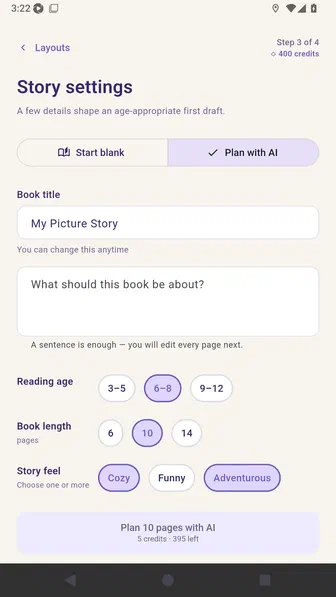
Enter the book title and story premise.
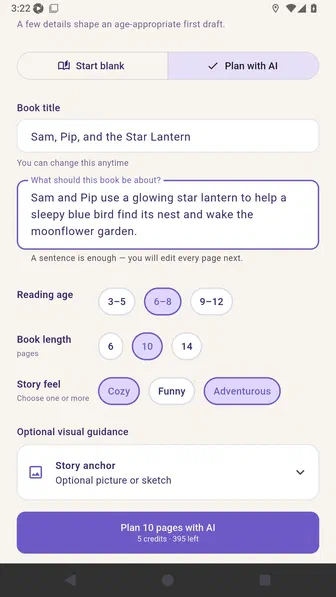
Choose the reading age, six pages, and a cozy story feel.
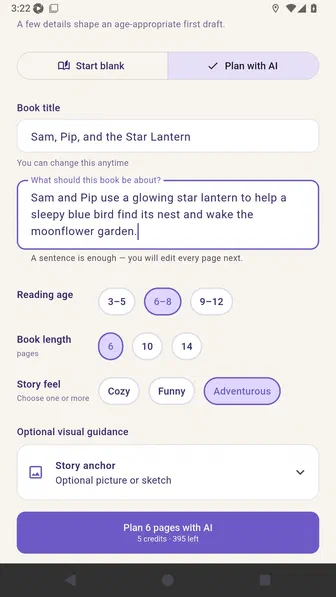
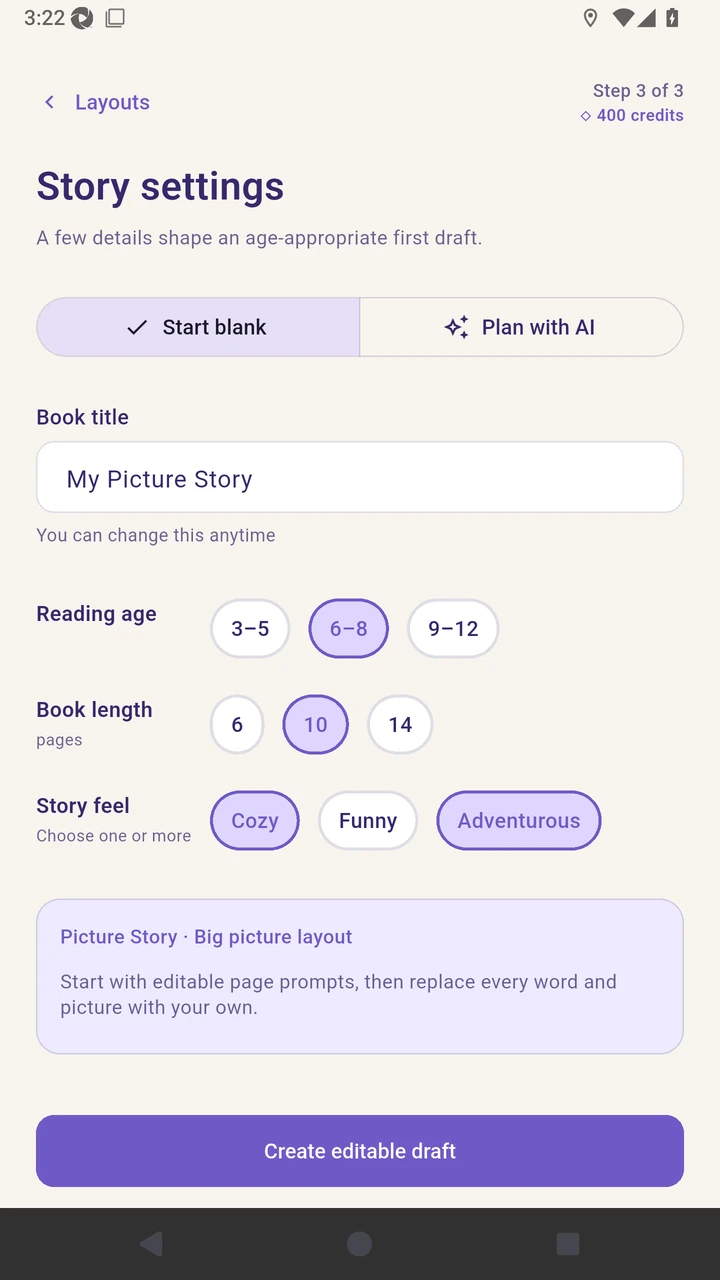
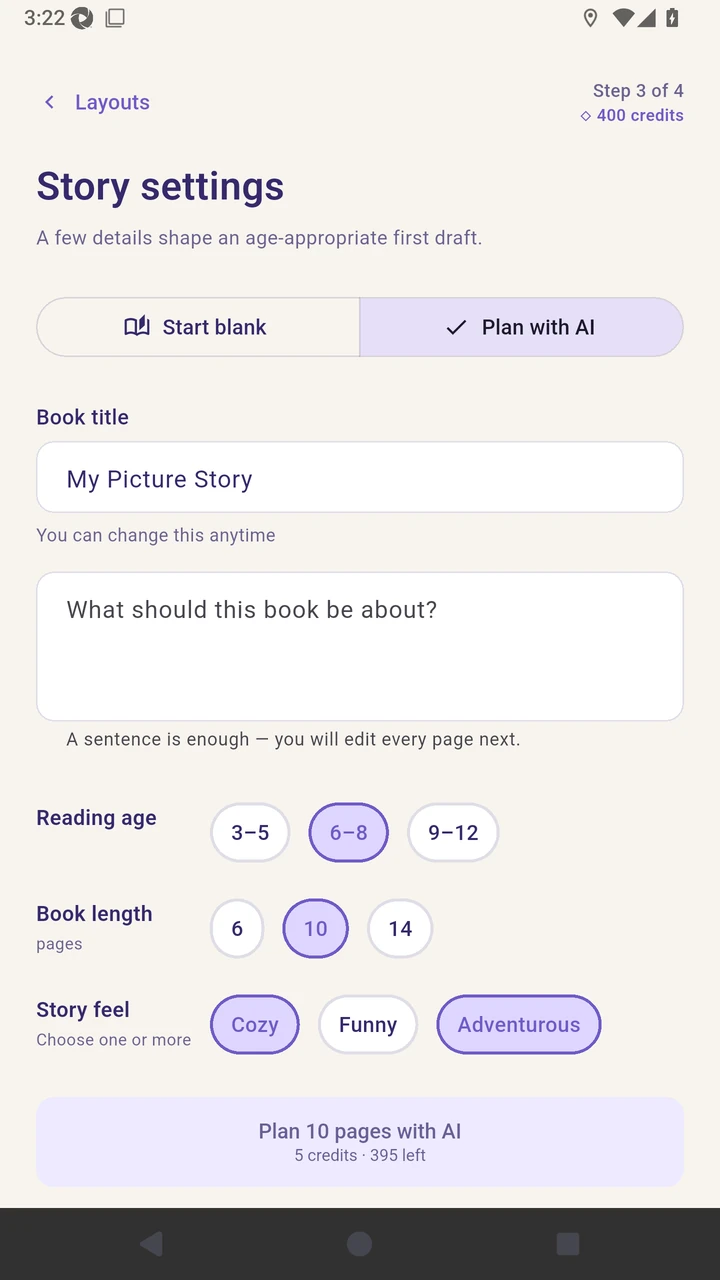
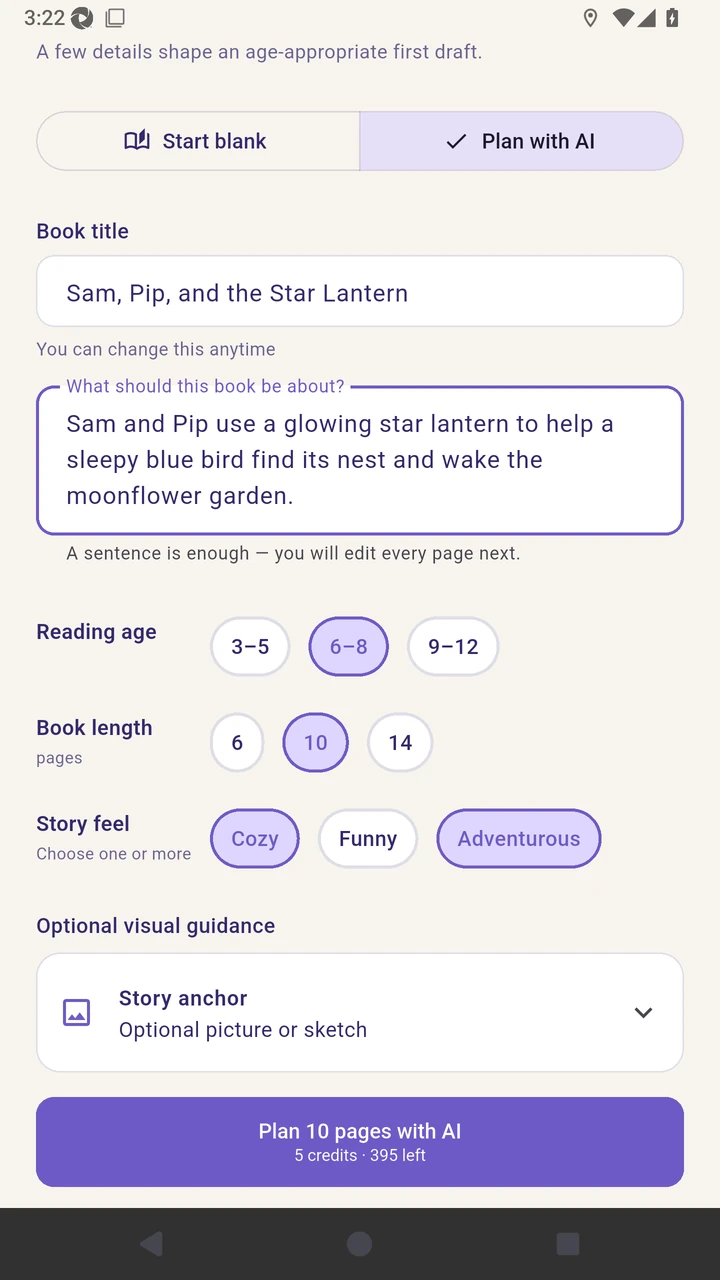
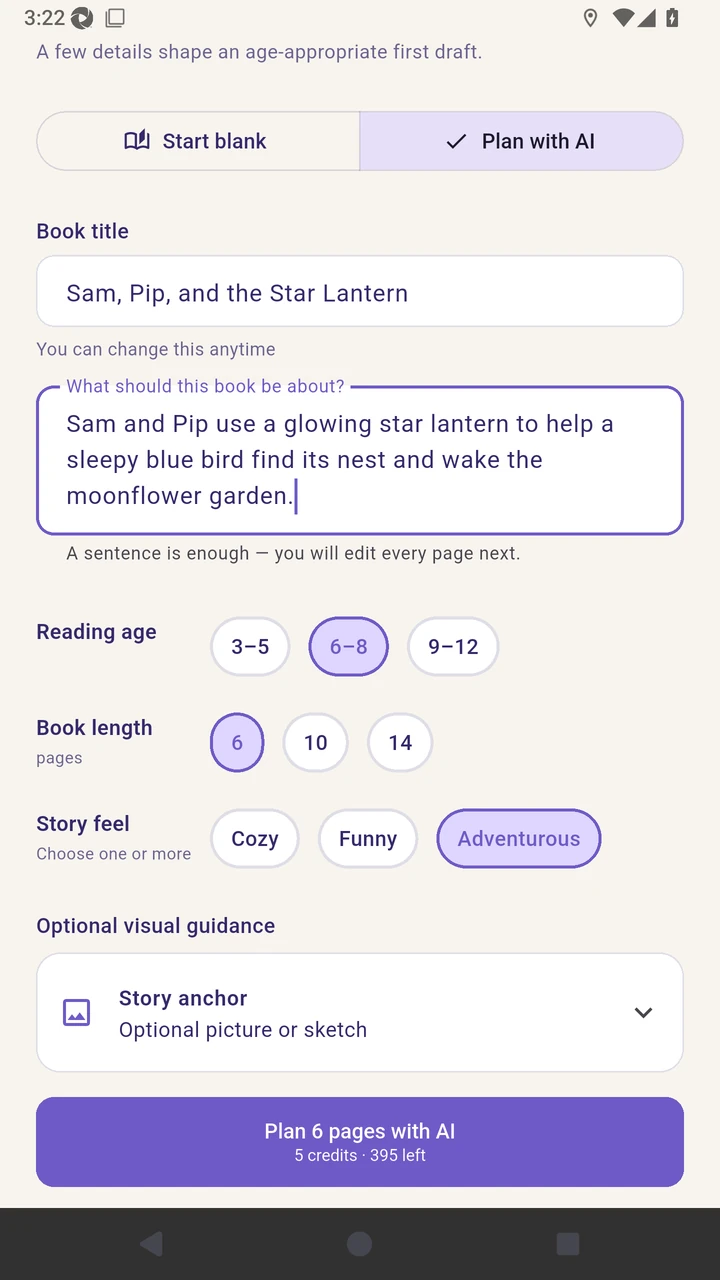
Result. Story settings contain the title, premise, reading age, page count, and story feel.
Read the narration transcript
Choose Create your first book, then select Picture Story. Choose Big picture as the starting layout. Story settings opens on Start blank, which creates an editable draft without AI planning. Switch to the Plan with AI tab to add a premise and generate an editable page plan. Enter the book title and story premise. Choose the reading age, six pages, and a cozy feel.